ZDNET’s key takeaways
- Microsoft is talking about speed and memory improvements in Windows 11.
- The improvements are geared for PCs with only 8GB of RAM.
- To see this in action, update your PC to the latest Windows 11 26H2 build.
The more memory your Windows PC has, the faster it should run, especially when you’re juggling multiple apps, files, and other data. My laptop has 32GB of RAM, while my desktop has a whopping 64GB, and both are absolutely zippy. Does this mean that computers with only 8GB of memory, or even less, are also included? No, not according to Microsoft.
Also: How much RAM does your PC really need?
In a new blog post published Tuesday, Microsoft highlighted the gains in speed, performance and memory management in Windows 11 achieved through the latest updates. These especially affect PCs with just 8GB of RAM, which now run more apps and files faster and more efficiently than before.
To achieve this goal, the company said it has three terms in mind.
The first was to make better use of the existing memory on each Windows 11 PC. The second was to protect the tasks that need to feel immediate, even if more memory is used. And the third was to ensure that key apps in Windows require less memory. Yes, a computer with 16GB, 32GB or 64GB RAM can better handle more intensive activities. But Microsoft wanted to ensure that systems with 8GB could also keep up.
Better use of existing memory
As more memory is allocated, Windows must move inactive apps and files from RAM to the hard drive. If you need to access those apps and files again, you have to wait for Windows to move them from disk storage back to RAM. Usually, PCs with less memory have to do a lot of this disk swapping.
One way for Windows to ease the pain of this process is through compression. Here, the operating system shrinks less active data into a smaller format so that it remains in memory. Although Windows has used compression for many years, Microsoft has fine-tuned the technology to determine how much to compress, when to move data from RAM to your drive and when to move it back, especially on PCs with 8GB of memory.
Also: 5 apps I always install on new Windows PCs – most of them are free
As such, Windows can now keep up to 2GB more of your active data in memory instead of moving it to storage, Microsoft said. An inactive app, file, or browser that you leave open is less likely to reload from your hard drive when you come back to it.
Protect the tasks that need to feel immediate
Opening the Start menu, launching File Explorer, clicking on a folder or file, and searching for an item are all tasks that need to feel immediate; otherwise, Windows itself feels slow. To accomplish this on PCs with less RAM, Windows tries to prioritize certain actions you need to take while handing back background tasks like search indexing, Microsoft said.
Here is one example. After you update and restart your computer, Windows has some housekeeping to do. But any setup work that happens shouldn’t affect how long it takes to open an app or file.
Also: How to upgrade your ‘incompatible’ Windows 10 PC to Windows 11 – free of charge
The latest version of Windows 11 speeds up these types of tasks and interactions by up to 20% compared to the January 2026 version, according to Microsoft.
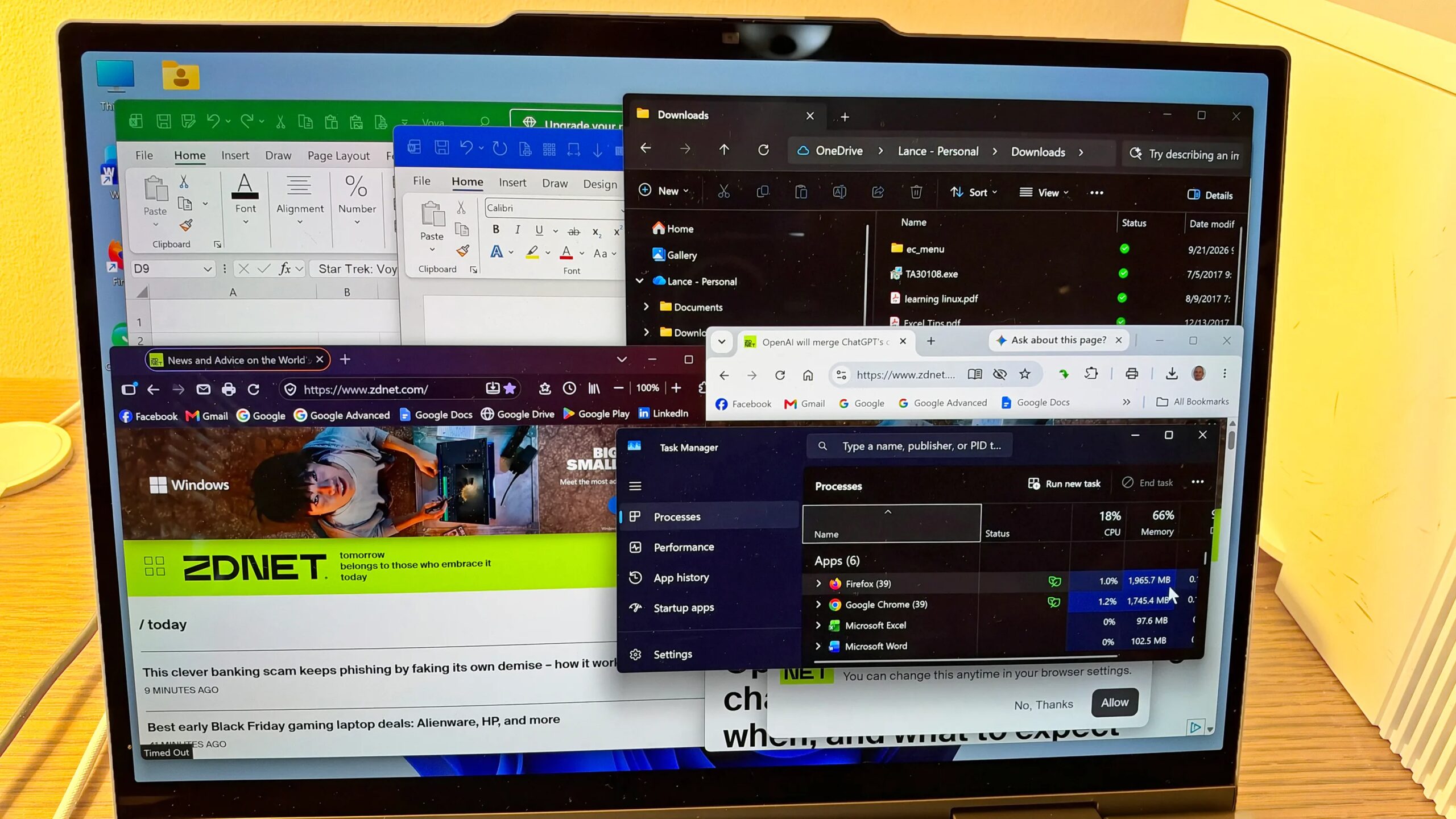
However, multitasking puts the greatest strain on a PC with only 8GB of RAM. To analyze this, Microsoft said it conducted two tests on the same PC with 8GB of memory. One test measured the current version of Windows 11, while the other measured the January 2026 flavor. Here, testers opened 20 tabs in Microsoft Edge, shot a 4K video, and launched large files in Word, PowerPoint, and Excel, one after the other. The current version of Windows is up to 40% faster than its predecessor, the company said.
Make sure key apps require less memory
To reduce the need for RAM under Windows in certain key apps, Microsoft said it has improved how memory is managed and when it is used.
As an example, memory is allocated more efficiently to Word, PowerPoint, Excel and Outlook, resulting in a 360 MB saving in RAM. This maneuver also extends to third-party apps like WhatsApp, which has reduced its memory requirements.
Also: 11 Windows apps I replace on every new PC (and keep)
On PCs with 8GB of memory, the Widgets app only loads when you open it and frees up about 200 MB of RAM when you close it. In Microsoft Edge, inactive tabs now go to sleep after 15 minutes, down from two hours previously, reducing overall memory allocation.
Across Windows, Microsoft 365, and Edge, these improvements have reduced the growth of required memory by up to 900 MB, Microsoft said.
How does Microsoft test these scenarios to see if the latest Windows updates and fixes help PCs with less memory?
“We are testing these fixes across a wider collection of over 20,000 PCs in our labs, including current 8 GB models, with automated workloads based on activities such as browsing, working in Microsoft 365 apps, joining video calls, downloading files in the background and even using high-speed cameras to measure the time of an action, such as
Also: Why Your RAM Options Now Cost 4X More Than Last Year
The ability to use Windows without a lot of RAM on your PC is critical these days in light of the “RAMageddon” crisis. With AI companies picking up massive amounts of memory and flash memory chips, the remaining supply is limited, and prices have soared. The more memory you add to a new or existing PC, the more you’ll pay. That has always been true, but now more than ever.
Of course, memory is only one part of the picture. Your PC processor and other hardware also play an important role. Here, Microsoft found that a 2026 Dell XPS 13 with 8GB RAM has 94% faster multi-core CPU performance than a 2021 8 GB model. But the same 2026 8GB PC performed in comparison to a 2021 16 GB system. This shows that memory is important for multitasking, but that the processor also affects performance.
Whether your Windows 11 PC has 8GB of RAM, less or more, how can you take advantage of the latest improvements? That’s why you want to make sure you’ve updated to the latest version of Windows. That would be Windows 11 26H2, build 26300.9818 or later, according to Microsoft. But that includes the latest optional preview build, which was released in late October. If you don’t want to install that, you’ll be fine with build 26300.9711 for now.
Also: The Best Laptops: Expertly Tested and Reviewed
To check, go to Settings, select System, and then click About. The Windows Info section shows the current version and build. If you need to update, stay in Settings and go to Windows Update. Assuming your PC is qualified, you should find the latest Windows 11 26H2 build ready to install.
In addition to updating Windows, you’ll also want to keep your apps up to date. If you use Microsoft 365, open any app in the suite, click the File menu, select Account, click Update Options, then select Update Now.
With most other apps, you have to update them manually or individually. To simplify the process, consider a good software updater program. These will automatically scan most of your installed applications to identify which ones need updating, then download and install the updates for you.