- Click ‘Browse’ on the website and select the shaky video on your device that you want to stabilize.
- Once you select the shaky video you want to stabilize, swipe through the multiples and tap ‘Stabilizer’.
- If you also shoot a lot of videos on the go with your smartphone, they can sometimes come out shaky.
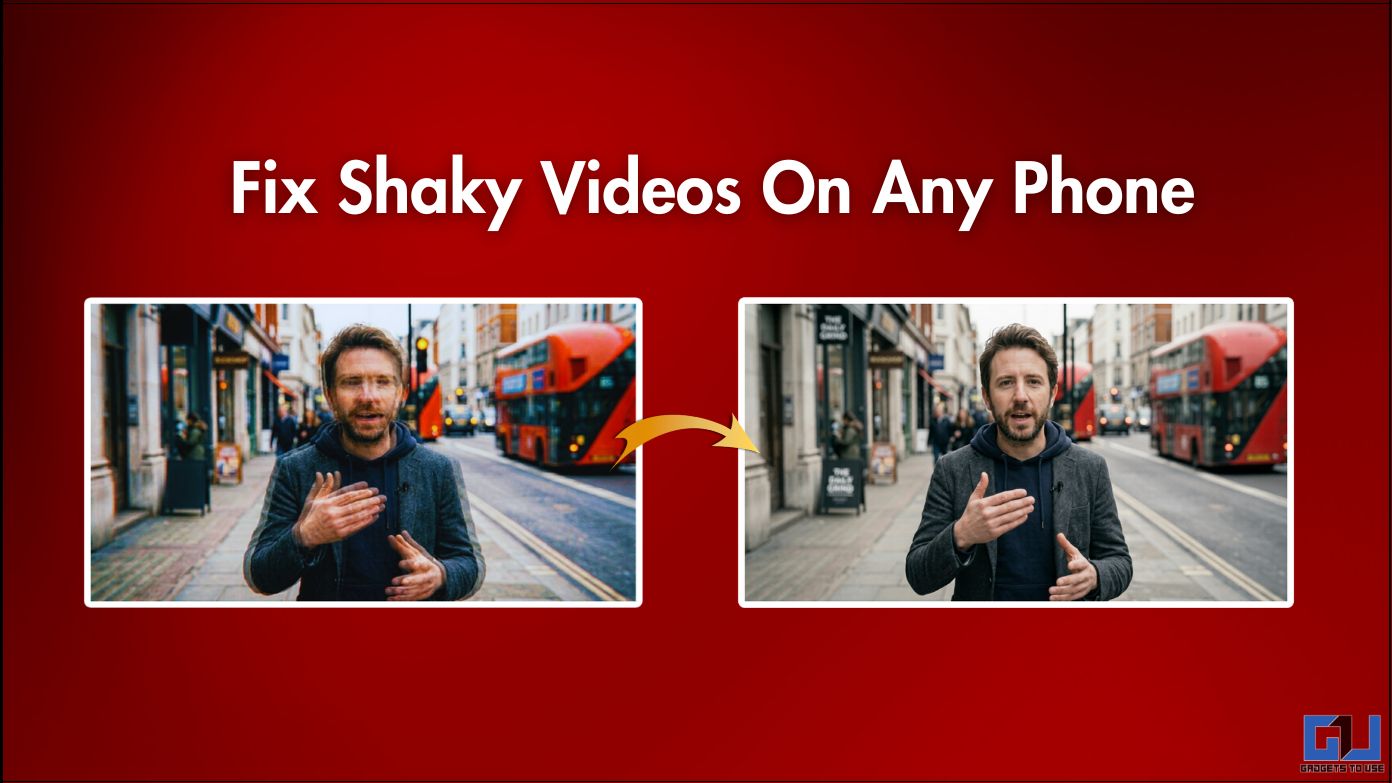
Shaky footage can ruin the video viewing experience, even if the visuals are great. It immediately throws the viewer off and has a disorienting effect. A normal smartphone footage can come out shaky, even if they have OIS or EIS. In addition, a gimbal, tripod or other similar equipment may not be accessible to everyone. This doesn’t mean that your phone’s shaky footage can’t be fixed. We have tested 3 ways that you can use to fix the shaky footage of your phone on your phone itself.
Fix shaky videos on any phone
Because we fix the shaky footage on your smartphone, we use apps like Google Photos, InShot and also an online tool like Stabilizo.
Google photos
The Google Photos app comes pre-installed on almost all Android smartphones and is also available on iOS. It has introduced many built-in AI features. So many smartphone brands have started using Google Photos as their primary media manager instead of a dedicated gallery app. One of these features is the “Stabilize” feature.
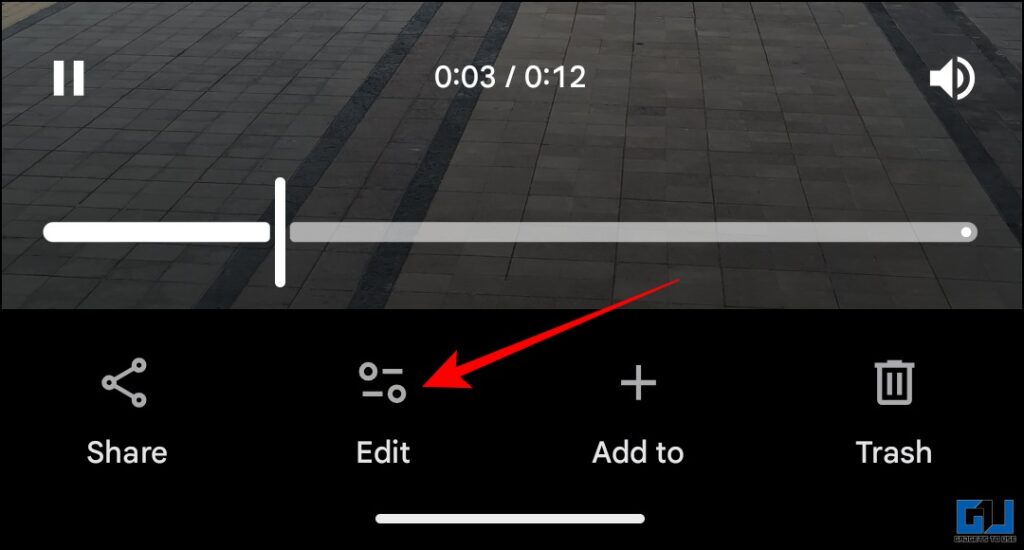
1. Open the shaky video you want to stabilize in the Google Photos app. Tap ‘Edit’.
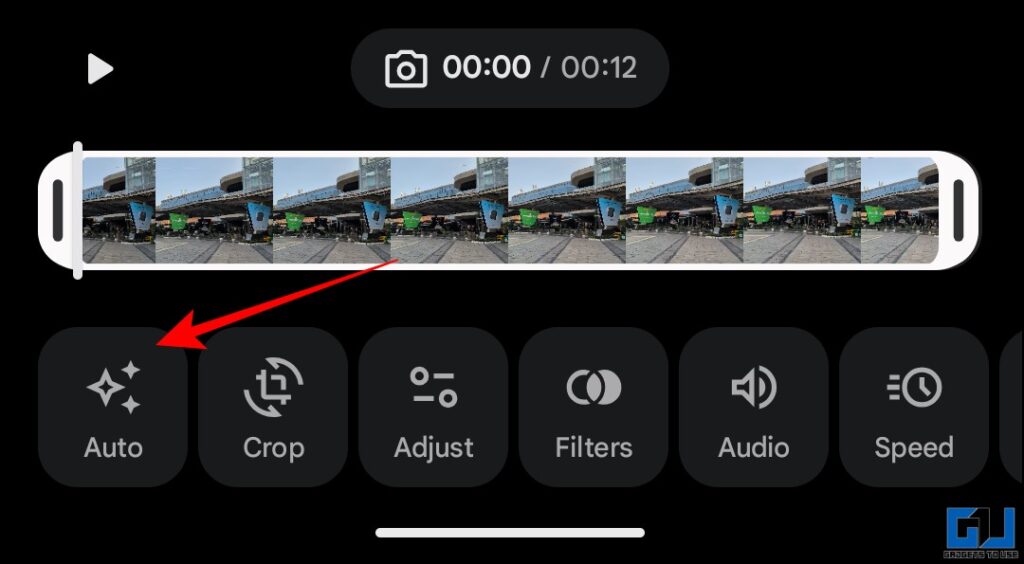
2. Now, in the edit options below, tap on ‘Auto’.
3. Here, tap on ‘Stabilize’.
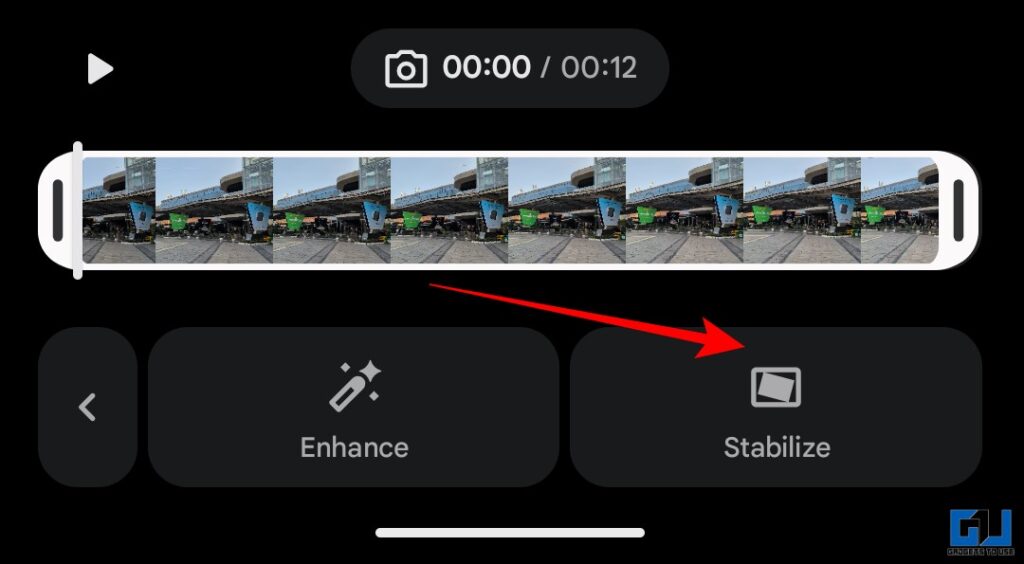
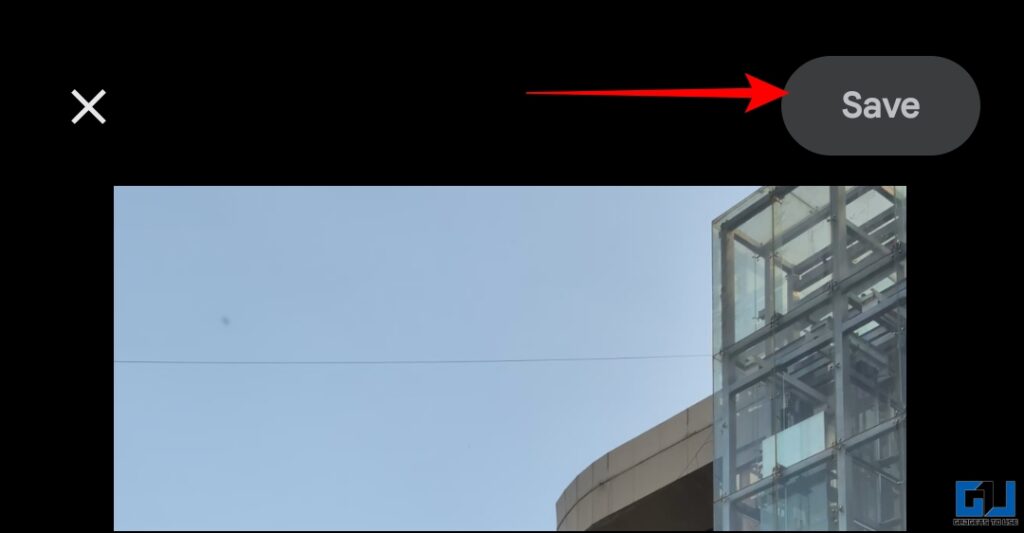
4. After some processing, the video is stabilized. Now just click ‘Save’ and the stabilized video will be saved as a new file.
InShot
If you want more control and stability options, you can use the InShot app. This is a well-known mobile video editing app with tons of options. One of those is the stabilizer tool.
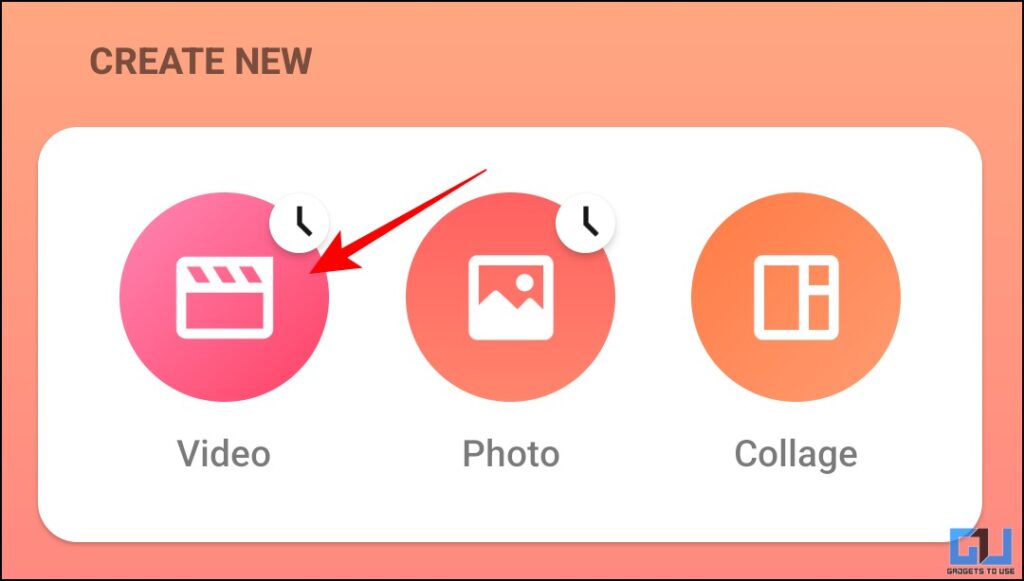
1. Open the InShot app and under ‘create new’ tap ‘video’.
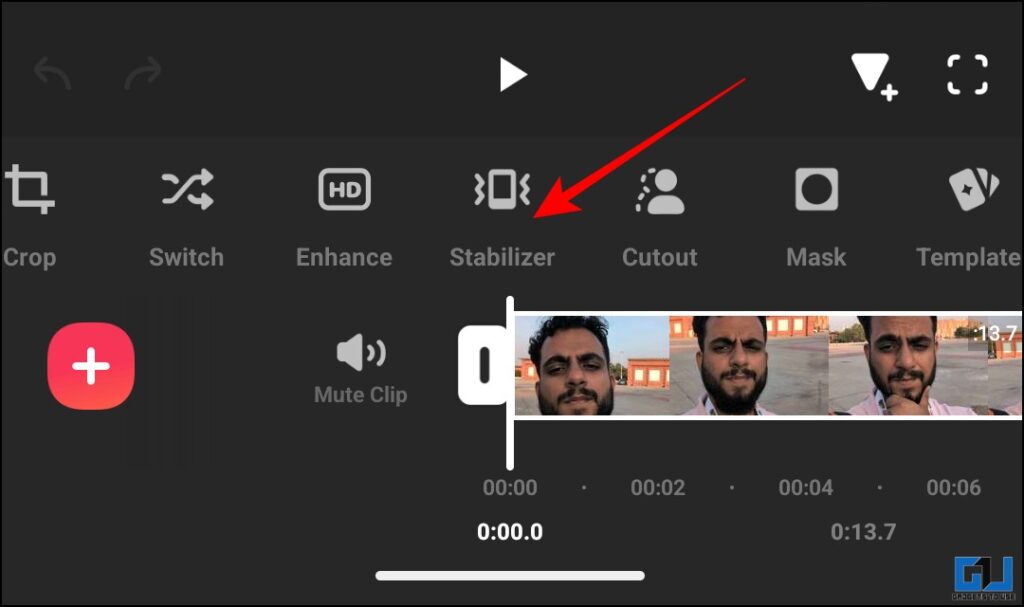
2. Once you select the shaky video you want to stabilize, swipe through the multiples and tap ‘Stabilizer’.
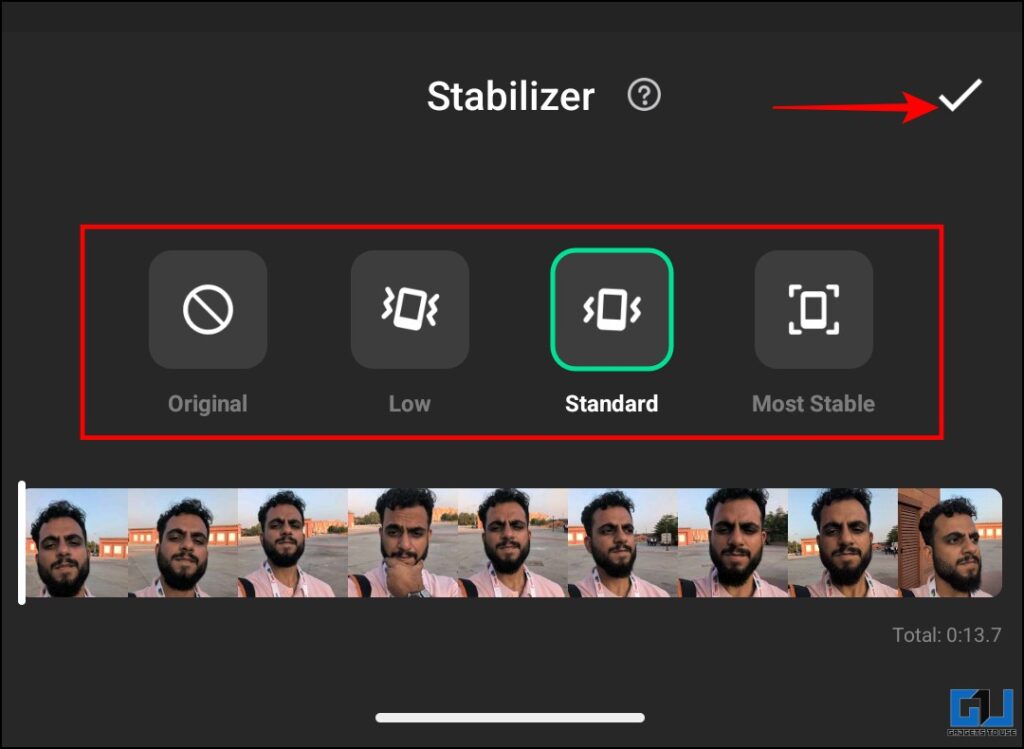
3. Here you get three stabilization levels to choose from. See what works for you and then hit the tick.
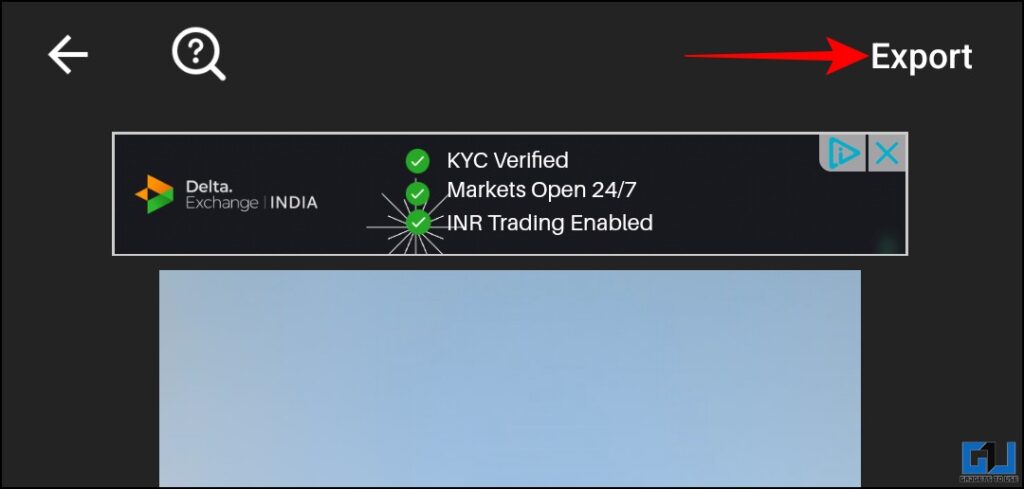
4. Now, just export the video in your desired quality from the upper right corner. Also, you can remove the watermark if you want. Just put the cross on the watermark and see the full ad. Post that the watermark will be removed.
Stabilize
If you don’t want to download an app, you can just go to Stabilizo. This is an online tool that you can use to stabilize your videos.
1. Click ‘Browse’ on the website and select the shaky video on your device that you want to stabilize. Then click ‘Upload’.
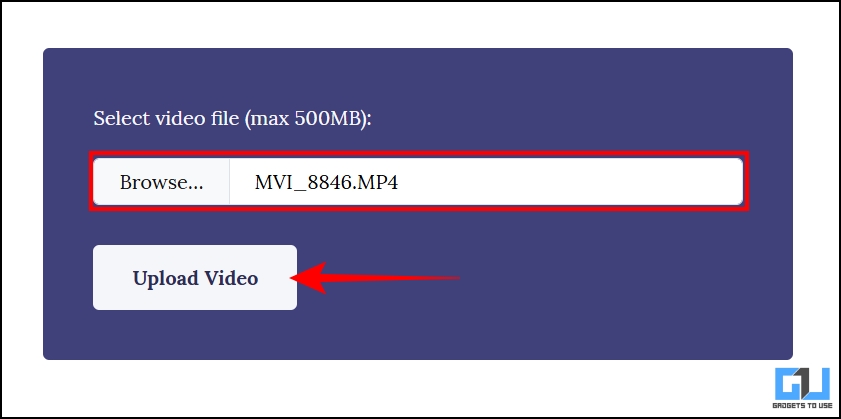
2. The video is being uploaded. Once the video is processed, you can download the video.

Although there are not many control options, the video is somewhat stabilized. Also remember that the maximum file size can be up to 500 MB.
Apart from these methods, try to use these measures while shooting to ensure some stable footage:
- Shoot in 60fps or higher if your phone supports it
- Hold the phone with both hands and keep your elbows close to your body while shooting the video
- A tripod may not be available everywhere, so try to take support from any nearby object
- When taking a tracking shot, get on your toes and keep your pace slow
FAQs
Q. Why is my video slightly cut off after stabilization?
Cropping is unavoidable as the tools adjust the frame to counter the movement.
Q. Can these tools work on very shaky videos?
Extreme shake is almost impossible to fix. Also, the video starts to stutter and looks unnatural.
Terminate
If you also shoot a lot of videos on the go with your smartphone, they can sometimes come out shaky. This can ruin footage with otherwise good visuals. You can use the methods above and try to fix this footage. They may not work on all videos, depending on camera movement and the level of shake. You can also avoid shooting shaky footage next time by using some measures listed above.
You may also like to read:
Do you have questions related to our how-to guides, or anything in the world of technology? Check us out GadgetsToUse AI Chatbot free, powered by ChatGPT.
You can also follow us for instant tech news Google News or for tips and tricks, smartphones & gadgets reviews, join the GadgetsToUse Telegram Groupor subscribe to the GadgetsToUse Youtube Channel for the latest review videos.
⬇️ GadgetsToUse Site Search ⬇️
You can find everything on our website including tech how to, solution or reviews using the google site search box below.
Was this article helpful?
YesNo