Follow us
Add us as a preferred source on Google
I’ve spent the last 90 days testing every single feature, shortcut, and hidden setting that iOS 27 has to offer on my iPhone. Beyond the initial hype, the true test of any new software comes down to what actually improves your daily life once the novelty wears off.
From privacy-first security features to photo fixes and simple keyboard hacks, these are the five standout iOS 27 features.
1. Generative photo fixes with Reframe and Extend
This is a feature I’ve come to rely on so much, and it’s made all the difference when going through my camera roll. The Photos app includes two tools under the Apple Intelligence Edit menu that allow you to fix perspective long after you’ve taken the picture.
Select Reframe lets you touch and drag a photo to adjust its camera angle as if you physically moved before shooting. If an image is cropped too tightly, tap Extend and draws outwards to the borders asks the software to fill in the surrounding textures, lighting and colors, building new background detail to fill the frame.
2. The instant fast paste keyboard bar

While big features get all the press, the one tweak I use dozens of times a day is the new dedicated paste shortcut built right into the keyboard.
Instead of copying text, tapping on an empty field, and waiting for a pop-up menu, iOS 27 automatically displays a smart suggestion bar above the top row of your keyboard when an item is saved to your clipboard. The bar even shows a live preview thumbnail of copied text, URLs or photos before you click send, making copying and pasting easier.
3. Anti-scam protection
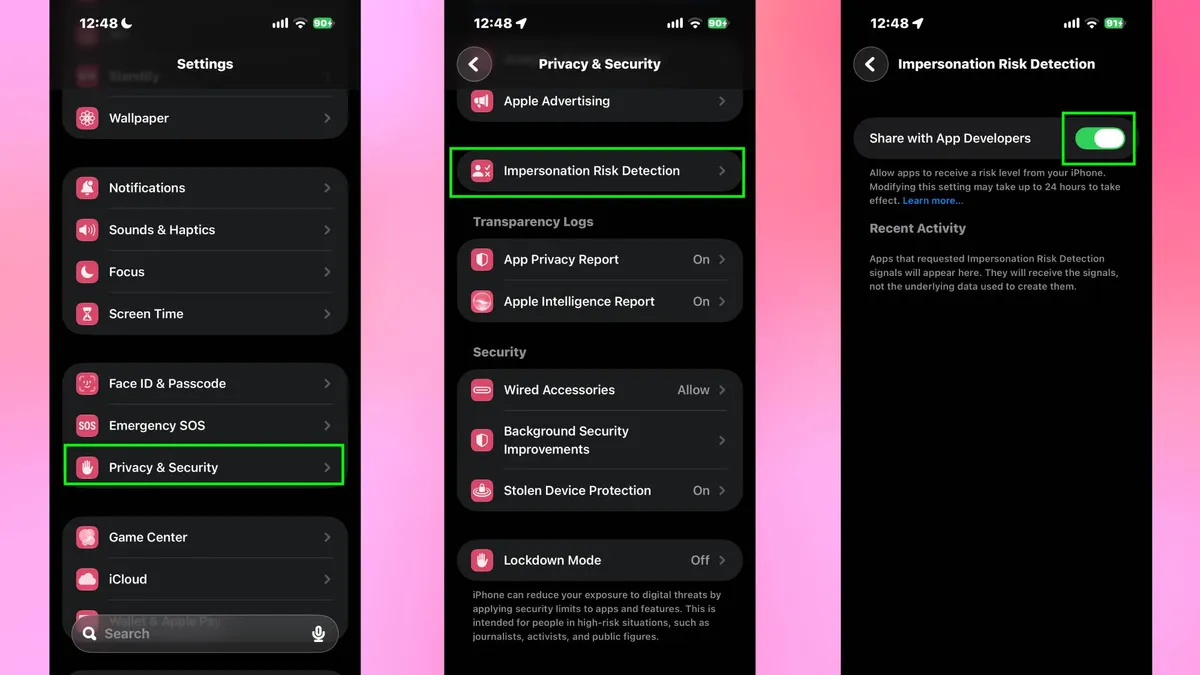
To combat social engineering scams, iOS 27 adds a built-in safety net called Impersonation Risk Detection. Operating entirely on your phone to protect your privacy, it checks behavioral patterns and sensor data when you attempt sensitive actions.
Apple never reads your private messages or emails; it simply calculates an on-device risk score so apps can display warnings or request extra verification before you give money.
Because it shares limited event signals with diagnostic servers, Apple leaves this feature off by default. You can turn it off under Settings, Privacy and Security, Impersonation Risk Detection, and Off.
Protection signals can take up to 24 hours to fully activate across supported apps, after which you can return to this menu to view a log of recent risk checks.
4. Video frame extraction
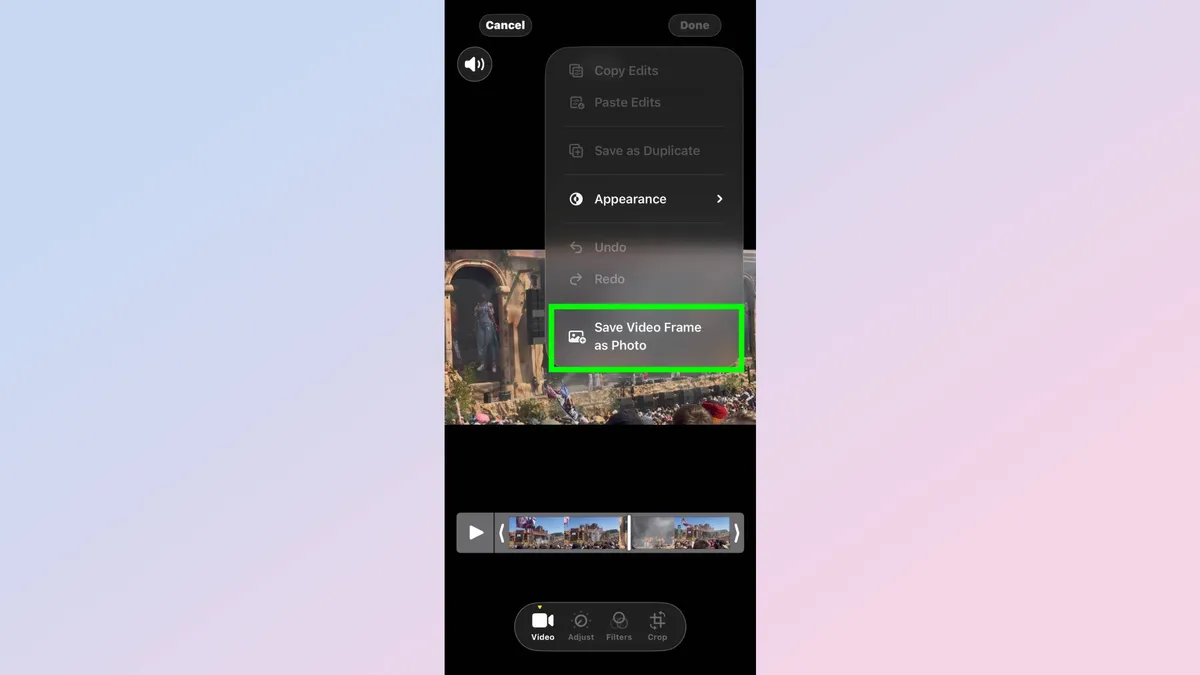
Pulling a clean freeze-frame photo from a video clip that used to require a clunky workaround: pausing playback, taking a screenshot, and manually trimming black bars. On iOS 27, you can extract full-resolution image stills directly from any video file without losing quality.
While watching a video clipSimply pause at the exact millisecond you want to keep, tap the three-dot menu icon in the upper right corner, and select the option to save the frame as a photo. Your iPhone exports a crisp, standalone image directly to your main photo library in its original resolution and aspect ratio.
5. Liquid glass opacity controls
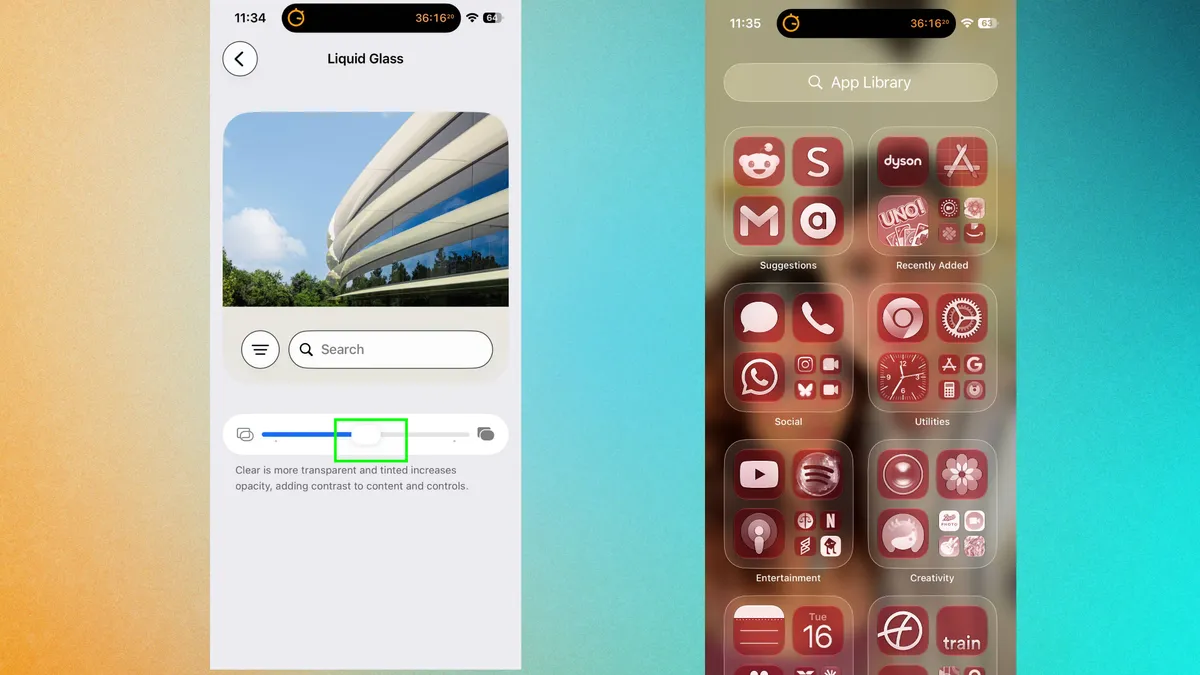
Apple’s translucent liquid glass design gets a usability update in iOS 27, replacing fixed system looks with a simple customization slider. While real-time transparency looks neat, it can sometimes make text hard to read over busy wallpapers.
By opening up Settings, Appearance and Liquid Glass, You can drag an opacity slider – drag it left for transparent menu blur, or slide it right for background reflections to flatten maximum text contrast over notification banners and system menus.

follow Tom’s Guide to Google News in the add us as a preferred source to get our latest news, analysis and reviews in your feeds. Make sure you click the follow button!
Latest Videos FromTom the guide