Can’t download apps on your iPhone? You have come to the right place if you said “yes”.
We will discuss “why my iPhone won’t download apps” and how to solve the issue in this post. We hope these solutions are helpful for you.
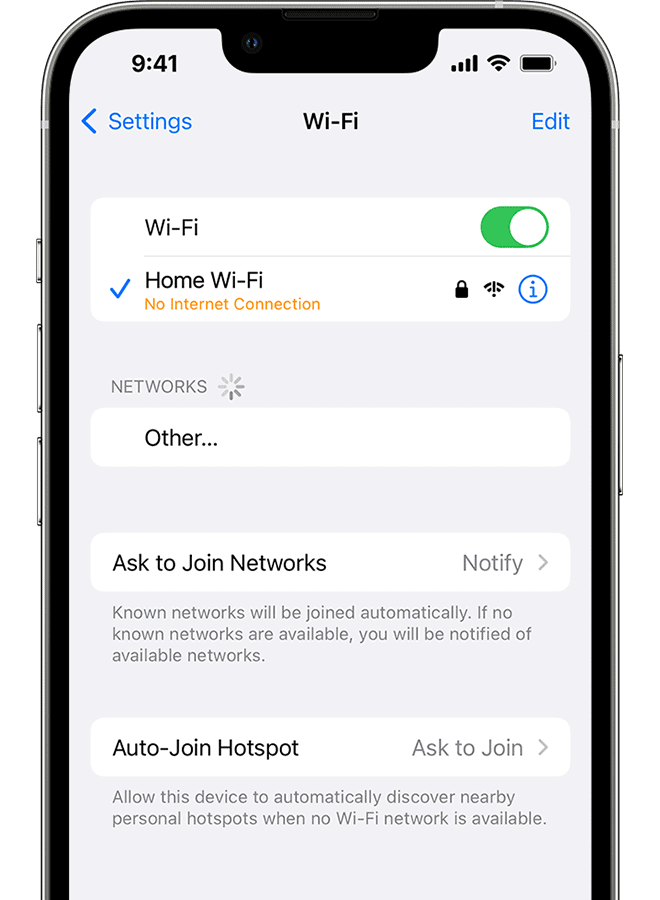
Check Network Connection
First and foremost, to download and install programs from the App Store, you must have a reliable Internet connection. Typically, there are two methods for downloading programs from the server: cellular data or Wi-Fi. You can try again by switching between Wi-Fi and cellular data, or vice versa.
However, you should be aware that Wi-Fi is always advised for iPhone app downloads as it is more reliable. Make sure your iPhone Wi-Fi is operational with iOS 18/17/16/15/14/13. If it isn’t, try these quick fixes.
You’ll need to make sure Airplane Mode is off and that you have cellular data enabled for any apps you’re trying to download or update.
- Go to “Settings” > “Cellular”, scroll down to “App Store” and turn it on.
For those who have already installed the app but are unable to use their cellular data to update it. Check out the setting instructions here.
- Go to “Settings” > “iTunes & Apple Store”, scroll the screen and check that the trigger “Use Cellular Data” is turned on.
Free up storage space
Source: HelloTech
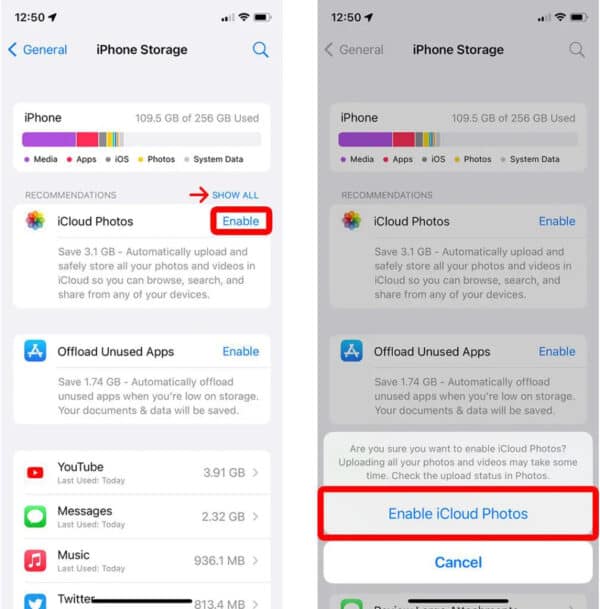
Sometimes the full storage of an iPhone can be the cause of the device’s inability to download and update apps. You won’t be able to download the apps or, if you do, you won’t be able to install them if there isn’t enough storage for them. Most users with small onboard storage, such as those with 16GB, 32GB or larger iPhones or iPads, experience this situation.
- Go to “Settings” > “General” > “iPhone Storage” to see how much storage space your iPhone has. You can see how much space each program has taken up on your iPhone by scrolling down.
If it is full, you can try to download or install the apps again after removing some unnecessary or unwanted items.
Automatically set date & time
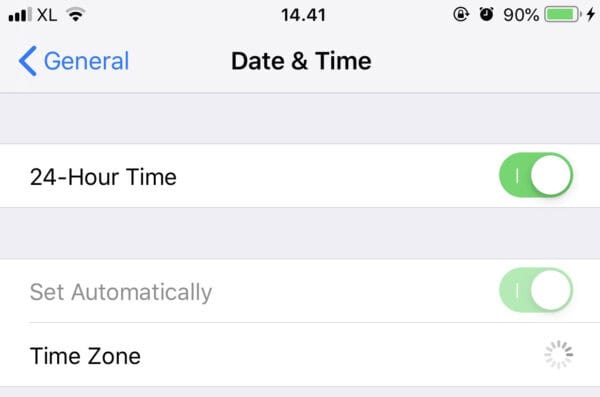
Some people find this very helpful, although it’s hard to describe how it solves the “iPhone won’t download apps” issue. When you interact with Apple’s servers to download apps, your iPhone essentially performs many checks, one of which is for the time and date.
On your iPhone or iPad with iOS 13 or 14, you can see the program installation again if you can change the date and time.
- Navigate to “Settings” > “General” > “Date & Time” and turn on the “Set Automatically” setting.
Verify your Apple ID and payment information
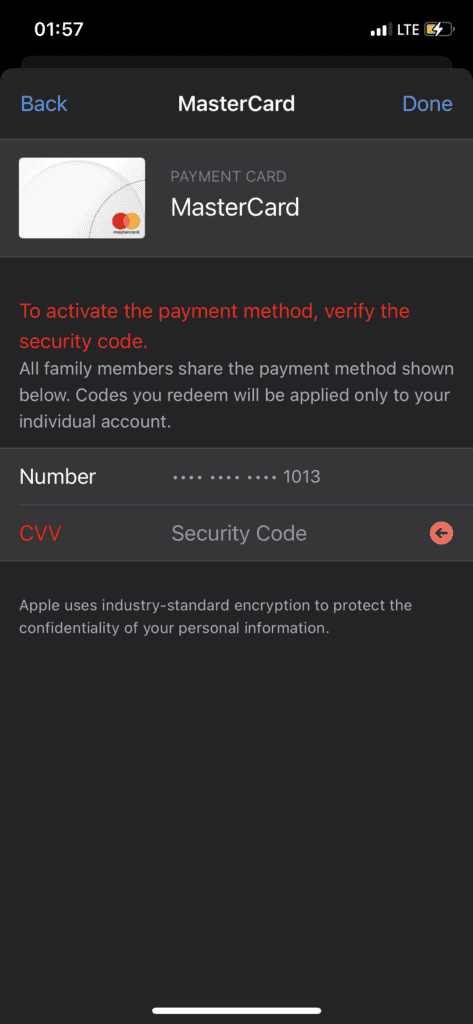
Many Apple users cannot download or update apps on their iPhones because their payment information is insufficient or their Apple ID changes. The truth is that users need the original Apple ID associated with the downloaded software to update their apps on their iPhones. In addition, sometimes you will not be able to download or update a program due to inaccurate or missing billing information.
- In this case, go to “Settings” > “iTunes & Apple Store” and confirm that the payment details are complete and that you are logging in to the correct Apple ID.
Alternatively, you can try signing into the Apple Store again to see if it works.
Force Restart Apple Store Or iPhone
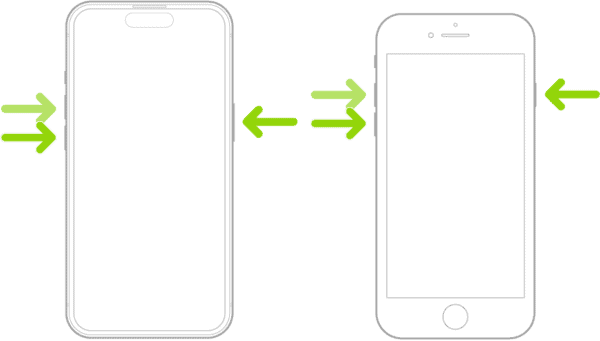
Your apps may be frozen and prohibited from downloading for unknown reasons. You try to press the pause button and restart, but it doesn’t work.
You can try closing the Apple Store in that scenario.
Reopen the Apple Store after double-pressing the Home button and the preview pops up. The majority of iPhone apps will start downloading again.
Download apps to iTunes and sync them to iPhone
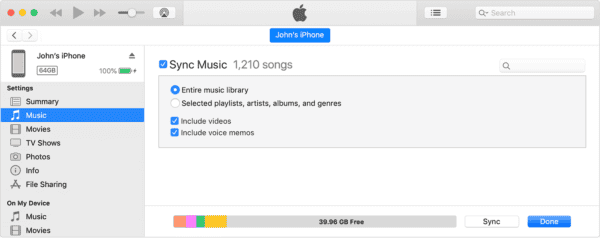
You can try downloading apps and syncing with iTunes if your iPhone continues to have problems updating or downloading apps. Sometimes you can restart blocked app downloads or force them to stop themselves by connecting your iPhone or iPad to iTunes and syncing your purchases back and forth.
- Use the latest version of iTunes on your Mac or PC. On the screen, click on the Apple Store icon.
- Find the app on your iPhone or iPad that you want to download and install: When you click the “Go” button, you will be asked for your Apple ID and passcode.
- After an app has been successfully downloaded, use a USB cable to connect your iOS device to a Mac or PC, then launch it into iTunes. To install the app on iOS 18/17 and later, you must then click on the “Apps” tab on the left and press the “Install” button next to the app.
Fix “iPhone won’t download apps” with iOS System Recovery
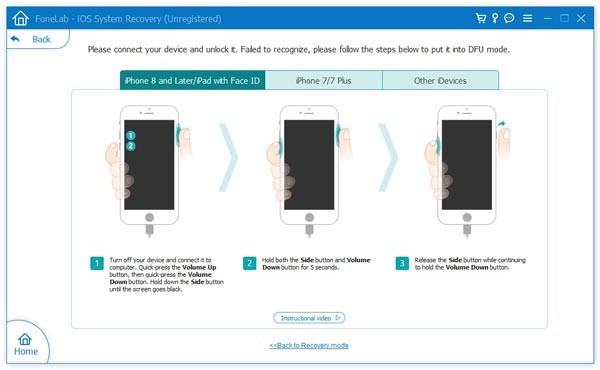
Image source: Aiseesoft
Having trouble updating or downloading apps on your iPhone and none of the solutions work for you? There may be some major software problems with your iPhone. It’s hard to pinpoint the specific cause of a problem, but you can use the best iOS system recovery tool to quickly solve any iOS-related problem, such as an iPhone that won’t download apps, is frozen, or stuck in recovery or DFU mode.
conclusion
We have mostly demonstrated a number of fixes for iPhone app download issues. Majority of the time, users can resolve the issue by using one of the options we have provided here, but if none of them work after trying them all, it is advisable to go to an Apple Store and get expert help.