Fix your Android’s worst power drains in less than five minutes.
You really shouldn’t have to worry about your phone’s battery levels dropping to half by noon, but here we are – a common frustration among Android users. As frustrating as the situation is, there are pretty easy fixes for this that can add hours back to your day and extend the life of your battery in the long run.
Most Android phones run out of juice for entirely preventable reasons, such as a display that’s too bright, apps refreshing around the clock in the background, bad charging habits, or an app hogging power while you ignore your day. You don’t have to fall into airplane mode, accept a dark screen you can barely see or turn off Wi-Fi. A few targeted adjustments can realistically add hours of battery life without you noticing any real difference in day-to-day use.
It is also worth thinking about this problem from two angles. The first is daily battery drain, and the second is long-term battery health. You don’t want to end up replacing your battery. Let’s find out the practical steps that you can apply immediately without having an IT degree.
Display and system settings that make a real difference
Your screen is almost always the biggest battery drain on your phone, so let’s get started. Manually lowering the brightness or enabling auto-brightness prevents your display from burning unnecessary power in dark environments. You can also cut your screen timeout to 30 seconds so the screen doesn’t stay on when you’re not using it. Adaptive brightness can be enabled Settings > Display in the brightness section, while the screen timeout can be adjusted from a little lower in the menu.
If your phone supports a 120Hz refresh rate, you should also consider dropping it to 60Hz during everyday use. You might have a less smooth experience when scrolling or playing, but it won’t be the end of the world. Change this setting to Settings > Display > Motion Smoothness, where you choose Default over Adaptive. You may also want to turn off your screen earlier by turning on Settings > Display > Screen Timeout.
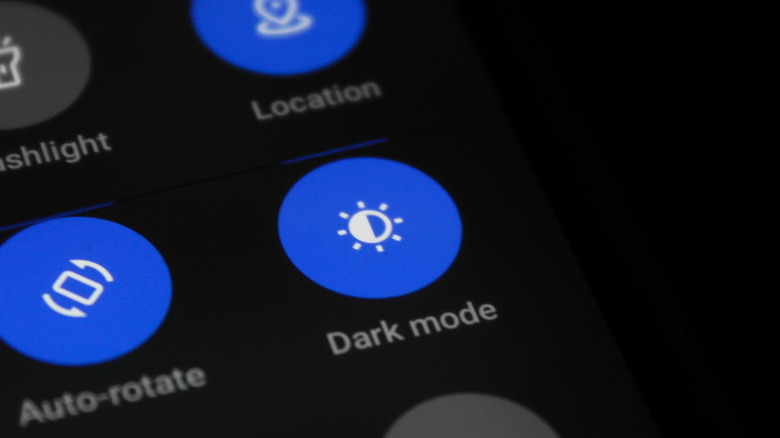
Using dark mode is also an option, but results vary. On OLED or AMOLED screens, dark mode can save between 39 percent and 47 percent of display power at full brightness, according to a Purdue University study. At typical indoor brightness levels, these savings shrink to between 3 and 9 percent.
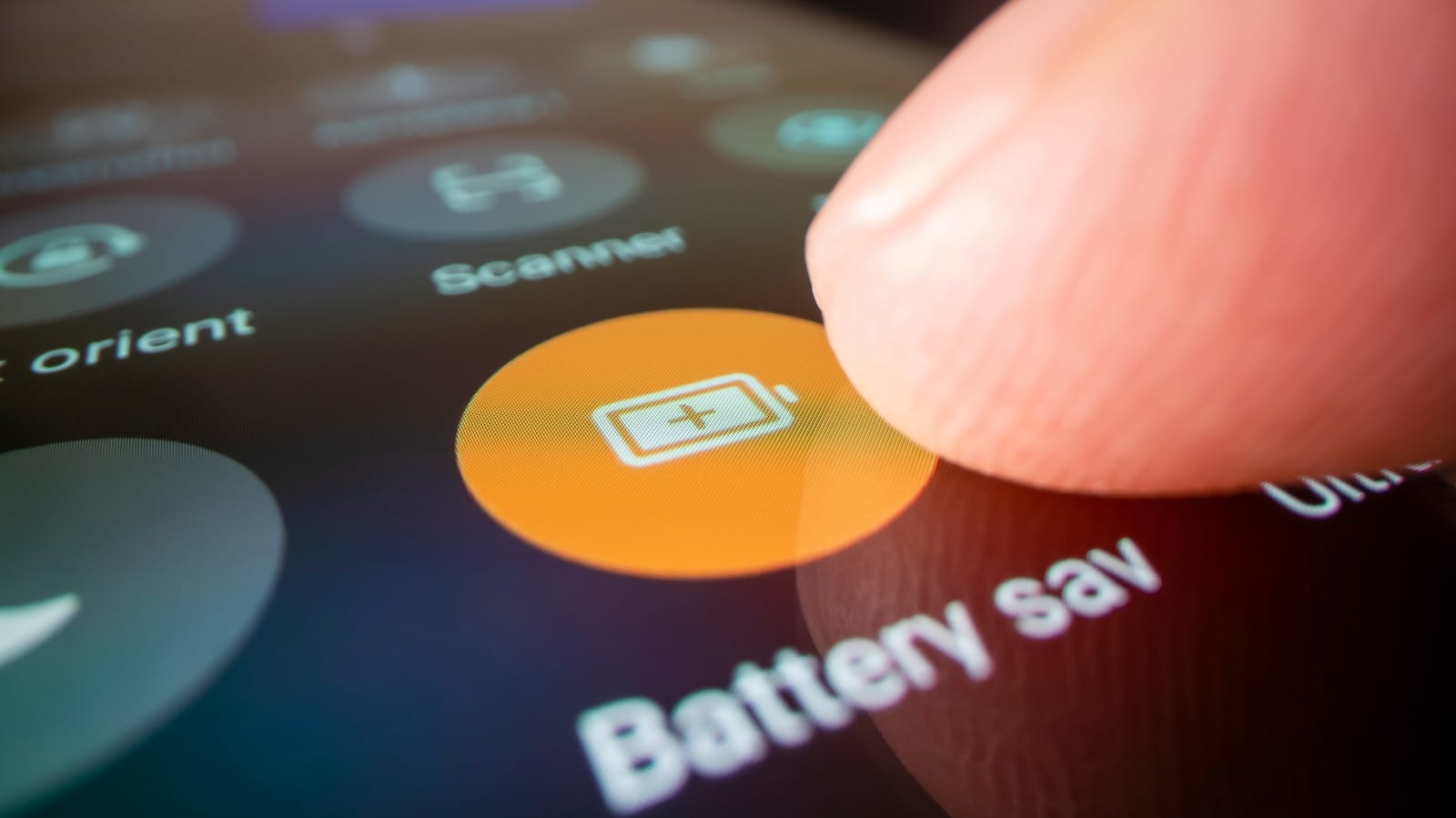
In addition to the display, there are two system tools that do a lot of quiet work, namely Battery Saver and Adaptive Battery. Battery Saver (also called Power Saving) restricts activity when the load falls below a set threshold. You can find that in Battery > Battery saver and choose between default and maximum. Adaptive Battery takes things one step further and learns which apps you actually use and limits power to those you rarely open. You can enable this by going to Settings > Battery > Background usage limits > Three-point menu > Adaptive battery.
Create smarter charging habits
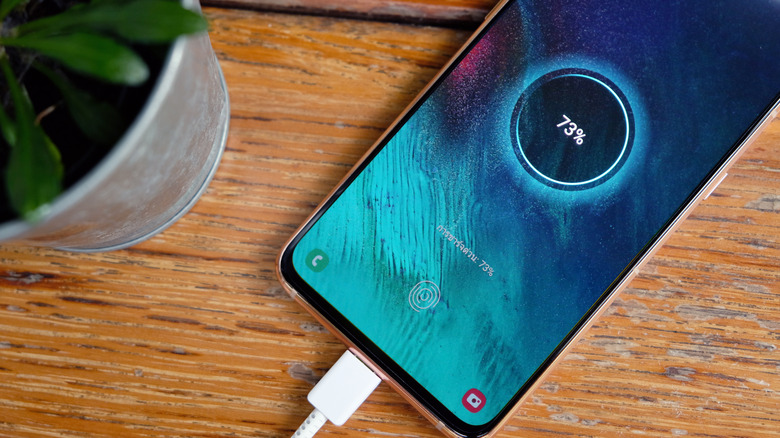
One thing you can do to protect the long-term health of your battery is to adjust your charging habits. Most Android users plug in their phones overnight and let them charge to 100 percent, but this habit will quietly degrade your battery over time. Lithium-ion batteries are healthiest when kept between 20 and 80 percent charge. According to Battery University, maintaining this range keeps the voltage lower, which can significantly extend cycle life. Consistently pushing it to 100 percent and leaving your phone plugged in, especially in a hot environment, accelerates the loss.
The fix is simple – charge to about 80 percent if you can and disconnect before bed if your phone doesn’t have a built-in charge limit. Many modern Android phones, however, offer a charging cap in the battery settings menu. You can come up Settings > Battery > Battery protection (name varies by brand) and choose a limit between 80 and 95 percent.
If you still prefer to see a full battery level on your phone, you can also go for the basic setting. This makes charging stop when the phone reaches 100 percent battery and starts the top-up only when the level drops back to 95 percent. The advice is to run partial costs if you can live with it. Topping up to 70 percent is gentler on your battery than running it empty and charging it back to full. Fast charging, while convenient, actually generates more heat than standard charging, and heat is the primary cause of battery degradation.
Find out what’s draining your battery
If your phone keeps losing charge faster than it should despite making all these adjustments, you should also take a close look at what’s draining your battery. Go to Settings > Battery > Battery usage on most Android devices and see which apps have consumed the most power in the last 24 hours or more. Look for anything that sticks out, like a navigation app that runs in the background all day, a social media app that constantly refreshes, or a game that doesn’t close completely.
If you tap on the name of the app, you’ll see a ton of extra info. More importantly, you will get access to a button that lets you set background usage limits, which makes it possible to put the app to sleep or deep sleep. Sleeping apps sometimes run in the background, with updates and notifications being delayed. Deep sleep apps never run in the background. Another reason why your battery drains faster than usual is that your phone is infected with malware, so you should find and remove spyware.
In case none of this has any real impact on your battery levels, you might want to run a battery test. Samsung users must launch the Members app, enter Support > Phone Diagnostics and run the scan. Check the battery status, and if you get anything but normal, know that your battery needs a replacement. Other phones will have different ways of doing this, such as Settings > Battery > Battery Healthbut the point is the same – any rating other than Good or Normal should prompt you to look into a battery replacement.