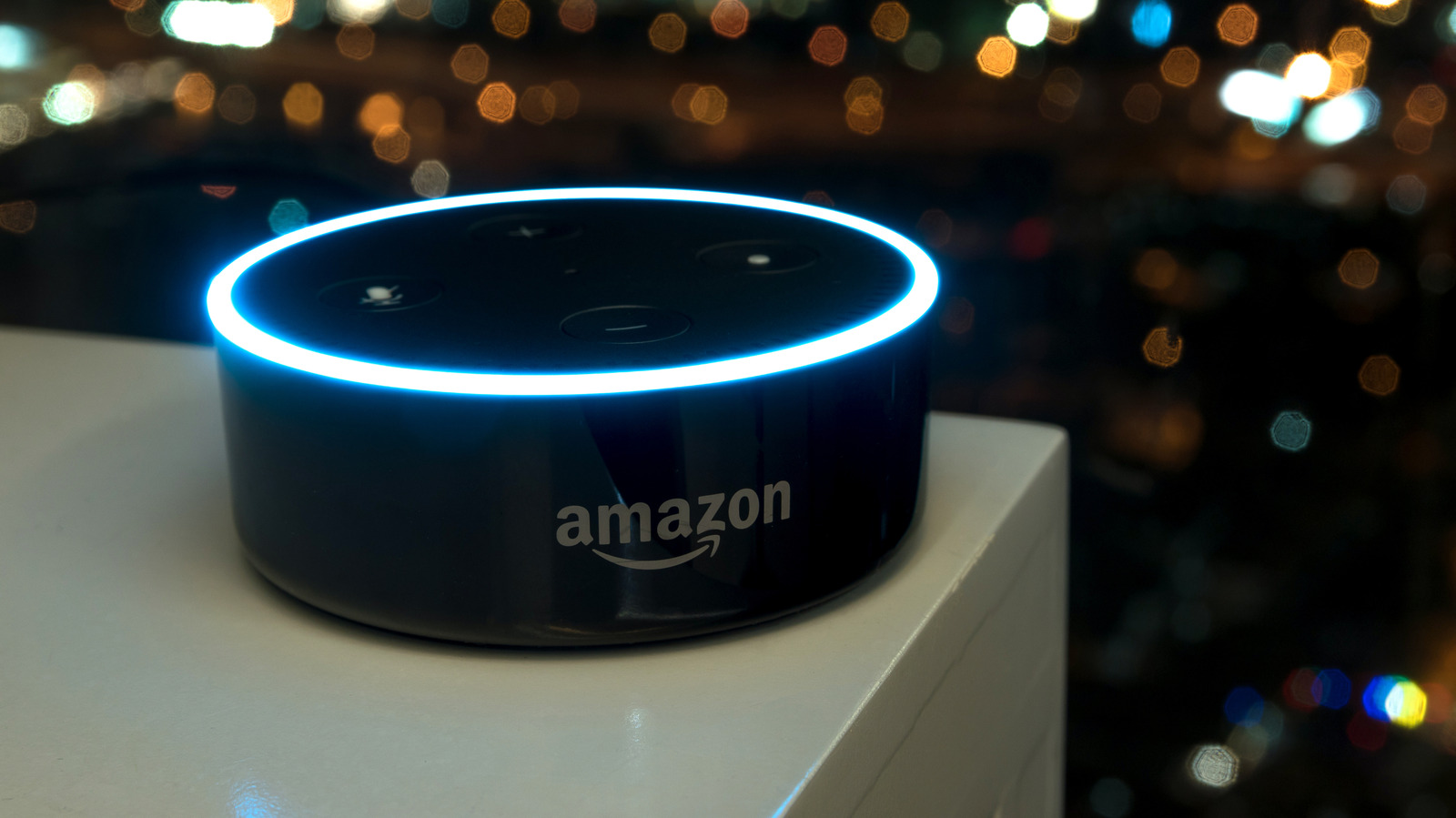
Some of the most common Alexa problems have very simple solutions.
Using Alexa has become increasingly accessible since its release, with heaps of different Echo Dots and shows to choose from alongside accessories like the Echo Auto and Echo Buds. You don’t even need a physical device to access the service anymore with the new rollout of Alexa+. With so much spread, however, comes more and more room for things to go wrong.
At this point, it is entirely possible to design an entire smart home built on the back of Alexa. You can control your lights, sound systems, TV and security system all in one place, and set routines so that they work day to day with minimal effort. Of course, this doesn’t come without its downsides — aside from concerns surrounding the fact that Alexa is technically always listening, if you’re dependent on Alexa, small common problems can have a big impact. Fortunately, they also have simple solutions.
Fixes for common Alexa issues

If your Alexa doesn’t understand you
If your Alexa doesn’t seem to understand your voice, try setting up Voice ID:
Open the Alexa App.
Select Morethen Settings.
Select Account management and select your profile.
Select Voice ID and follow the instructions.
You can also say “Alexa, learn my voice” with the same effect.
If your Alexa is too quirky
If your Alexa’s long answers are bothering you, there are a few different methods you can try: Short mode and change her personality type to Short. The latter is one of several Alexa personality settings and will change things like filler expressions while still talking to you. The former is even more precise, often changing what would normally be a verbal response into a short sound bite to let you know you’ve been heard.
To disable Short Personality:
Open the Alexa App.
Open Devices.
Select your device, then select Settings.
Select Alexa’s personality style and choose Short.
To disable short mode:
Open the Alexa App.
Select Morethen Settings.
Select Voice responses.
Tour Short mode on.
Both of these settings can also be activated verbally by saying “Alexa, enable Brief Mode” or “Alexa, change your personality style to Brief.”
If your Alexa keeps waking up to random words
If normal conversation continues to activate your Alexa, try changing your wake word to something less common:
Open the Alexa App.
Select Devicesthen select your device.
Select Device settingsthen Wake Word.
Choose a new wake word and click OK.
You can also say, “Alexa, change your wake word.” Unfortunately, the wake word cannot be customized and must be chosen from a list.
When Alexa plays from the wrong speaker
If you have multiple Alexas and it’s playing music or other sounds through the wrong one, it’s worth placing your devices into groups based on the room they’re in. Then you can say things like “Alexa, play music in the bedroom” to ensure the right speaker. To set up groups:
Open the Alexa App.
Select Devices.
At the top, where you find groupsselect New groupthen type Create a room or device group and follow the prompts to customize the group.
Tips for a buggy Alexa
Sometimes an Alexa can just be completely unresponsive. If your Alexa can’t seem to hear you, it’s worth first trying to eliminate other loud noises that cause interference. If that doesn’t work, make sure your Alexa isn’t muted by looking for a solid red light (a ring of light on speaker devices or a red bar with a mute icon on screen devices). To mute the device, find the mute button, which is typically on the top or side of the device, and press it to unmute.
If muting wasn’t the cause, the next best course of action is a simple reboot, which can be done by turning off the device for a few seconds, then plugging it back in – this solution also applies to other issues like general lag or freezing. It is also possible that the problem is related to a bad Wi-Fi connection, which can be solved by restarting your router using the same unplug method. Sometimes, however, bugginess is something that has a software root cause. It’s always worth checking for a software update by saying “Alexa, check for software updates.” If there is one, the device will automatically update, hopefully solving the issue.