 Skip to content
If you use ChatGPT to do the same job every week, you probably save a tip every time you post it. It could be the style of your blog posts, the structure of your monthly reports, or a checklist you run before signing a contract. The sticker works, but only if you remember it, and only if no one on your team is using the old copy.
Skills are OpenAI’s answer to this problem. You don’t need to repeat instructions, just save the workflow once and ChatGPT will pull it in when requested. This guide explains how to add skills to ChatGPT (whether you build a skill yourself, upload an existing skill, or install a skill shared by a colleague), as well as the account limits that determine whether you will see the feature.
What skills does ChatGPT have?
OpenAI describes skills as reusable, shareable workflows that assist ChatGPT in completing specific tasks more consistently. Technically, a skill is a folder. At its center is a file called SKILL.md, which contains the name, description, and description of the skill. The folder can also carry optional scripts/, references/ and assets/ Directory of code, documentation, and templates based on OpenAI’s guide to building skills.
The most important design detail is what OpenAI calls progressive disclosure. ChatGPT does not fully read all skills in each message. It only starts with each Name and description of the skill, and load the full description once it’s determined to match the request. This way a long list of installed skills doesn’t crowd your conversation, but it also means the description does work. one vague One of them is easily ignored by ChatGPT.
This is the main difference from normal prompts. Prompts exist within a single chat. Skills live in your account, can include references that prompts cannot, and are applied the same way every time.
Good candidates are tasks with fixed methods and predictable outputs. The SEO team may retain the skill of converting keywords and competitor URLs into content briefs with a set title structure. Financial analysts can store the format of monthly variance reports. Legal teams can code contract review checklists, researchers can code source evaluation processes, and marketing teams can code rules for establishing a brand-style platform.
Skills use the same Skills.md format As an open agent skill standard, so Tips for writing well From another tool subsequently it can usually be uploaded with little or no changes.
How to add new skills to ChatGPT
notes: Before performing these steps, please remember that the ChatGPT skill is Mainly available for Business, Enterprise, Healthcare and Education Workspace instead of standard Free or Plus personal account. So if your account doesn’t support it, you’ll see the following text: Skills are not available for this account
So, let’s get started: Skills do not have their own items in the ChatGPT sidebar. OpenAI’s ChatGPT skill help article places them in the plugin area:
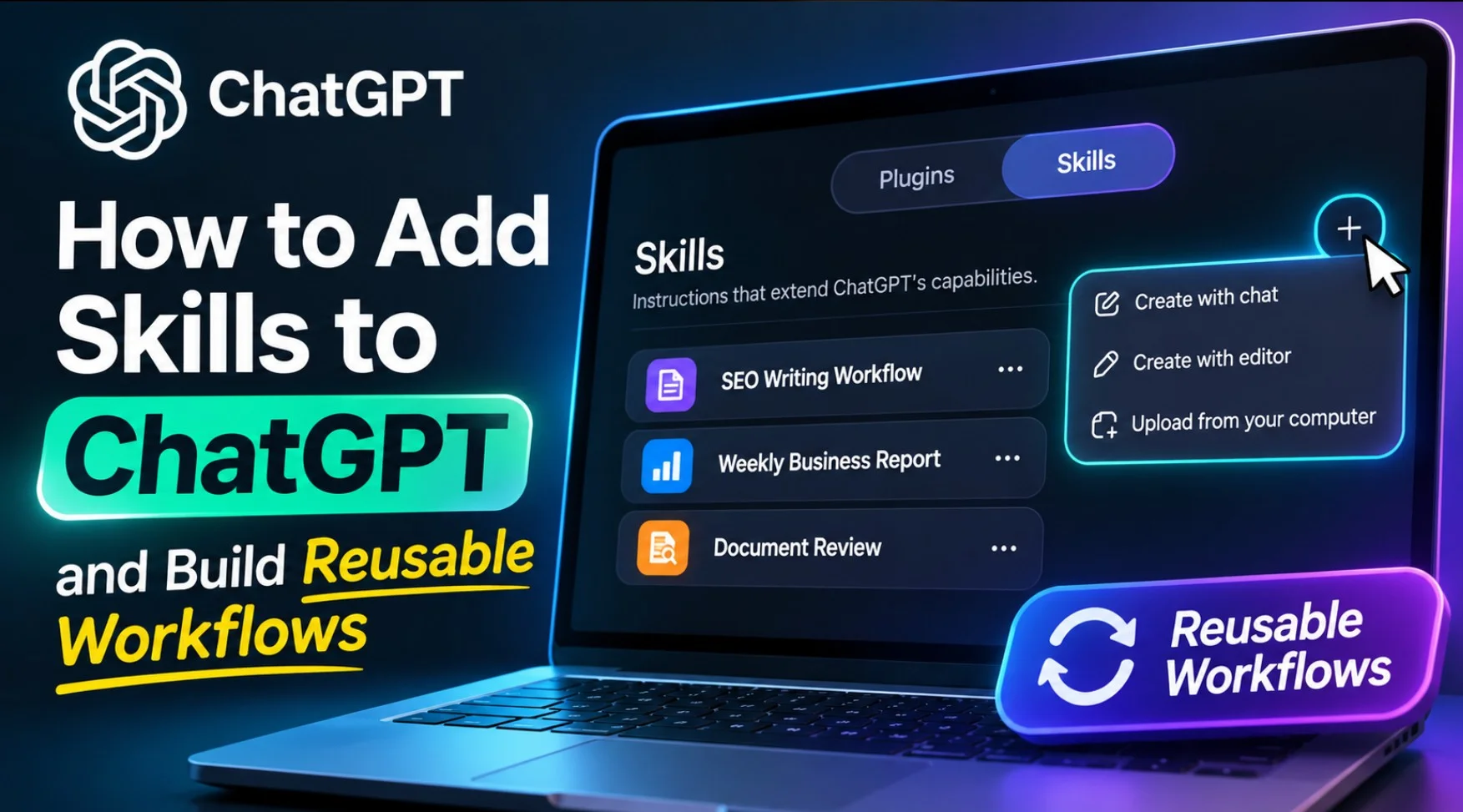
- In the ChatGPT sidebar, select plug-in.
- exist plug-in Directory, open Skill tab.
- Browse the four groups on the Skills page: Installed, Created by Me, Shared with Me, and Shared by Your Workspace.
- choose create Create or upload new skills.

Qualified accounts start with one skill installed (Skill Creator). ChatGPT automatically uses it every time you ask ChatGPT to build, change, or troubleshoot a skill.
Three ways to create or install skills in ChatGPT
Method 1: Create skills using ChatGPT
This is the fastest route and does not require you to know the file format.
- Go to Plugins > Skills > Create and select Create via chat. You can also ask for skills in any conversation.
- Describe the task, its artifacts, and what the final output should look like.
- Answer follow-up questions. The skill creator asks what the skill should do and when it should trigger.
- Review the resulting instructions, and then install the skill when ChatGPT prompts you.
The more specific your first message is, the fewer questions you need. Here are tips you can adapt to:
Create a skill called seo-content-brief. Use this when I give you a target keyword and up to five competitor URLs and ask for a content brief. The introduction should include a one-sentence search intent, a suggested title of 60 characters or less, an H2 and H3 outline, the questions the article must answer, and a short list of key points your competitors missed. Write in British English. Don’t use it to write full articles or social media posts.
That last sentence is easy to skip, but it’s useful. Telling ChatGPT when not to use a skill helps avoid applying workflows to requests that only look similar.
Method 2: Use the editor to create skills
This editor is suitable for anyone who wants full control or plans to maintain their skills over time. Go to Plugins > Skills > Create and select Create using editor.
You will write with skills.md File contains. The name should be short and concise, such as monthly-variance-report. The description is the most important to consider as this is what ChatGPT reads when deciding whether a skill is applicable. Follow OpenAI’s documentation, keep it simple, state the scope and its limitations, and put the main use cases and trigger words first.
Next comes the instructions. Write them as numbered, imperative steps with clear inputs and outputs, and include examples of the final results if available. A minimal SKILL.md looks like this:
---
name: monthly-variance-report
description: Use when asked to explain budget vs actual variances for a monthly finance report. Not for forecasting or annual budgets.
---

1. Ask for the budget and actual figures if they aren't provided.
2. Flag any line with a variance above 10 percent.
3. Explain each flagged line in two sentences or fewer.
4. End with a table of flagged lines sorted by variance size.
Reference materials such as style guides or report templates can be placed in the support folder rather than in the instructions, so ChatGPT only reads them when needed. Test the skill with some actual requests and refine the description if it doesn’t fire when you expect it to.
Method 3: Upload existing skills
If you already have skills folders for colleagues, public repositories, or other tools, select Plugins > Skills > Build > Upload from your computer. Upload the entire folder, not just SKILL.md, so the scripts and references will follow.
Chat GPT Scan each uploaded skill before it becomes available. Most are passed through directly. Some are marked Requirements reviewwhich means you need to see other information before you can use them, and the skill that looks risky is blocked.
That Scanning is not a substitute for your own check. Skills can contain code, so open skills.md As well as any scripts before uploading anything you download. Look for instructions that transfer data to unexpected places, ask for credentials, or perform actions that go well beyond what is stated in the description.
How to use skills in ChatGPT
Once a skill is installed, you usually don’t have to call it. ChatGPT will compare your request to each skill’s description and use one or more if appropriate. To select your own skills, enter @ and select it from the list.
Learn from previous seo-content-brief techniques. A request like “Introduction to ‘Best Budget Mechanical Keyboard’, Here Are the Competitors,” followed by five URLs, should trigger on its own. If you want to be sure, start with @seo-content-brief. Regardless, the summary will appear in the same structure every time, and that’s the point.
If ChatGPT keeps ignoring a skill, the description is usually the reason. Include words that people actually use when asked to perform the task. If it triggers the wrong request, add a new line stating when not to use it.
How to share and install skills from other users
Skill The content you create remains private until you share it. To share one, open Plugins > Skillsselect the More options menu (•••) next to the skill, then select share. You can share with specific team members or publish to your workspace library, depending on what your administrator allows.
Skills shared with you appear under Shared with me, and workspace-scoped skills appear under your workspace name. Install one from there and it will behave just like your own.
Administrators control who can create, share, and install skills. OpenAI also points out that these permissions only cover skills in ChatGPT, so the Codex may be managed separately.
Are ChatGPT skills available for Free, Go, Plus, Pro and Business plans?
This is where OpenAI’s own documentation is inconsistent, so it’s worth being careful.
Skills help article in ChatGPT only lists workspace plans:Business, Enterprise, Healthcare and Education. Several independent articles note that OpenAI’s pricing page shows “Skills Beta” Personal plans are also available, and a separate plug-in article mentions personal job skills for paid plans. These sources are inconsistent, and OpenAI has not issued a clear statement for Free, Go, Plus, or Pro users. However, during testing, we couldn’t find this feature on the Free, Go, Plus, or Go plans.
The actual answer is to check your own account. if Plugins > Skills There you can use it. If you have a personal plan but don’t see it, this is the most likely reason.
Codex is a separate case. The skills there work through files in folders, e.g. .agents/skillsis called $ instead of @and follow Codex’s own schedule availability.
ChatGPT skills, custom GPT and plug-ins
| Skill | Custom GPT | plug-in | |
|---|---|---|---|
| Main purpose | How the save task should be completed | Separate chatbot with own settings | New tools, apps, and bundled skills |
| Reusable instructions | Yes, load when relevant | Yes, always inside GPT | through the skills they contain |
| External integration | Only through scripts or plugins | through action | Yes, through connectors and MCP servers |
| how do you use it | In any chat, automatically or via @ | Open GPT and chat in it | Install once and use when relevant |
| Typical uses | Content introduction, report format, review checklist | An exclusive assistant for the audience | Use Gmail, GitHub, Slack, and more |
Common ChatGPT skills problems and their solutions
- Skills tab missing. Make sure you are logged in to a work or education workspace, not a personal account, and that your project is one of the OpenAI manifests. Within the workspace, the administrator may have turned off the skill.
- No upload option appears. Workspace permissions can allow the use of skills but not uploads. Ask your administrator what actions are enabled for your role.
- Skills are not displayed after installation. Check the Installed group on the Skills page and start a new chat. If you uploaded it, it may still be waiting to be scanned or marked as “needs review.”
- Autostart doesn’t work. Rewrite the description so it introduces the main use case first and the words you type naturally. Use @ to call skills directly when testing changes.
- Skill is marked as “Needs Review” or “Blocked”. View the information displayed by ChatGPT for requirements review. Blocked skills cannot be used, so please check their scripts, remove any risky or unnecessary content, and upload a cleaner version.
- Sharing is gray. Sharing and publishing to workspace libraries are controlled by administrators. Your administrator decides whether members can share skills.
FAQ
Open plug-in In the sidebar, go to Skill tab and select Create. From there, you can create skills via chat, create skills in the editor, or upload a skills folder from your computer.
Yes, available to qualifying accounts. You can describe your workflow and let ChatGPT’s built-in skill builder draft it, or write the name, description, and instructions yourself in the editor.
OpenAI’s skills help article lists only business, enterprise, healthcare, and education programs. Its other pages are not entirely consistent across plans, so check if Plugins > Skills appear in your account.
Yes. ChatGPT will compare each request to your skill description and use the appropriate request. You can also call a specific skill by typing @ and selecting.
in conclusion
Knowing how to add skills to ChatGPT is the easy part. Value comes from choosing the right task and turning it into a task. Choose something you do at least weekly, in a way that you would have a hard time explaining to a new colleague in one sentence, and build a skill for it. Use it for a few weeks and tighten the description if ChatGPT misses it.
Skills that persist tend to be narrow. A skill that reliably completes a job saves more time than an ambitious skill that triggers at the wrong moment.