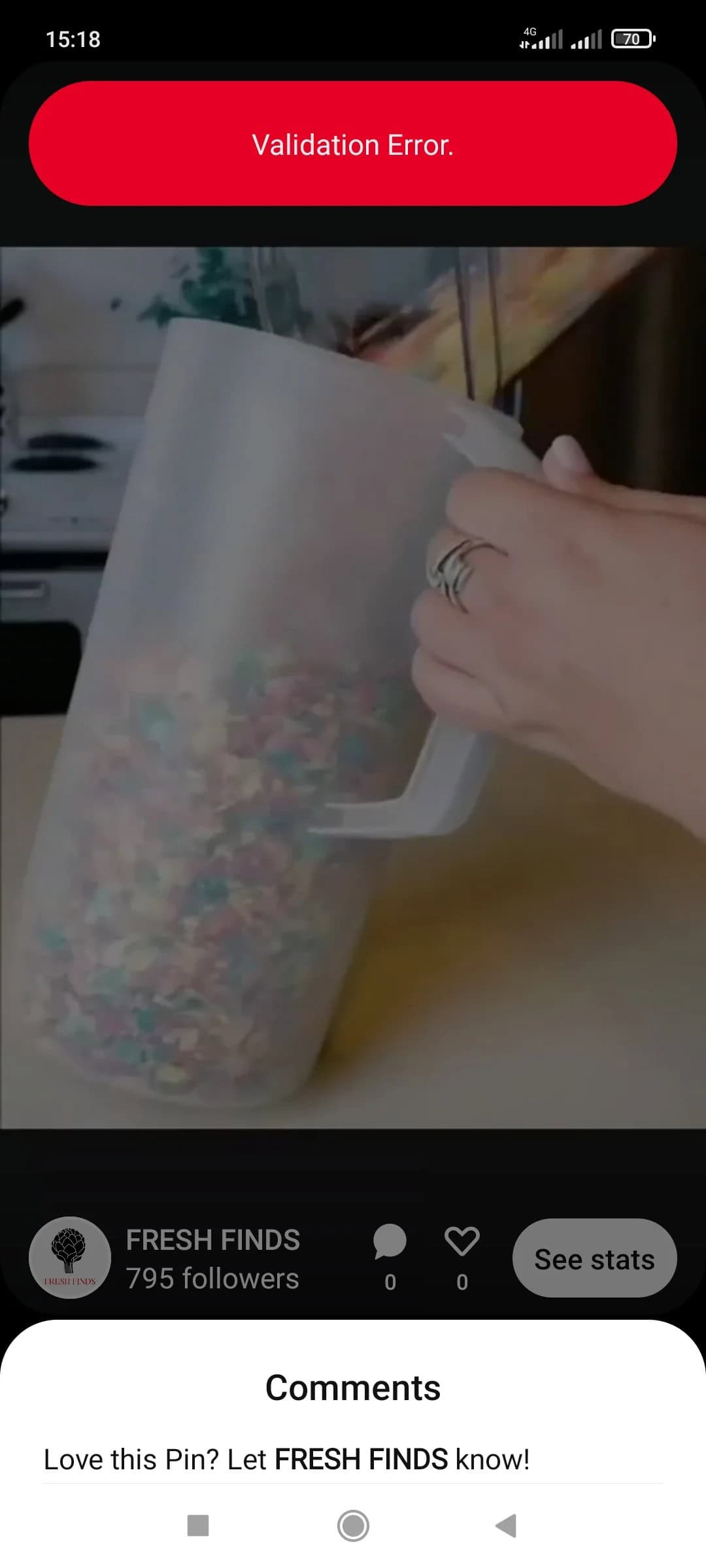
Validation errors on Pinterest can be frustrating, especially when they prevent you from successfully sharing pins or links. These errors often result from issues such as broken links, incorrect formatting, or missing metadata. Here’s a complete guide on troubleshooting and fixing validation errors on Pinterest.
Understand validation errors on Pinterest
A validation error on Pinterest typically indicates that there is a problem with your content that is preventing it from being processed or displayed properly. These errors can stem from a variety of factors, including broken links, missing metadata, or incompatible image formats. Validation errors can affect both casual users trying to post links and business accounts with rich pins that contain metadata.
Common causes of validation errors
Validation errors can be frustrating, but understanding their causes can make it easier to fix them. Here are some of the most common causes:
- Invalid or broken URLs: Links that lead to 404 pages or redirect too many times often result in validation errors.
- Incomplete metadata: Pinterest uses metadata (such as titles and descriptions) to format rich pins. Missing or incorrectly formatted metadata can lead to errors.
- Non-compliant images or content: Pinterest has specific guidelines for image size, format and content quality. Images that do not meet these standards may cause validation issues.
Troubleshooting steps to fix validation errors
Follow these steps to diagnose and fix Pinterest validation errors:
Step 1: Check the URL or link
- Make sure the link is active: Test the URL in your browser to confirm that it works. If it leads to a 404 page or excessive redirects, Pinterest will have trouble validating it.
- Fix Broken or Redirected Links: When managing the website, repair broken links or limit the number of redirects. This helps Pinterest access your link correctly.
Step 2: Correct metadata issues
- Add missing metadata: If your content is a rich pin, make sure it has complete metadata, including the title, description, and any other required information. This metadata should be properly structured in HTML or through your content management system (CMS).
- Verify metadata format: Make sure metadata fields are correct. Use a metadata checker or check the Pinterest documentation to confirm that everything is formatted according to Pinterest requirements.
Step 3: Verify image quality and format
- Check image size and format: Make sure the images are high quality and in a supported format, such as JPEG or PNG. Pinterest typically prefers vertical images with a 2:3 aspect ratio.
- Resolve image-related validation errors: If your images are too small or use an unsupported file type, update them to meet Pinterest standards. Consider re-uploading the images at the appropriate size if validation issues persist.
Step 4: Clear browser cache and update plugins
- Clear cache: Cache data in your browser may interfere with uploading or validating content. Clear your cache and refresh the Pinterest page to see if that resolves the error.
- Check browser compatibility and plugins: Outdated plugins or incompatible browsers can cause problems. Make sure your browser is up to date and disable plugins that may interfere with Pinterest.
Step 5: Use Pinterest’s Validator Tool
- Run the link through the validator: Pinterest offers a rich pin validator tool that helps identify specific topics with metadata or links. Fill your link through this tool to detect missing items.
- Implement the tool’s suggestions: The validator provides feedback on errors or missing fields. Make the recommended adjustments to resolve the validation issues.
Advanced troubleshooting tips
Sometimes basic troubleshooting does not solve the problem. Here are some advanced tips:
- JavaScript and app-related issues: If you manage a website, make sure that JavaScript is not blocking Pinterest from accessing your page. Some plugins or app settings can cause random validation errors.
- Backend checks for website owners: Make sure that server settings, such as HTTP headers, do not prevent Pinterest from reading metadata. This can be done by adjusting the settings of your CMS or hosting provider.
Avoid future validation errors
To avoid future validation errors, follow these proactive steps:
- Stick to Pinterest’s specifications: Regularly review Pinterest’s content guidelines, including metadata requirements and image standards. Content within these specifications minimizes validation errors.
- Update content links and metadata: Regularly monitor links, images and metadata on older pins to ensure they are still functional and relevant. This is especially important for websites that are frequently updated with new content.
conclusion
Fixing validation errors on Pinterest can improve your experience by ensuring that your Pins display correctly and reach the right audience. By following the steps – checking links, verifying metadata, optimizing images, clearing cache, and using Pinterest’s Validator tool – you can effectively resolve most issues. Regularly maintaining your content and adhering to Pinterest posting guidelines will also help prevent future mistakes. Addressing these mistakes not only keeps your Pinterest profile looking professional, but also improves engagement with your content.