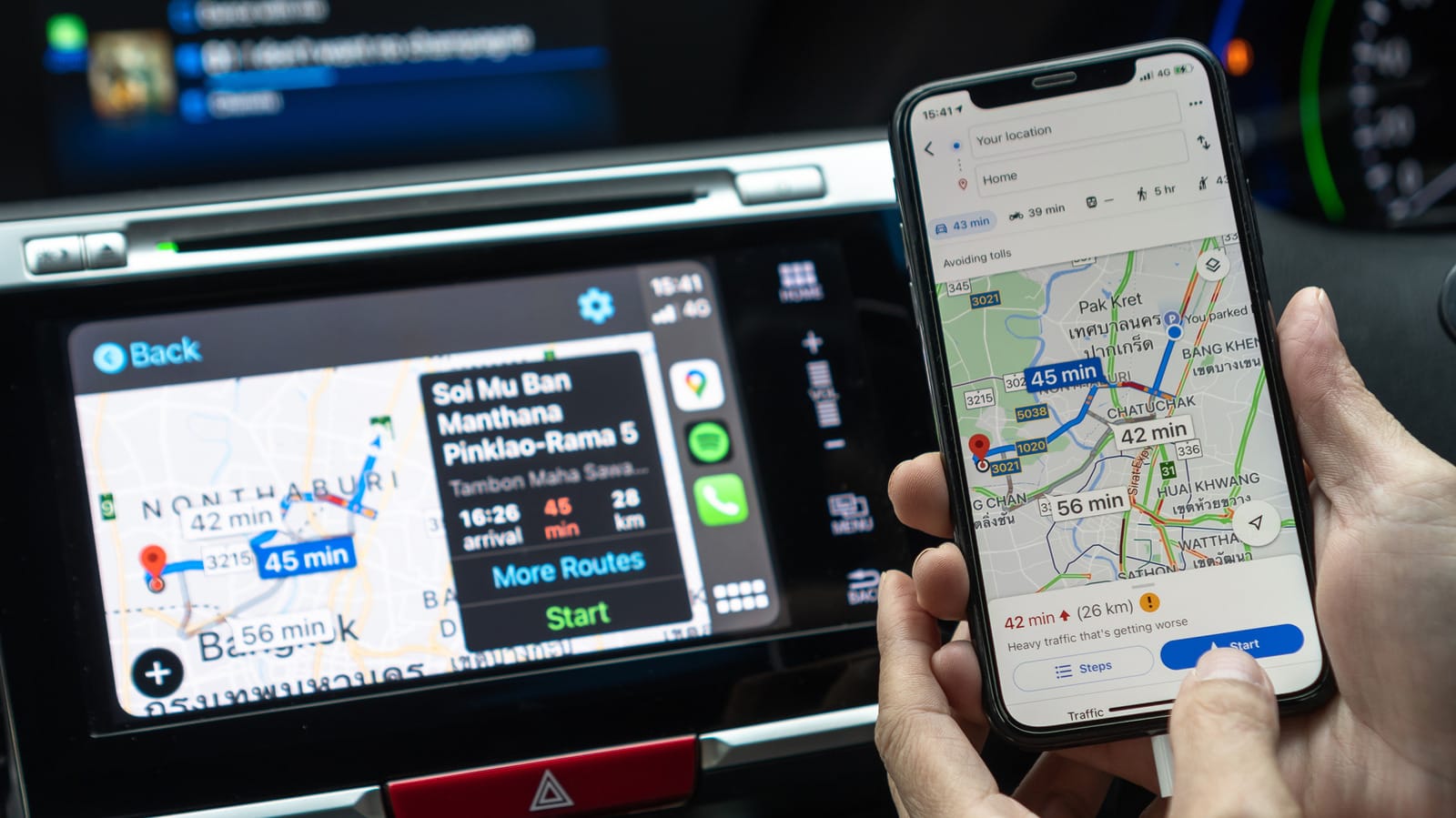
A few tricks provide a seamless Google Maps experience in your car with CarPlay.
Apple Maps has improved a lot since its troubled launch, but many people still prefer Google Maps. This could be due to traffic data, better business listings or just out of habit. The good news is that you can use Google Maps and Apple CarPlay like any other supported app.
Apple has always been restrictive when it comes to changing the iPhone’s default apps. In the EU and Japan, local regulations allow you to choose your favorite navigation app as the default. This means when you ask Siri for directions or type in an address, your iPhone and CarPlay will use your favorite app instead of Apple Maps. If you are in one of these regions, you will find this toggle in the Default apps Menu on your iPhone, located below Settings > Apps. Choose Google Maps as the default mapping tool there for the best experience.
Otherwise, Apple Maps remains the default navigation app on CarPlay, but there are some tricks you can use to improve your navigation experience with Google Maps in your car. Although not particularly smooth, one of the easiest is to add “on Google Maps” at the end of Siri requests in the car to avoid Apple Maps opening by default.
Add Google Maps to your CarPlay home screen
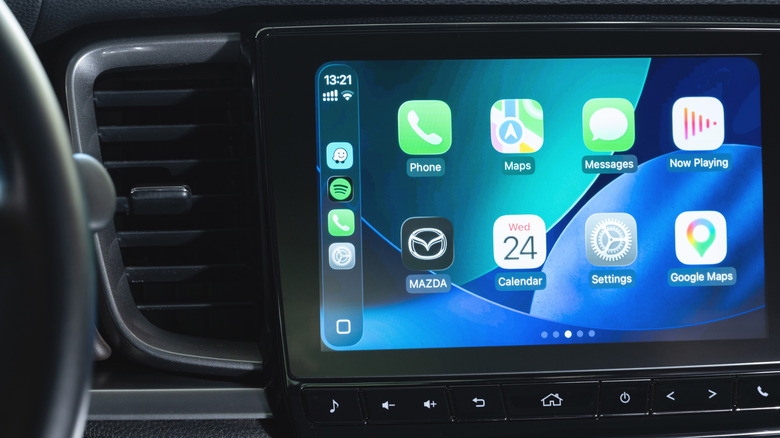
If you’re outside the EU and Japan, there are still ways to use Google Maps in CarPlay more seamlessly. One is to put Google Maps on the first page of your CarPlay home screen: in your iPhone Settingsgo to General > CarPlay. Select your car and choose Apps. Here you can rearrange the order in which apps appear on your home screen – just drag Google Maps up and it will be one of the first apps you see in your car.
If Google Maps doesn’t show up on CarPlay at all, this is the first place to look. Of course, you first need to download Google Maps on your iPhone from the App Store (among the dozens of CarPlay apps available). Scroll to the bottom of this menu and tap on the green Plus icon to add it if necessary.
Adding Google Maps to your CarPlay dashboard is another method to get there faster. Instead of searching for the app every time, you can add a widget for faster access. Go back to the CarPlay settings on your iPhone, but this time, tap Widgets instead Apps. There find and add one Google Maps Widget.
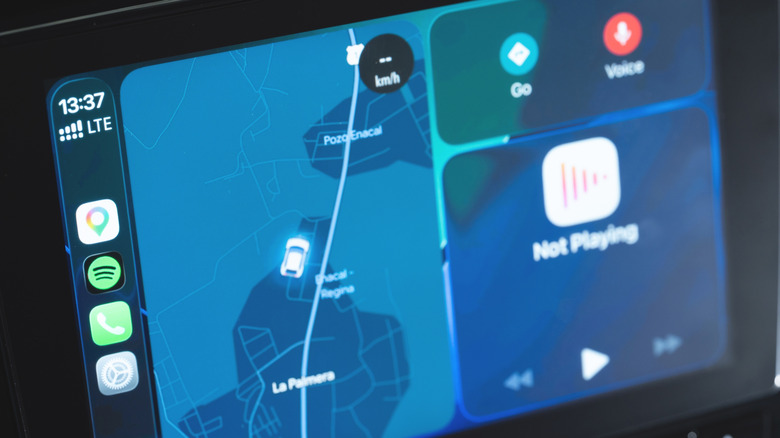
Some cars also offer a split-screen CarPlay dashboard, accessed by swiping right to the left panel. This usually includes a mini-map. Start a route on Google Maps once, and it should take over that panel from then on.
Other tricks for fast navigation
There are other best practices in the Google Maps app that make navigation easier on CarPlay. Adding your home and work addresses is a good first step, so you can start sharing routes with a single tap.
To set this up, open Google Maps on your iPhone and tap your profile picture in the top right. Then give up Settings > Location & Privacy. Scroll down until you find Home and work addresses. Select this, then use the three-point Menu for each option to add or adjust as needed. They are waiting for you on CarPlay.
If you are going on a long trip, it is important to download offline maps, especially to avoid problems if you lose your mobile connection. Again on Google Maps on your iPhone, tap on your profile picture and select Offline maps. Select the areas you want to keep downloaded for browsing without an internet connection. It is a good idea to download these maps with a Wi-Fi connection, as maps of large cities can use a lot of data.
You can also change how the map looks. Tap on compass Button switches between North-Up and Heading-Up, and day and night themes can be set to change automatically when you visit Settings > Appearance and CarPlay. Don’t forget to change other important CarPlay settings, too.