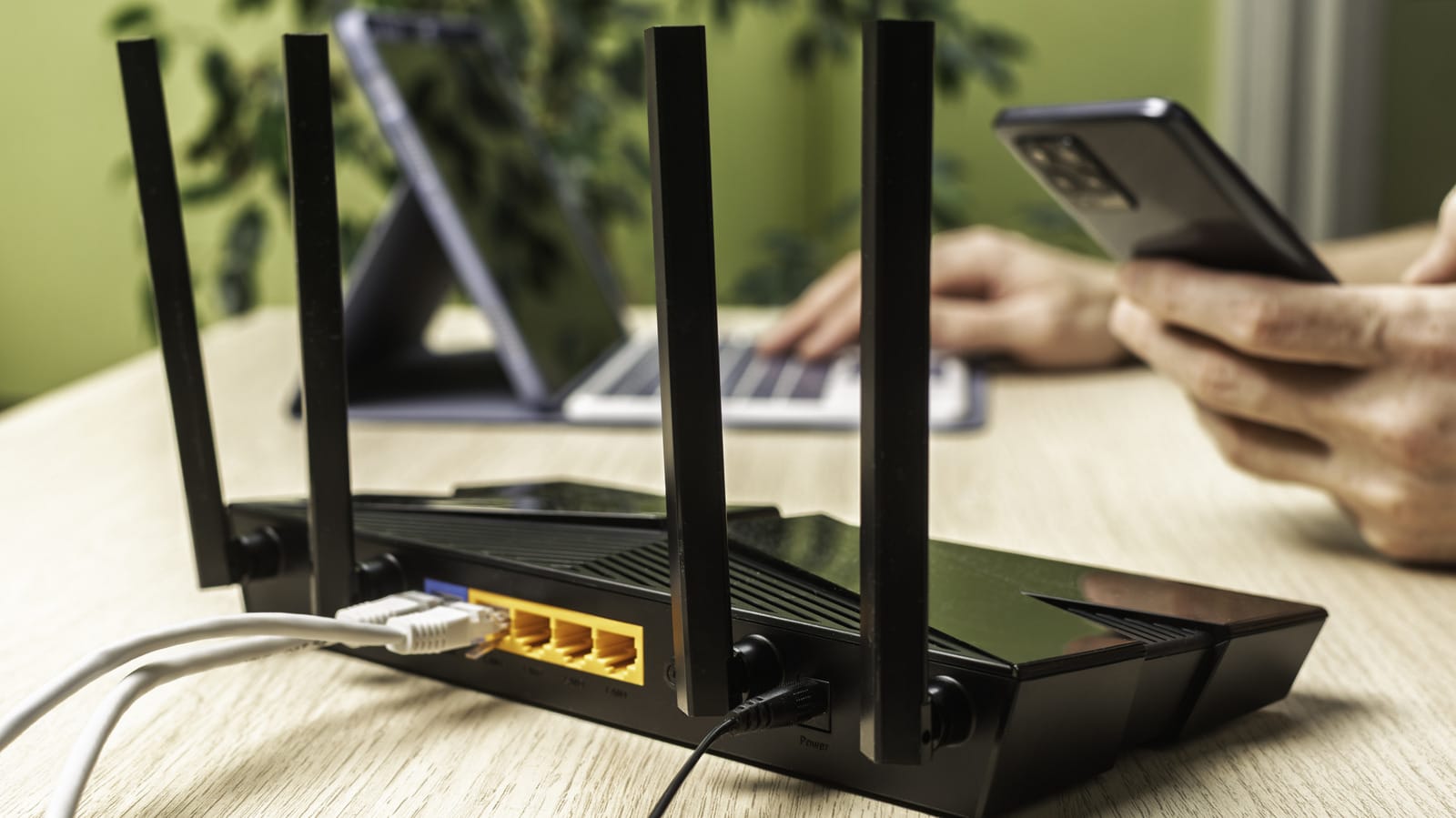
Sometimes all it takes is adjusting a few default settings.
You may not have thought much about configuring your router beyond the initial setup, as long as your Wi-Fi isn’t too slow and is working properly. But since the router is the gatekeeper between traffic on your network and the entire Internet, it’s important to keep it as secure as possible. Some default settings are not the best, and you may have missed tools that could strengthen your setup.
It’s not hard to log into your router and change the options that have the biggest impact. To begin, if you are using a computer connected to your home network, enter the IP address of your router into the address bar of your browser; this is often 192.168.1.1 or 192.168.0.1 but may differ.
If you don’t know yours:
- On Windows, type cmd and the start menu to open a command prompt window, then enter ipconfig and look under the Ethernet or Wireless LAN section, depending on how you are connected. The address next to Default Gateway is the IP of your router.
- On a Mac, the option key and click on WiFi icon at the top right of your screen. Under your network name you will find the required IP address next to it Router.
The credentials to log into the admin panel are not the same as what you use to connect devices to Wi-Fi. If you have never changed this information, look for a sticker on the back or bottom with the details. Every router is different, so the exact menu locations and names of these options will differ for you. The examples below are for an ASUS router.
Change the default credentials

This classic online security tip has been crucial for a long time because most routers were shipped with standard default logins so anyone could view them online. This problem is fortunately less severe now, as many router manufacturers use random default passwords.
However, it is always wise to change the login credentials, along with your network name (properly called SSID) and password. Many routers use the model name as the SSID, which gives potential attackers more information to find possible weaknesses in your unit. And you don’t want anyone checking the sticker to have administrator access to your network.
On an ASUS router, the admin login settings are open Administration > Systemunder the Router account Box. If you are able to change the username, do so, because “admin” is the first option that everyone tries. Next, change your wireless options below Wireless > General. The password is called WPA pre-shared key and the ASUS platform.
While you’re here, make sure your network security (Authentication method for ASUS) is set to the strongest standard available at the moment WPA3-Personal. Some devices do not work with WPA-3; the safest option is to keep WPA-3 enabled and avoid these devices. If this is not feasible for you, use the mixture WPA2/WPA-3 Personal mode is less secure but everything should conform to the highest standard it supports.
Take advantage of the guest network
Most routers have the ability to create a second network for guests, which is a great security tool. By default, the guest network does not allow devices to talk to each other or access resources on your existing network; they have internet access and nothing more. This is great for isolating smart home devices that have had security and privacy concerns in the past. You can easily check the devices currently connected to a guest network and disconnect them if necessary.
Your router may offer the option to limit the bandwidth of the guest network so that your own devices have priority. If you set up a separate network for children, you may have the option to limit the hours the network is active or even provide only one access for a certain period. Because guest networks have their own passwords, you can set something that’s easier to remember while keeping your primary password more complex.
ASUS Router (under Guest Network Pro) even support creating multiple guest networks, so you have one for friends, a second for kids and a third for smart devices. Plus, you can set the security protocol independently, making a guest network a great option for keeping WPA2 devices separate.
Disable WPS
WPS (Wi-Fi Protected Setup) is intended as a convenience feature for connecting devices to Wi-Fi without a password, but it makes your router much less secure. It offers two main methods: a PIN and a button. With the former, you get an eight-digit code from either your router or device and use that instead of the network password. To use the other method, you press a button on each device within a short time to connect them. For ASUS routers, this option is below Wireless > WPS > Enable WPS.
The weakness of the PIN is that instead of a relatively strong 8-digit number, it is calculated as two separate four-digit numbers. This drastically reduces the number of possible combinations and is thus easy to crack, especially if your router does not limit the number of attempts. The button method is less of a problem because it requires physical access, although modern versions of Android and iOS do not support it, and some routers keep the PIN active when you have activated the button method.
Fortunately, WPS is rarely necessary these days. If you’re connecting devices where a long password is a pain (like streaming boxes), you can often use apps on your phone to set them up on your Wi-Fi. iOS and Android both offer options to share Wi-Fi network access with nearby friends, including via a QR code, which removes the need to enter the password completely.
Turn off remote management features
Many routers offer the option to manage your network from outside your home. Usually, you do this by entering your public IP address into a browser’s address bar, followed by a port number. You can also use your router’s mobile app. And while this sounds convenient, the security risks of potentially exposing your router login page to the entire Internet aren’t worth it. This greatly increases your attack surface over nearby devices.
On an ASUS router, these controls are below Administration > System. Set Enable Telnet, Enable SSH in the Enable Web Access from the WAN everything to No. If you need remote access, two options allow you to use it more securely. The first is Enable access restrictions (on the same page), which controls which devices can access the router’s administration panel. This restricts all router management, not just remote, so be sure to add multiple devices (including the one you’re using) to avoid getting locked out.
The second tool is ASUS’ built-in Instant Guard VPN (under VPN > Instant Guard), which creates a VPN tunnel between your home network and mobile devices on which you install the Instant Guard app (Android | iOS). Set this up when you’re at home, and it should connect you to your home network from anywhere. This way, you can use your router’s mobile app to manage the network when needed, while also giving your phone an extra layer of privacy on open networks.
Keep your router updated
You should reboot your router every so often to keep it running well; this can also have some security benefits by stopping any temporary malicious access.
Like any device, installing the latest updates is an essential way to stay protected against known exploits. On ASUS routers this is below Administration > Firmware Upgrade. Activate Auto firmware upgrade in the Security upgrade to perform updates without manually checking. If this is not available, you must manually install updates from the router manufacturer; there should be instructions to do so.
If your router has reached its end of life, an advanced method (which takes more than 10 minutes) is to install alternative router firmware such as DD-WRT or FreshTomato to keep it running without risking opening your network or buying a new unit. And if you’re using an ISP-supplied router that doesn’t offer some of these options, upgrading to your own router will likely give you much more control over its security.