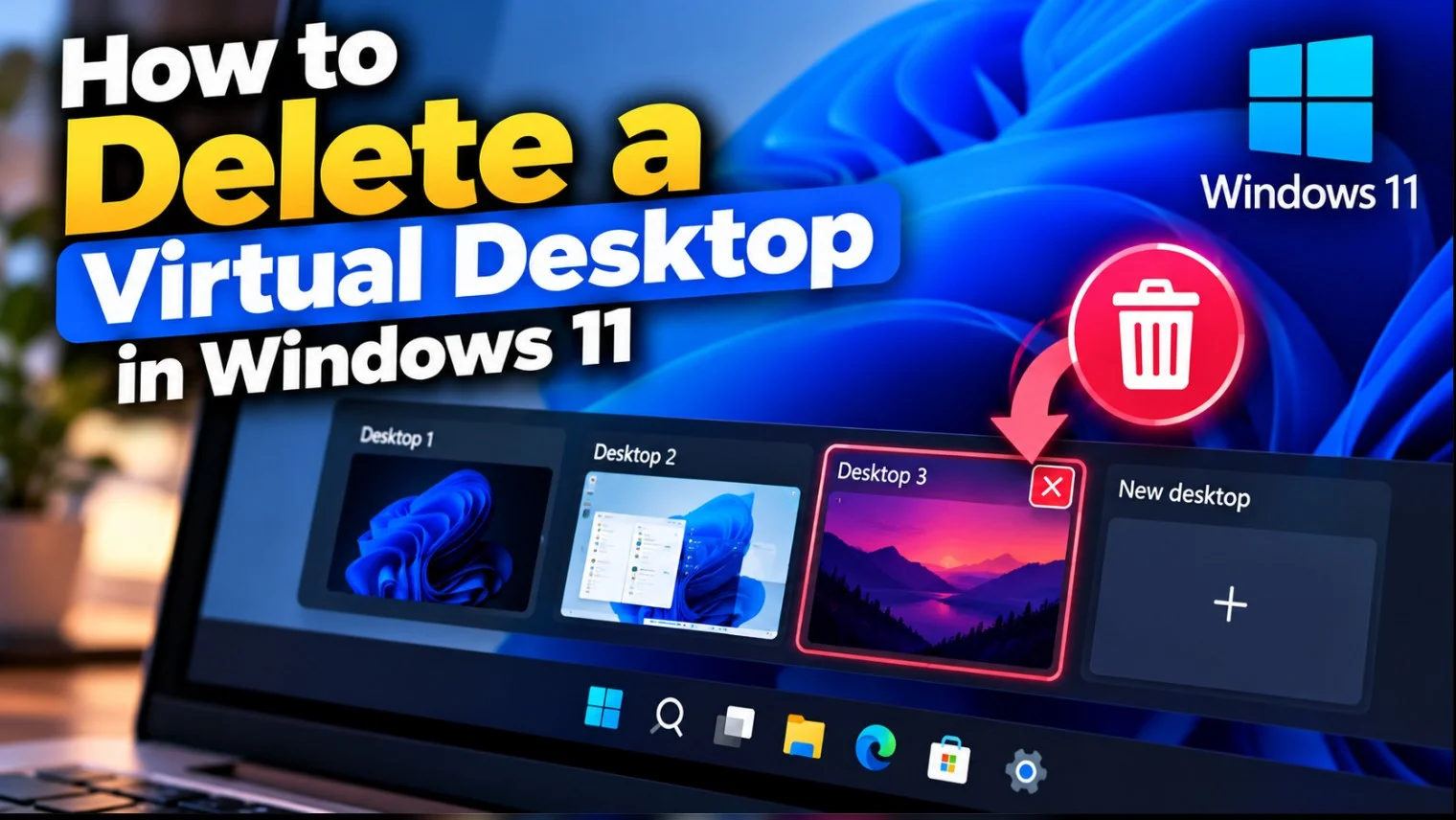
Quick answer: Press Windows + Tabhover over the desktop and click on X. Or switch to that desktop and press Windows + Ctrl + F4. Open apps move to another desktop and continue running.
Wondering how to delete a virtual desktop in Windows 11? There are two quick ways. Open Windows 11 Task View and click on to close button on the desktop, or switch to that desktop and press Windows + Ctrl + F4.
Neither method touches your files. Closing a virtual desktop does not delete documents, uninstall apps, or exit programs running on it. It only removes the extra workspace.
To write this tutorial, we used Windows 11 25H2 and created 5 virtual desktops.
What happens when you delete a virtual desktop?
A virtual desktop is just a separate set of Windows. When you close one, Windows does not close those windows. It moves them to a nearby desktop, so your apps keep running, and you don’t lose anything unsaved.
This is the key difference between closing an app. Click on an app X or press Alt+F4 exit that program. Completion a Desktop removes only the container, and the app simple appears elsewhere. If you want a program to be gone as well, do it separately before or after removing the desktop.
Windows shown on all desktops
If you right-click on a window and Task View and chosen Show this window on all desktopsit is not tied to a desktop. Closing a desktop leaves it exactly where it was, visible everywhere.
Desktops come back after a reboot
Windows 11 remembers your virtual desktops when you restart or log off, so a restart won’t delete extras. You have to close them yourself.
Method 1: Delete a virtual desktop using Task View
Task View shows all desktops as e Thumbnailwhich makes it the safest way to choose the right one.
- Press Windows + Tab to open Task View. You can also click the Task View icon on the taskbar.
- Find the desktop you want to remove in the row of thumbnails at the bottom.
- Hover over its thumbnail to show the ending (X) button in the upper right corner. Click on X. The desktop disappears, and its windows go to another desktop.

- AlternativelyYou can also right-click on the Virtual Desktop and select the close (delete) option.

Before you click, check which desktop you are on. Windows calls them Desktop 1, Desktop 2, and so on except you renamed them, and hover over a thumbnail preview the windows on it. If two desktops look similar, click on one to switch to it, confirm its content, then reopen Task View and close.
Method 2: Delete a virtual desktop with a keyboard shortcut
Microsoft keyboard shortcuts page lists Windows + Ctrl + F4 as a shortcut to “close the desktop you are using“.
- Switch to the desktop you want to delete.
- Press and keep the Windows Key in Ctrl.
- Press F4 once, then release all three keys.
Windows will switch you to another desktop and bring the windows of the closed desktop with it. This shortcut only closes the desktop you are currently on. It will not remove all desktop at once.
On some laptops the F4 key is set to a hardware function such as mute or brightness by default. If the shortcut doesn’t work, try again Windows + Ctrl + Fn + F4. Many keyboards don’t need this, so try the simple shortcut first.
Close a virtual desktop without Task View
Press Windows + Ctrl + Left Arrow or Right arrow to move to the desktop you want to delete, then press Windows + Ctrl + F4. You never have to open Task View.
Remove multiple virtual desktops quickly
If you ended up with a dozen desktops, Task view becomes full and scroll slowly. Stop Windows + Ctrl tap F4 again and again. Each tap closes the current desktop and moves you to the next one, so stop when you get to the desktops you want to keep.
How to stop virtual desktops from being created randomly
Many people looking for this didn’t mean to create extra desktops in the first place. Press Windows + Ctrl + D by mistake is the usual cause. On laptops, a four-finger swipe can also jump you to another desktop, making your windows appear to disappear.
- Hide the Task View button: open Settings > Personalization > Taskbar and switch off Task View under Taskbar Items. That stops accidental clicking, although the shortcuts still work.

- Change touchpad gestures: open Settings > Bluetooth & Devices > Touchpadexpand Four-finger gesturesand change Swipes so they no longer switch desktops.
Troubleshooting
Windows + Ctrl + F4 does not work
First, check that you have more than one desktop open. With only one desktop there is nothing to close. Next, make sure you press the Windows key itself and not a sales key next to it on some keyboards. If you use a keyboard remapping tool, it may break the combination.
The Fn key is required on a laptop keyboard
If F4 control mute, brightness or another hardware feature, add Fn to the shortcut. Many laptops also have an Fn Lock key (often Fn + Esc) or a BIOS option that makes the F row the default function key. The exact method depends on the manufacturer.
Task View frozen or crashed
Task View is part of Windows Explorer, so restarting Explorer usually fixes it:
- Press Ctrl+Shift+Esc to open the task manager.
- to find Windows Explorer in the processes list.
- Right-click it and select Restart.
The taskbar disappears for a moment and comes back. If Task View still doesn’t open, save your work and restart the PC. You can close desktops with Windows + Ctrl + F4 in the meantime.
You accidentally closed the wrong desktop
There is no undoing, but nothing is lost. The windows are moved to a nearby desktop. Press Windows + Ctrl + D to create a new desktop, then open Task View, click on a window thumbnail and select Moving on to send it back.
Too many desktops make Task View difficult to navigate
Hold Windows + Ctrl while typing F4 until only the desktops you need are left. That’s faster than scrolling through a long row of thumbnails.
Virtual Desktops vs. Multiple Monitors
These are different things. Multiple monitors are physical screens connected to your PC. Virtual desktops are separate workspaces that share the same screen or screens. Closing a virtual desktop will not disconnect a monitor, and turning off a monitor will not remove a virtual desktop. Monitor arrangement life and Settings > System > Display.
Additional tips
- Create a desktop: push Windows + Ctrl + Dor open Task View and select New desktop.
- Switch desktops: use Windows + Ctrl + Left / Right Arrowor a four-finger swipe on a precision touchpad.
- Rename a desktop: in Task View, click on its name and enter a new one, such as “Work” or “Research.” Clear names make it much more difficult to close the wrong one.
- Give every desktop its own wallpaper: right-click it Task View and choose Select background. Microsoft notes that this only works with an image background.
- Taskbar behavior: under Settings > System > Multitasking > Desktopschoose whether the taskbar displays windows from all desktops or only the current one.
Frequently asked questions
Press Windows + Tabhover over the desktop thumbnail and click on X. Or switch to that desktop and press Windows + Ctrl + F4.
Yes. Join the desktop Windows + Ctrl + left or Right Arrow, then press Windows + Ctrl + F4.
No. Its windows move to a neighboring desktop and continue to run. Close the apps separately if you want them gone.
Windows doesn’t have a built-in shortcut that removes any virtual desktop in one go. The supported approach is to keep Windows + Ctrl and press F4 repeatedly, closing one desktop at a time until only one remains. You can’t go under a desktop because that’s your main work area.
conclusion
The easiest way to remove a virtual desktop in Windows 11 is Task View: Press Windows + Tab and click on X on the desktop you don’t need. If you prefer to stay on the keyboard, Windows + Ctrl + F4 close whatever desktop you are on, and stop Windows + Ctrl while typing F4 removes extras quickly.
Your apps and files will remain safe in any case, because the windows can easily be moved to another desktop. Use Task View if you want to see what you’re doing, and the shortcut if you already know.