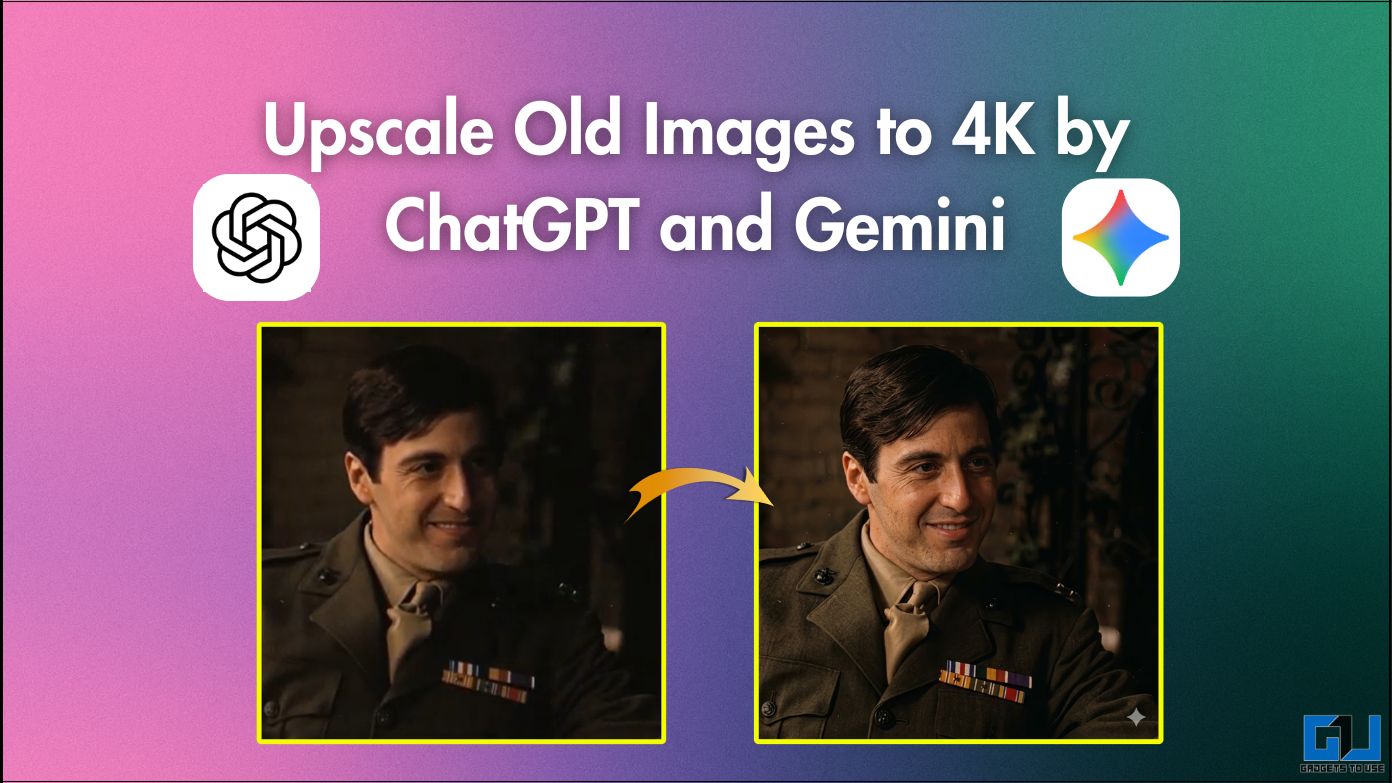
- Go to a new chat on Gemini and upload the image you want to upscale.
- It all depends on the feel you want in your images and how you make your prompt to match it.
- AI image generation has allowed anyone to upscale their images with a few clicks and a prompt.
Old pictures often give you a sense of nostalgia. Their details may fade, but the memories remain. It would be great if you could restore the images and improve the details. Previously, it was not easy to restore old images without photo editing skills or expensive online tools. However, among many applications of AI image generation, this is definitely something that anyone can use. With platforms like ChatGPT or Gemini, you can also upscale your old images with a few simple steps.
What is AI Upscaling, and how do I do it with ChatGPT and Gemini?
A typical 4K image has a resolution of around 3840 x 2160 pixels. Since these tools generate images, they can also generate pixels in them. Although no new image is generated, the pixel count increases, along with improved lighting and increased texture detail. In simple words, these tools generate and create missing details. Let’s try upscaling an image on both tools.
Use ChatGPT
1. Open a new chat on ChatGPT and upload the image you want to upscale.
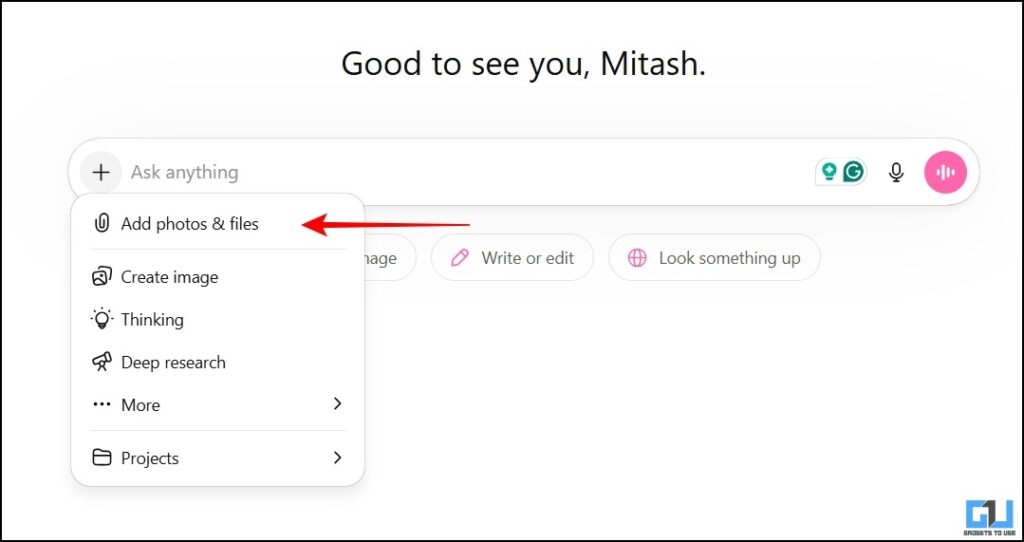
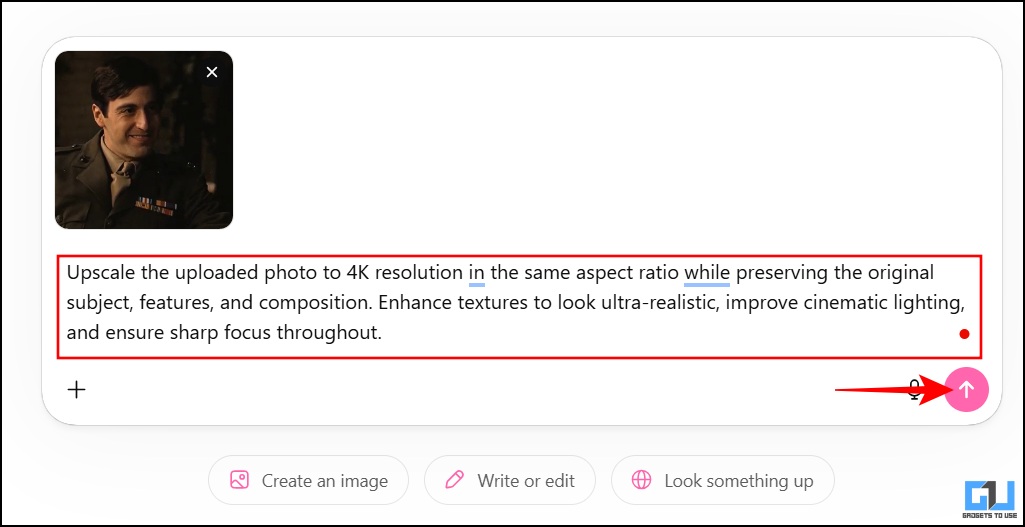
2. Just copy the prompt below and paste it into the chat. Hit Enter.
- query: Upscale the uploaded photo to 4K resolution at the same aspect ratio while preserving the original subject, features and composition. Enhance textures to look ultra-realistic, enhance cinema lighting, and ensure sharp focus throughout.
3. Wait until the image is processed and the new image is generated. Download the upscaled image after processing is complete.

Use Gemini
1. Go to a new chat on Gemini and upload the image you want to upscale.
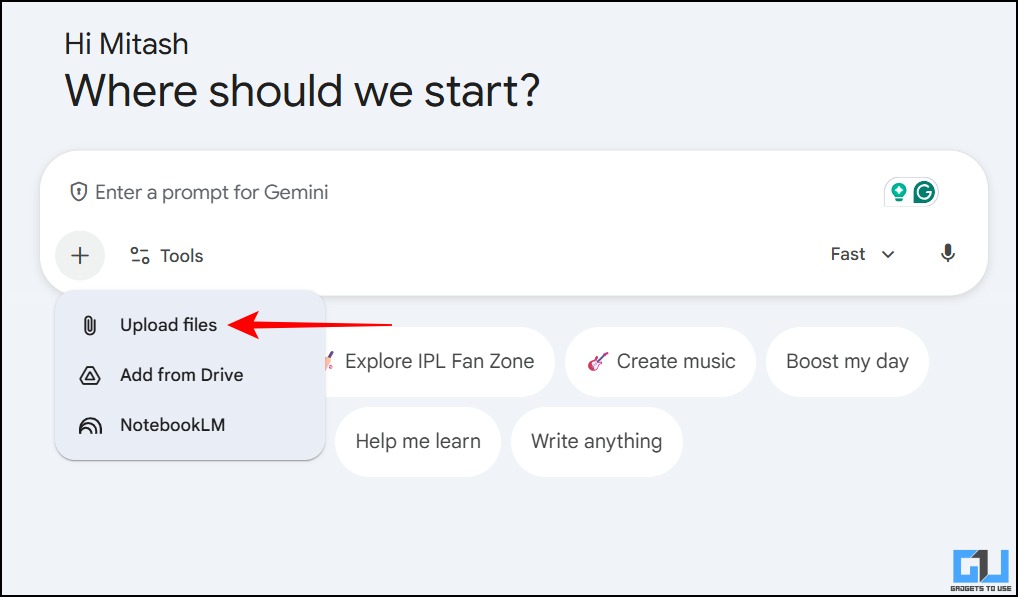
2. Use the same prompt as above and paste it. Hit Enter.
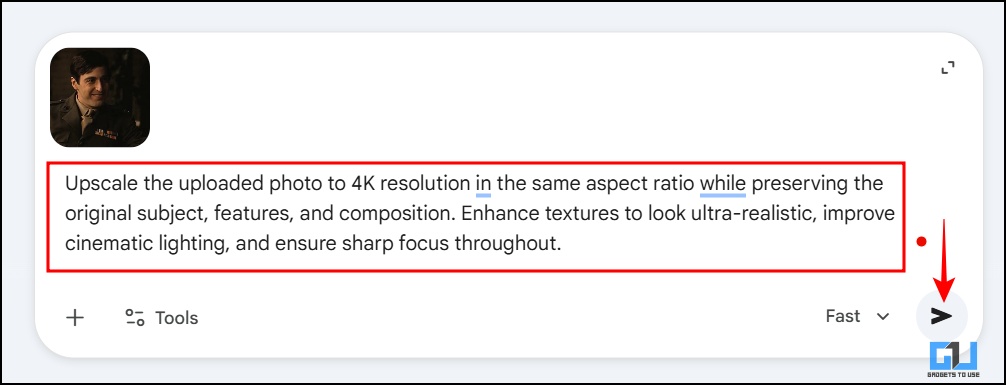
3. Wait until the image is processed and the new image is generated. Download the upscaled image when processing is complete.

ChatGPT vs Gemini: Which result is better?

If we compare the 2 results side by side, there is a noticeable difference. The ChatGPT result looks subtle and feels like a realistic upgrade, as the details are well maintained. The Gemini result has visible oversharpening and slight distortion. This may also be due to the requests. Since both operate on different algorithms. Furthermore, you can experiment further by trying a different prompt below in both tools.
request: Enhance this portrait while keeping the person’s identity, face shape and expression exactly as in the original. Only subtle cleaning is allowed. Keep the background unchanged. Create the image as if shot with a Sony A1 camera with an 85mm f1.4 lens, 4K, 10-bit color, cinematic style.
FAQs
Q. Is it free to upscale images to 4K?
Yes, it is free to upscale images on ChatGPT and Gemini. Although Pro subscriptions can help with faster processing and multiple renders.
Q. Will my images look fake after upscaling them?
It all depends on the feel you want in your images, and how you make your prompt to match it. As mentioned above, different tools have different algorithms, so you can get different results from the same prompts.
Terminate
Upscaling images no longer requires photo editing skills or expensive tools. AI image generation has allowed anyone to upscale their images with a few clicks and a prompt. With tools like ChatGPT and Gemini, you can transform old, blurry or low-quality images into ones that look like they were captured with an expensive camera. What matters is the prompt. If you get it right, you will get the desired result.
You may also like to read:
Do you have questions related to our how-to guides, or anything in the world of technology? Check us out GadgetsToUse AI Chatbot free, powered by ChatGPT.
You can also follow us for instant tech news Google News or for tips and tricks, smartphones & gadgets reviews, join the GadgetsToUse Telegram Groupor subscribe to the GadgetsToUse Youtube Channel for the latest review videos.
⬇️ GadgetsToUse Site Search ⬇️
You can find everything on our website including tech how to, solution or reviews using the google site search box below.
Was this article helpful?
YesNo