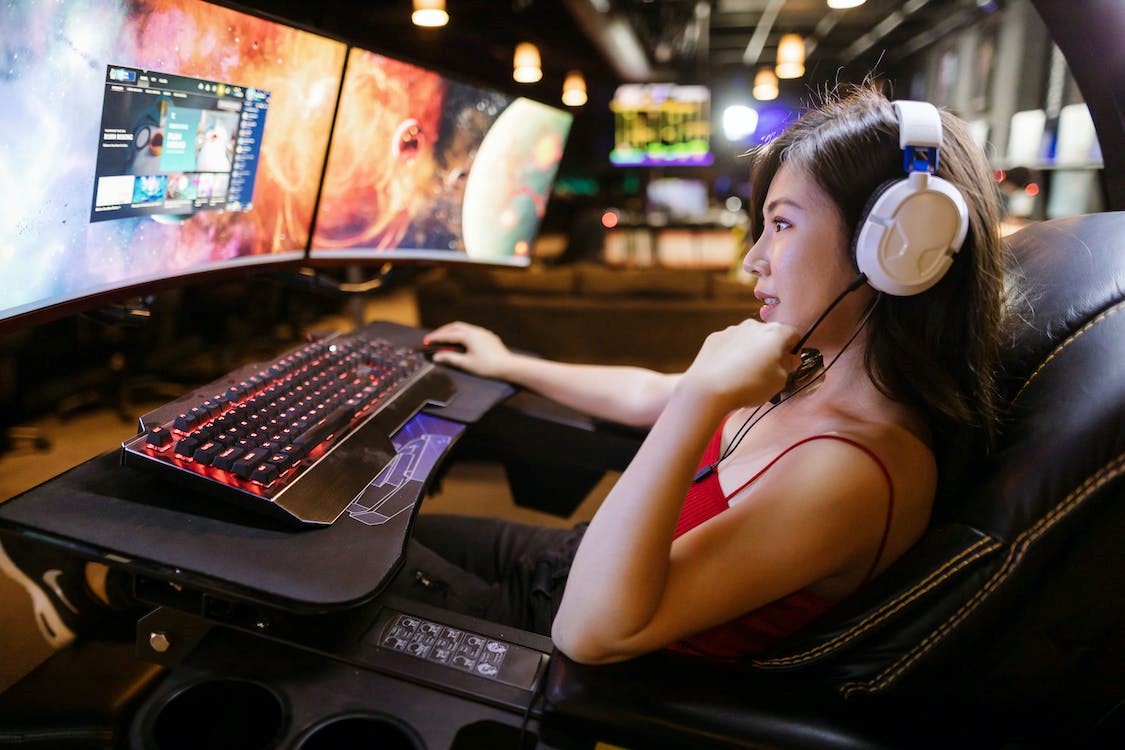
The game world is an interesting landscape to navigate. You can sit alone at home, but gaming allows you to connect with others in the world on different platforms. Depending on the games you play, there may be a level of teamwork required or it may be a space for socializing. In these cases, it is crucial that you are able to communicate with your fellow players.
If you find that your microphone is not working, don’t worry; in this article we will look at quick fixes for microphone problems with your gaming headset.
Adjust in-game settings
The first step to getting your microphone up and running is to understand how game settings play a role. Different games offer a variety of settings to customize your experience. A common setting found in games like Fortnite and Overwatch is microphone settings. These settings allow you to adjust your microphone volume and whether your microphone stays on or when you press a button to speak. In addition to this, some games will be set to no voice chat by default, and require you to open your account settings to activate voice chat. We recommend checking your in-game settings and ensuring that all settings are enabled. If you adjust settings for your children, we recommend reviewing these and adjusting accordingly. You may find settings that only allow voice chat with individuals you’ve selected permissions on, so take the time to go through these first to check if it’s appropriate.
Make sure the microphone is turned on
A simple but often overlooked factor in your gaming headset’s microphone is whether or not it’s turned on. Some headphones may have a small rocker switch or button that easily turns it on and off. We recommend printing this and testing your microphone to see if this solves the problem for you.
Check system settings
Sometimes the microphone problem may go deeper than the game itself, and may lie with the system being used. Whether you’re a PC gamer or a console gamer, we suggest digging into your device or account settings to make sure you have access to voice chat. Sometimes you need to adjust the privacy settings to disable voice chat.
Firmware and driver updates
Just like any piece of technology, your gaming headset requires periodic updates to perform optimally. Old firmware or drivers can cause microphone problems. To avoid this, check regularly for available firmware updates specific to your headset model. Equally important are audio driver updates. Make sure you download updates from official sources to avoid potential complications.
Physical inspection and maintenance
We also recommend physically checking the headset for dust, debris or damage. Dust and debris can build up and affect the microphone, which you gently remove. If your microphone or headset is physically damaged, this may be the cause of a microphone problem. This is usually not covered under a manufacturing warranty so in these cases it would be best to cover the cost of a repair or replacement.
Troubleshooting unresolved issues
If all checks fail and the issue persists, it is best to reach out to the dedicated support team for your product. Whether this is the manufacturer or the dealer, they should be able to advise further on possible fixes for your issue.
conclusion
While microphone issues can be frustrating, you can perform simple checks to turn it back on. Our advice is to check all the settings in the game, on your console, and make sure the microphone is turned on. For more help for your specific model of headset, consult your user manual or contact the appropriate support team.