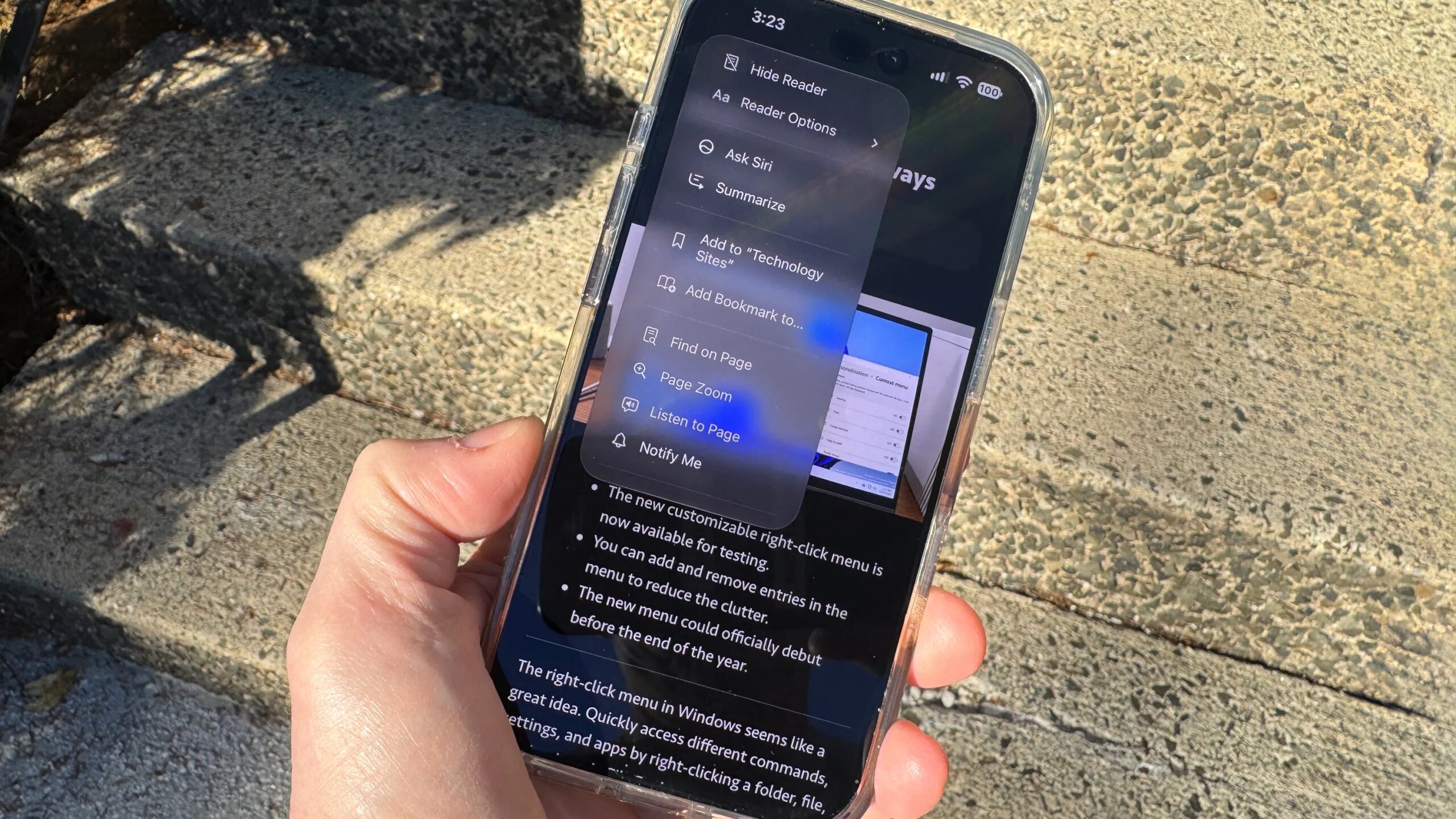
Apple’s iOS 27 brings some cool new features to mobile Safari that make the latest OS worth grabbing for your iPhone. And some of them use your device’s AI smarts to help you. Since upgrading my iPhone, I’ve been checking out these latest improvements and found three that I think are worth highlighting.
Also: 7 iOS 27 features that make old iPhones exciting again
A new AI-based feature lets you create your own extensions by describing what you want. Another uses automatic AI to organize all your open tabs based solely on their content. A third taps into AI to notify you of changes on a website, so you don’t have to manually check the site yourself.
To take advantage of Safari’s new AI features, you need an iPhone that can not only be upgraded to iOS 27, but also supports Apple Intelligence. This means an iPhone 15 Pro, 15 Pro Max, all iPhone 16, all iPhone 17, the iPhone 18 Pro, 18 Pro Max or the iPhone Duo.
Although I cover how the features work on an iPhone, you can also find them in Safari on an iPad with iPadOS 27 and a Mac with MacOS 27. For an iPad, you need an iPad Pro or Air with an M1 chip or higher or an iPad mini with an A17 Pro chip or higher. Mac users need a model with an M1 chip or higher.
1. Create your own extensions
Apple offers a variety of third-party extensions for mobile Safari. To check them on your iPhone, go to Settings, select Apps, and then tap Safari. Swipe down the screen and select Extensions. Here you can see which extensions are already enabled or at least available. Below is a list of recommended extensions. Swipe to the bottom of the screen and select More extensions. That will take you to the Safari Extensions Store, where you’ll be able to browse or search for others.
But instead of searching for the right extension, you can create your own. To get started, launch Safari on your phone and then go to a website that you want to use as an example for the extension. Tap the three-line menu icon on the left side of the address bar and select Describe extension.
On the next screen, select the category that best describes your desired extension. Otherwise, choose the option to describe something else. If you select one of the predefined categories, a list of possible descriptions will appear. Choose the one you want or provide your own description. Tap Create to submit the description and then wait for the extension to be generated.
 Screenshot by Lance Whitney/ZDNET
When the extension is ready, tap the Try button at the top to run it. Tap the check mark to continue. To disable it, tap the three-line menu icon, swipe down the list of items, and tap the name of the extension. To start the extension on any other page in the future, go back to the menu and tap on its name.
 Screenshot by Lance Whitney/ZDNET
To edit the extension, open the menu and select Manage extensions. Select it and then describe the change you want to make. From here you can also allow the extension to work in Private Browsing mode, set its permissions or remove it completely.
For this one, I created an extension that sets a minimum font size of 20 points on a website. That way I can more easily see and read pages with text that is otherwise too small.
 Screenshot by Lance Whitney/ZDNET
2. Let AI organize all your open tabs
As you open more and more websites, you accumulate more and more open tabs. And the more tabs, the harder they can be to navigate and manage. One option is to organize them into groups. But doing that manually is time consuming. Instead, why not let the built-in AI organize them for you?
Also: iPhone Duo Screen Crack: Serious Problem or Overblown? What we know
To try this in Safari, tap the Tabs button and tap the three-line menu icon at the top left. In the menu you can see the groups that Safari has already created automatically. To continue, select Organize Tabs and then tap the option to automatically create topics. You will then see the tabs organized by group.
 Screenshot by Lance Whitney/ZDNET
To open a specific group, tap its thumbnail. Tap the ellipsis icon, and you can copy or move the tabs to another group or close them entirely. Otherwise, tap a specific thumbnail in a group to view the page.
I often open websites for articles I’ve written so they can be accessed quickly. But the more tabs open, the more challenging it is to keep track. Asking AI to organize them into distinct groups helps me see and work with them all more easily.

3. Get notified of website changes
Do you keep visiting a website to see if it has been updated with specific changes? Instead of doing this continuously yourself, let Safari notify you when it has been updated. To do this, navigate to the website, tap the menu icon on the left side of the address bar and select Notify Me.
Describe the change for which you would like to be notified. For example, maybe you’re looking at a product page on a retail site and want to know if the price is dropping. By default, you will be notified at a certain time every day. To change the frequency and/or time, tap Change and then make your changes. Finally, select the check mark to allow Safari to send you notifications.
Also: ZDNET Gift of the Year: Our Editors’ Top Picks
I often buy products on Amazon, but sometimes the prices can be steep. If I find an item I don’t need right away, I set up a notification to alert me when the price drops.
 Screenshot by Lance Whitney/ZDNET
See full bio