If you use Outlook with a POP account, or keep old mail in archive files, that mail sits in a PST file on your PC along with contacts, calendar entries, and tasks. Whereas IMAP and Microsoft 365 accounts use an OST file instead, which is a separate problem. Right, here in this article we focus on PST, so when a PST gets damaged, Outlook either refuses to open it or freezes every time you click a folder. Usually it’s a forced shutdown while Outlook was writing to the file, though a dying drive or a PST that’s grown huge will do it too.
Microsoft ships its own fix, the Inbox Repair Tool (SCANPST.exe). It handles light damage, but it can stall on large files, and it quietly throws away anything it considers unreadable.
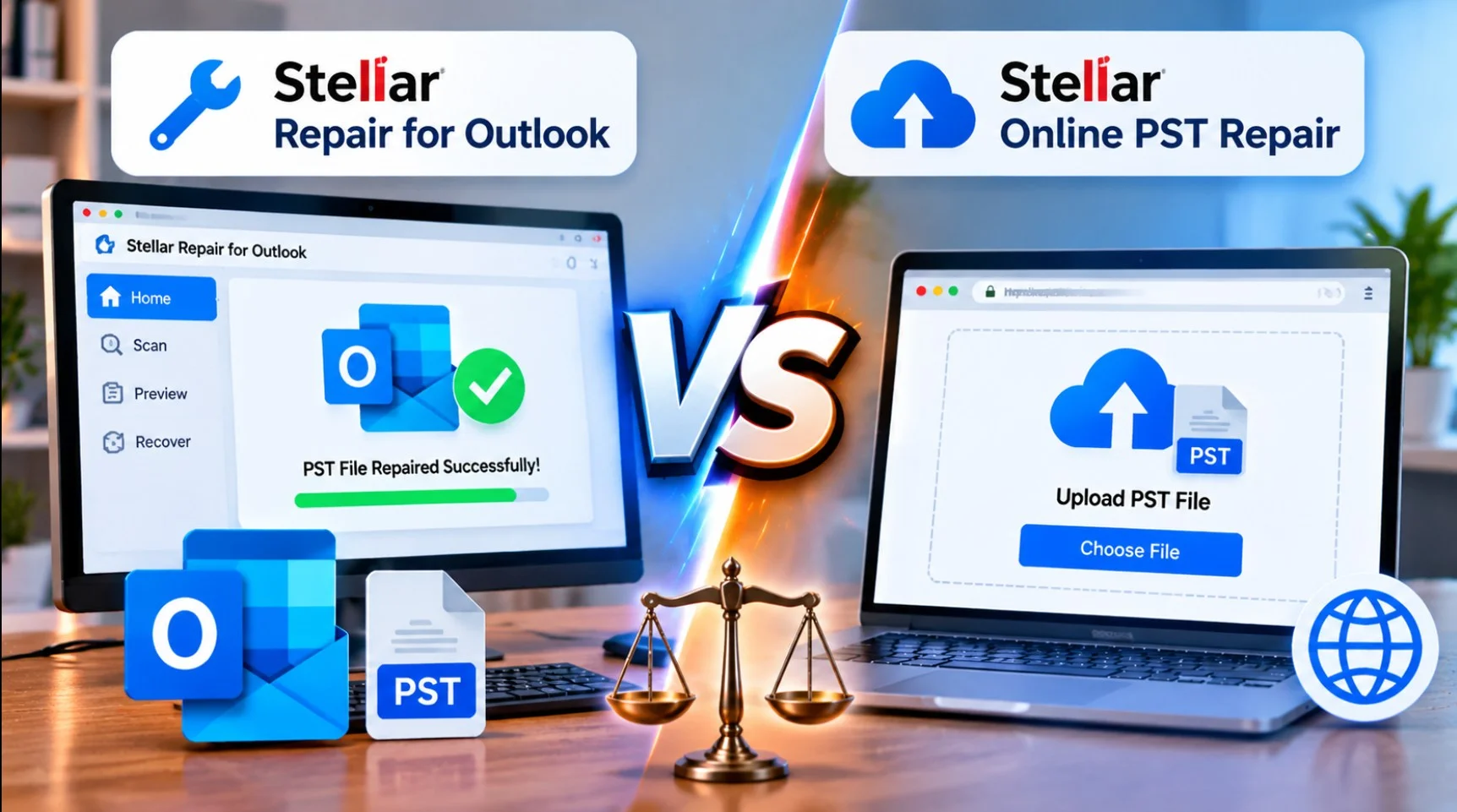
We first reviewed Stellar Repair for Outlook in 2020. A lot has changed since then. The desktop app is now on version 14 with Windows 11 and Snapdragon support, and Stellar has added a browser-based service called Stellar Online PST Repair that fixes smaller PST files without installing anything.
This updated review covers both. We tested the desktop software and the online service on the same corrupted PST file, so you can see which one suits your situation.
Quick verdict
Use Stellar Online PST Repair if your PST is under 5 GB, you have one file to fix, and you’re fine uploading your mailbox to Stellar’s servers, which will be deleted from there in a day or two. Files up to 500 MB are free.
Use the desktop Stellar Repair for Outlook when the file is over 5 GB or badly damaged. It’s also the safer pick if the mailbox holds data that shouldn’t leave your PC, and the only one of the two that recovers deleted items. If you fix PSTs regularly, the one-time license pays for itself quickly.
How to tell your PST is corrupt
Outlook rarely says “your PST is corrupt” in plain words. These are the messages people usually search for:
- “The file xxxx.pst is not a personal folder file.”
- “Errors have been detected in the file xxxx.pst. Quit Outlook and all mail-enabled applications, and then use the Inbox Repair Tool.”
- “Outlook.pst cannot be accessed – 0x80040116”
- “Outlook data file cannot be opened” or “cannot be accessed”
Other signs are quieter. Outlook might hang on “Processing” at startup, or crash only when you open one particular folder. Sometimes a folder you know is full just shows up empty.
We tried SCANPST first
Before paying for anything, it’s worth running Microsoft’s free Inbox Repair Tool. On Microsoft 365 and Office 2016 or later, you’ll usually find SCANPST.EXE in C:\Program Files\Microsoft Office\root\Office16. Back up the PST before running it, because it deletes whatever it can’t read.
We ran it on both test files before trying Stellar, to see what a paid tool adds over the free one.
On Stellar’s sample PST, SCANPST found errors and reported 42 folders and 51 items in the file. That’s all it tells you before you click Repair. There’s no preview, so you can’t see which emails, contacts or calendar entries are actually readable. You only find out afterwards, by opening the repaired file in Outlook.
When we did, the calendar entries were gone, along with some of the other non-mail items. Stellar’s scan of the same file showed every folder before saving: 56 Inbox items, 2 calendar entries, 1 contact, 7 journal entries, 6 notes, 8 tasks and 17 items in Lost&Found.

SCANPST vs Stellar at a glance
| SCANPST (Inbox Repair Tool) | Stellar Repair for Outlook | |
|---|---|---|
| Developer | Microsoft | Stellar |
| Cost | Free, included with Outlook | Free scan and preview; desktop saving from $79; first online repair under 500 MB free |
| Preview before repair | No, only folder and item totals | Desktop: full email, attachment and calendar preview. Online: folder tree with item counts |
| Original file | Repaired in place (backup optional) | Left untouched; repaired data goes to a new file |
| Deleted email recovery | No | Yes, marked in red (desktop) |
| Output | Repaired PST only | Desktop: PST, MSG, EML, RTF, HTML, PDF. Online: PST |
| Our sample PST result | Calendar and other items lost | Every folder recovered; calendar, contacts, and tasks included |
| Best for | Light damage on smaller files | Badly damaged files, or when SCANPST has already failed |
Stellar Repair for Outlook (desktop): what you get
Stellar Repair for Outlook is a Windows app from Stellar Information Technology, an Indian data recovery company. It scans a damaged PST, shows you what it can recover, and saves the result as a fresh PST or in other formats. It works on a copy, so your original file stays untouched.
The version we tested is 14.0.0.1, released in June 2026.

System requirements
| Requirement | What Stellar lists |
|---|---|
| Operating system | Windows 11, 10, 8.1, 8 (64-bit only) |
| Processor | Intel-compatible x64, Snapdragon |
| Memory | 8 GB minimum, 16 GB recommended |
| Disk space | 250 MB for installation |
| Outlook | 2024, 2021, 2019, 2016 and older versions |
| Languages | English, German, French, Italian, Spanish, Japanese |
One thing that hasn’t changed since 2020: you still need Microsoft Outlook installed to save the repaired data as a PST. Scanning and previewing work without it. There’s no Mac or Linux version.
Installation Steps
The installation steps required to run this software are:
Download Stellar Repair for Outlook from the official website and click on the free download option given underneath.

Running the .exe executable file: After downloading the .exe file, run it as an administrator and start the setup. A dialog box will open for Stellar Repair for Outlook. Click on the Next option present in that dialog box, and you will be directed to the License Agreement window.

Just read the licensing terms and click I accept the agreement. Now click Next and browse to the destination folder where you want the setup to store its files.
After selecting your preferred location for the setup files, choose the location for the program shortcuts. Next, select the checkboxes of your choice in the Select Additional Tasks dialog box.
Finally, initiate the installation and wait for the software to be installed on your system. The installation process is quick and should be completed within seconds.

To unlock saving, open Activation in the app and enter your licence key.
The interface
The app uses a Microsoft Office-style ribbon, so anyone who has used Outlook will find their way around. The main tabs cover file selection, viewing the scanned mailbox, the log report, and activation. After a scan, the left pane shows the mailbox as a folder tree, and the right pane previews each email with its attachments. Separate views exist for Calendar, Contacts, Tasks, Journals, and Notes.

If you don’t know where your PST lives, the Find option searches a drive for PST files. A Save Scan option stores the scan results so you can come back to a large file later without rescanning it.
The menu bar contains different options like File, Home, View, Tools, Calendar, Activation, Help, and Buy Now. These options contain different metadata within them, such as:
- File: Helps in locating the PST files in our system by browsing and finding, saving the repaired PST file, and exiting from the software.
- Home: It contains the same functionalities as File, with some additional ones like loading and saving the scan.
- View: To switch the reading pane and see the log report of the scanned PST file, we can use the View option.
- Tools: Used when we want to update the software.
- Calendar: Used to see the messages, emails, and data files within the PST file.
- Activation: Used when we want to activate our product with the product key.
- Help: Any help related to the software is provided here, including technical glitches, problems, etc.
- Buy Now: Helps in accessing the paid versions.
All these functions are easily understandable by the user.
Insights of the Software and recovery test
Steps for PST Repair
After the software is properly installed in our system, we need to launch it. The first screen that appears is somewhat similar to Outlook 2016. The default theme is set to the Office 2016 color theme, but you can change it to the Office 2016 White theme if you like. Also, language selection is available within this software, and one can choose his/her preferred language based on the comfort of accessing things.

The moment we launch the software, a dialog box pops up with the name Select PST File for Repair. This dialog box mainly shows which .pst corrupted files we want to repair can be selected either through the browser or the Find option. After the PST file is located in the system, we just need to click on the Repair option that is located in the dialog box at the bottom right corner. The repair takes a few minutes or more, depending on the size of the PST file and the processing speed of the computer.

The Select PST File for Repair is also given as a button within the software with the name Select Outlook PST and can be accessed through the File option in the menu bar or from a button that is present just below the menu bar.
Once the repairing finishes, all the details of the PST files are displayed that are the messages, emails (sent, inbox, outbox, drafts, etc.), calendar details, deleted emails, etc. The repaired PST file items contain all the deleted and other messages that were contained within it. The deleted messages are highlighted in red, showing that they have been securely recovered to be viewed by the user.

After gathering the information, the user can store and save this repaired PST file on the computer by clicking on the Save Repaired File option and can view the same later with the help of Outlook. The saved file can be saved in different file formats ranging from PST, MSG, EML, RTF, HTML, and PDF. However, the Save PST option is only for paid users and not for users accessing the free version of this software. Also, various attachments with a particular mail can be accessed with the help of this software, but only for paid members.
There is also a provision to save our scanned PST file on the computer so that we don’t need to run the same scan again and again. The saved scan option can be accessed with the help of the Load Scan option present in the UI of this software.

The repair process is straightforward and can be easily understood by a naïve person if he/she knows Basic English or the different languages supported within the software and has a basic knowledge of computers. We used it to repair a couple of files, and it successfully recovered all of them without failing even for a single time. However, one thing to note here is the limited features that are available with the free version, which only scans the corrupted files and just views them.
If a user wants to play around with different features of this application, then he/she should go for the paid software, which comes in three different price ranges:
- Professional: It offers various features such as repair of corrupt PST, recovers complete mailbox, restores permanently deleted emails, attachments & contacts; previews all recoverable items, saves mailbox data in multiple format options; supports all Outlook versions, saves scan to resume later…
- Technician Version: This one includes all the features of the Professional version, and along with that it also offers PST Splitter; Splits PST file on the basis of Date, Size, mail ID, and mail Folder; compacts the repaired PST file and extracts and stores attachments at user-specified locations.
- Toolkit: It comes with some advanced options and features of both the versions mentioned above.
Once the purchase is made, the user is provided with an Activation Key that needs to be typed when we run the software to reap the full benefits.
Desktop repair test
We used a sample corrupt PST file on Windows 11 25H2 with Outlook Classic 2024. The repair itself is three clicks. Select the PST, click Repair, and wait for the scan to finish. The tool then lists every recovered folder, with deleted items marked in red.

What we found with Stellar’s sample PST
The scan of Stellar’s sample file found 56 items in the Inbox. Roughly half of them showed in red. Those are emails that had been deleted from the mailbox before it was damaged, and the tool dug them back out of the file. SCANPST doesn’t do this.
After saving the repaired PST and opening it in Outlook, our first look was worrying. The Inbox badge said 14. That badge only counts unread mail, though. The status bar at the bottom of the Outlook window had the real figure: 29 items, 14 of them unread.

Those 29 matched the emails Stellar showed in black. When we went through the red ones, most turned out to be older copies of emails that were still in the Inbox. Testing Mail No. 1000, for instance, appeared once in black and again in red. The desktop save left those repeat copies out, so the 29 that came back in Outlook were the complete set of unique emails.
So nothing was lost. But a reader comparing 56 in the preview with 14 in Outlook could easily think the repair failed, and it’s worth knowing why the numbers differ.
Saving the repaired data
On Save Repaired File, you choose PST, MSG, EML, RTF, HTML, or PDF. The save screen has filters to include or exclude items by email address or date range, and to skip Junk and Deleted Items. That’s handy when you only need last year’s mail out of a 20 GB archive.

Stellar Desktop App features and pricing
The free trial scans and previews your mailbox, so you can check what’s recoverable before paying. Saving needs a paid licence. Each edition is a one-time purchase for a single PC.
| Edition | Price (USD) | What it adds |
|---|---|---|
| Professional | $79 | Repair, deleted-item recovery, preview, save filters, save as PST/EML/MSG/RTF/HTML/PDF |
| Technician | $149 | Everything above, plus MBOX output, export to Microsoft 365/Live Exchange, split and compact PST |
| Toolkit | $199 | Everything above, plus export to live Exchange, OST-to-PST conversion, PST merge and Outlook password recovery |
For most home and small office users, Professional is enough. Technician makes sense if you’re an IT admin moving recovered mailboxes straight into Microsoft 365.
Stellar Online PST Repair: the new browser option
Well, Stellar’s Desktop app performance for repairing PST is similar to what I tested in 2020; however, the company now also offers online PST repair services.
Stellar Online PST Repair does the same job without any software on your PC. You sign in, upload the PST, and Stellar’s servers repair it. When it’s done, you see the recovered folder structure and item counts, then download a new PST.
The good part is it doesn’t need Outlook installed, unlike the desktop app, which requires it to save. It handles ANSI and Unicode PST files from Outlook 2003 through 2024, including password-protected ones, and works in Chrome, Edge, Firefox, and Safari. That means you can fix a PST from a Mac or a borrowed laptop, then copy it back to your Windows PC.
| Plan | Price (USD) | File size | Files kept for download |
|---|---|---|---|
| Free | $0 | Up to 500 MB | 24 hours |
| Premium | $29.99 per file | 500 MB to 5 GB | 48 hours |
The service handles one file at a time. Anything above 5 GB has to go through the desktop app.
Online repair test
We ran the same corrupted PST files through the online service, so the comparison with the desktop app is like-for-like.
- To use Stellar’s online service, a user first needs to sign in. Visit the official Stellar Online PST Repair service and click Sign In. You can use Google/email.

- Click the “Repair PST Online” button and select the PST from your PC, then click to upload the file.

- Processing runs on Stellar’s side. Stellar says most files finish within a few minutes or more, depending on your PST file size.

- Once the PST repair process is completed, you will have the Download and Preview options. In Preview (in HTML format), you get the recovered folder tree and item counts in the browser. You can’t open individual emails here, unlike the desktop preview. However, you will have at least an idea of what has been recovered.

- Once you are satisfied with the result, you can download the repaired PST file to your PC, by default into Downloads, which can later be imported into Outlook for further assessment.

Two things stood out once we’d used it.
The free plan really means one free repair. Our first file went through at no cost. When we tried a second PST, the service asked us to upgrade to Premium before it would repair it. So if you’re hoping to fix several small PSTs for free, you can’t.
It was also slower than the desktop app, though that isn’t really the repair engine’s fault. Before anything happens, the whole PST has to go up to Stellar’s servers, and even a modest mailbox can be 400 MB or more. Then it’s processed in the cloud, and the repaired file has to come back down again. The desktop app skips both transfers and finishes in a few clicks on your own PC. On a slow connection, or with a file near the 5 GB limit, that gap only grows.
On recovery itself, there was nothing to separate them. We ran Stellar’s sample PST through both, and the online service came back with identical counts in every folder: 56 in the Inbox, 2 in Deleted Items, 2 calendar entries, 1 contact, 7 journal entries, 6 notes, 8 tasks, and 17 items in Lost&Found. The only layout difference was that the online version put Lost&Found inside a folder called MyPST.
The online service also gives you a small HTML report of the repaired file’s folder tree with item counts, which is handy to keep as a record. The desktop app doesn’t produce one.
The difference showed up once we opened the files in Outlook. The online-repaired PST came in with all 56 items in the Inbox, while the desktop save gave us 29. Nothing was missing from the desktop file, though. The online version had kept every recovered copy, so the same email often appeared two or three times in a row. The desktop app saved only one copy of each.
The online version did lose one small detail. Every one of the 56 emails showed as unread, while the desktop file kept the original read and unread status.

Using the repaired PST in Outlook
Whether it comes from the online service or the desktop app, the repaired PST is a separate file. Outlook won’t pick it up on its own.
To check it first, go to File → Open & Export → Open Outlook Data File and select the repaired PST. It shows up as its own mailbox in the folder pane, and you can drag emails or folders from it into your main mailbox.
To merge everything back in, go to File → Open & Export → Import/Export → Import from another program or file → Outlook Data File (.pst). Choose Do not import duplicates and tick Include subfolders.
If you use a POP account, you can make the repaired file your main one instead. Open File → Account Settings → Account Settings → Data Files, add the PST and click Set as Default, then restart Outlook.
One thing that caught us out: the repaired file keeps the PST’s full internal folder tree. Expect folders like Top of Outlook data file, Unknown, and Recoverable Items. Your mail sits under Top of Outlook data file, so go through the full folder list if the Inbox looks empty.
Is uploading your PST safe?
This is the real trade-off with the online service. A PST is your whole mailbox, every invoice and private thread in it, and you’re handing a copy to someone else.
Stellar says uploads go over a secure connection and are processed automatically with no human access. Uploaded and repaired files are deleted after 24 hours on the free plan and 48 hours on Premium. Stellar also holds ISO 27001 certification for information security. Those are reasonable safeguards, but we can’t independently verify deletion.
For a personal mailbox, most people will be comfortable with that. For work mail, check your company’s data policy first. If the PST holds client, legal, medical, or financial data, use the desktop app, which never sends anything off your PC.
Online vs desktop PST repair
| Online PST Repair | Desktop (Professional) | |
|---|---|---|
| Install needed | No, runs in a browser | Yes, Windows 64-bit only |
| Outlook needed | No | Yes, to save as PST |
| Max file size | 5 GB (500 MB free) | No limit |
| Files per job | One | Multiple (batch) |
| Price | Free up to 500 MB, $29.99 per file to 5 GB | $79 one-time, unlimited files |
| Where repair happens | Stellar’s servers | Your PC |
| Preview | Folder tree and item counts | Full email, attachment and calendar preview |
| Deleted item recovery | Not listed | Yes, shown in red |
| Output | PST | PST, MSG, EML, RTF, HTML, PDF |
| Selective saving | No | Filters by sender, date, folder |
| Works on Mac | Yes (browser) | No |
When it comes to cost, keep in mind that only your first online repair is free. After that, each Premium online repair costs $29.99, meaning just three repairs will set you back $89.97—already more than the $79 desktop license. Although the online service is convenient and supports PST files up to 5 GB, each Premium purchase covers only one repair. This makes it a less practical option for regular PST repair work. If you expect to repair more than a couple of PST files, the desktop application is the more economical choice. In our testing, it was also faster.
Which one should you use?
The online repair makes sense for a single PST under 5 GB, especially your first one under 500 MB, which costs nothing. It’s also your only option on a Mac, or on a locked-down work laptop where you can’t install software. Just make sure the mailbox is something you’re comfortable leaving on Stellar’s servers for up to 48 hours.
Pick the desktop app when:
- The PST is over 5 GB, which old archive files often are
- SCANPST already failed, and you want to read the recovered emails before paying
- You need deleted emails back, or only part of the mailbox
- The data is confidential
- You’re moving the recovered mailbox into Microsoft 365 (Technician edition)
- You have several PSTs to fix, or expect to do this again
A sensible approach for most people: try the free online repair if the file is small enough. If it’s bigger, or the result is missing items, install the desktop trial and preview what it can recover before buying.
Pros and cons
Stellar Online PST Repair
Pros
- Free for PST files up to 500 MB
- Nothing to install, and no Outlook needed
- Works from any OS with a modern browser
- Files auto-delete after 24 or 48 hours
Cons
- 5 GB ceiling
- Only one free repair; after that, each file costs $29.99
- Preview shows only folders and item counts
- Your mailbox has to leave your PC
Stellar Repair for Outlook (desktop)
Pros
- No file size limit, plus batch repair
- Detailed preview before you pay
- Recovers deleted items and marks them in red
- Saves to six formats, with filters for selective export
- Data never leaves your PC
Cons
- Windows only, and 64-bit only now
- Outlook must be installed to save as PST
- 8 GB RAM minimum is steep for older office PCs
- Free trial can’t save anything
Final verdict
For a small, single PST, PST repair service is the easiest option since there’s nothing to install, and your first repair under 500 MB is free. You don’t need Outlook installed either. But the desktop app is still the more capable tool. It has no size limit, its preview lets you actually read recovered mail, it brings back deleted items, and your mailbox never leaves your PC.
After using both, the online service wins on convenience. There’s no software to install, and it works on any operating system with a browser, which is hard to beat for a one-off small file. The desktop app wins on speed. Every online repair means sending the whole PST up to the cloud and downloading it again afterwards, while the desktop app does the job locally in a few clicks.
What surprised us is how close they were on recovery. On the same sample PST, both found the same items in every folder. The saved files were a different story. The online PST put back all 56 Inbox items, duplicates included, and marked every one unread. The desktop file came back as a clean set of 29 unique emails with read status intact, which leaves you less to tidy up afterwards.
Our recommendation: if your PST is under 500 MB and holds nothing sensitive, try the free online repair first. For bigger files or work mail, the $79 Professional edition is the better buy.
FAQ
Yes, for one PST file up to 500 MB. Files between 500 MB and 5 GB cost $29.99 each.
No. You only need Outlook later to open the repaired PST. The desktop app, by contrast, needs Outlook installed to save as PST.
No. Use the desktop Stellar Repair for Outlook, which has no size limit.
No. It works in read-only mode and writes the repaired data to a new file.
No, it only takes PST files. If your Outlook uses IMAP or Microsoft 365, your local data is in an OST file. Stellar handles those through a separate OST to PST converter, and the desktop Toolkit edition includes OST conversion.
It’s free and already on your PC, so it’s worth a try on lightly damaged files. Back up the PST before you run it, since SCANPST can delete items it can’t read.
Yes, it runs in Safari and other modern browsers. The desktop app is Windows-only.