If a Mac needs troubleshooting or its files need to be moved to another computer, macOS is usually not always the most convenient option. On supported Intel-based Macs, Target Disk Mode provides another way to access the computer’s storage.
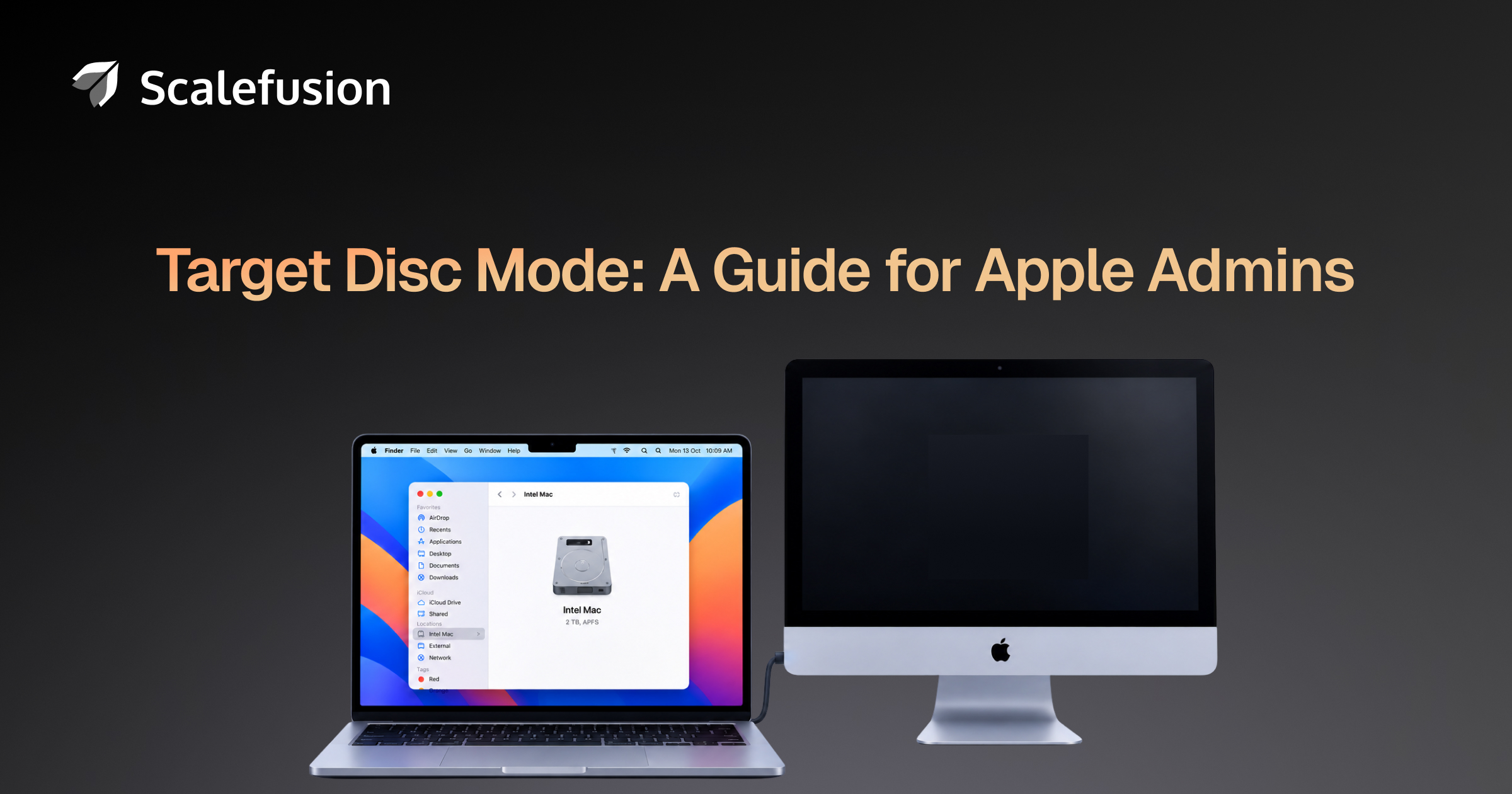
Target Disk Mode lets an Intel Mac behave like an external disk when connected to another Mac. This allows files to be accessed and transferred without using the target Mac in the usual way.
However, Target Disk Mode is specific to Intel-based Macs. Apple Silicon Macs use a different file sharing workflow through macOS Recovery.
Let’s understand how Target Disk Mode works, how to use it, when it can be useful, and what IT teams need to know when supporting newer Apple Silicon Macs.
What is Target Disk Mode?
Target Disk Mode is a boot mode that allows an Intel-based Mac to appear as an external disk on another connected Mac to access and transfer files. Instead of using the Mac normally, its storage is accessed via the other Mac, so files can be moved between the two computers.
Think of it as a temporary change in the Mac’s role. Rather than acting as a complete computer for the session, the Intel Mac exposes its disk to the connected Mac.
This can be useful when IT teams or users need direct access to files on an Intel Mac, especially when normal file transfer workflows are inconvenient or when the Mac cannot be used normally.
Target Disk Mode should not be confused with a backup or data recovery tool. There is access to storage that is available. However, it does not guarantee that files can be recovered from damaged or inaccessible storage.
How does Target Disk Mode work?
Target Disk Mode requires two Mac computers to be physically connected. The Intel-based Mac starts in Target Disk Mode, while the second Mac remains the computer for browsing and transferring files.
When the Intel Mac enters Target Disk Mode, its disk becomes available to the other Mac. The user can then open it through Finder, macOS’s built-in file management application, and drag files to or from the disk.
The process gives the second Mac access to the other computer’s available storage instead of relying on a normal MacOS session. This can be useful in some troubleshooting situations where the target Mac does not start as expected.
How to use Target Disk Mode on an Intel Mac
Follow these steps to use Target Disk Mode on an Intel-based Mac.
Step 1: Connect the two Macs
Connect the Intel-based Mac to the other Mac with a Thunderbolt cable. Apple’s current Mac User Guide specifies a Thunderbolt connection for this workflow.
Step 2: Start the Intel Mac in Target Disk Mode
If the Intel Mac is turned off, start it while pressing and holding the T Key. Apple lists the T key as the startup combination for entering Target Disk Mode on Intel-based Macs.
If the Mac is already running, go to: Apple Menu > System Settings > General > Startup Disk. Then, choose Reboot in Target Disk mode. Apple identifies this option as available for Intel Macs.
Step 3: Access and transfer files
When the Intel Mac starts up in Target Disk Mode, its disk appears as a icon on the other Mac.
Open Finder on the second Mac and select the Mac that will be used as an external disk from the sidebar. Files can then be transferred by dragging them to or from the disk.
Step 4: Eject the disk
When the transfer is complete, control-click the disk in the Finder and select it stand out. Use the Power button to turn off the Mac being used as a disk before disconnecting the cable.
When is Target Disk Mode useful?
Target Disk Mode can support some file access and troubleshooting scenarios on Intel Macs.
Access files when a Mac can’t start normally
A Mac may experience an operating system problem that makes normal startup difficult while its storage remains accessible. In such cases, Target Disk Mode can give IT teams another way to access available files from a second Mac.
This is one reason Target Disk Mode can be useful in IT recovery workflows. For example, IT teams can use it to recover user files from Macs that experience boot problems before repair, replacement or re-imaging.
Transfer files between Macs
Target Disk Mode also offers a direct way to move files between supported Macs. If the target Mac appears as a disk, files can be copied using Finder instead of setting up a separate network-based file sharing workflow.
Supports device recovery and replacement
Some organizations still maintain Intel Mac fleets. Target Disk Mode can be relevant during troubleshooting, device replacement or migration workflows where IT admins need access to files stored on an existing device.
Its usefulness depends on the condition and accessibility of the Mac’s storage, so it is treated as a troubleshooting option rather than a guaranteed recovery method.
Does Target Disk Mode work on Apple Silicon Macs?
Traditional Target Disk Mode is an Intel Mac feature. Apple directs users with Apple Silicon Macs to use a file sharing workflow through macOS Recovery instead.
On an Apple Silicon Mac, a user can start and open macOS Recovery Utilities > Share Disk. After you select a volume and start sharing, the other connected Mac can access the shared Mac via the Network section in the Finder. Apple supports USB, USB-C or Thunderbolt connections for this Share Disk workflow.
The distinction is important for IT teams supporting mixed Mac environments. Older instructions telling users to hold down the T key apply to Intel-based Macs and should not be treated as instructions for Apple Silicon devices.
What are the limitations of Target Disk Mode?
Target Disk Mode has some practical limitations that IT teams should consider:
- Requires physical access: The Macs must be physically accessible and directly connected, so Target Disk Mode is primarily a local troubleshooting and file access workflow.
- Depends on storage accessibility: Access to files depends on the condition and accessibility of the Mac’s storage. If the storage has failed or is damaged, Target Disk Mode cannot provide access to the required files.
- Repair not save: Target Disk Mode provides access to available storage. However, it does not repair faulty hardware or guarantee that damaged or inaccessible files can be recovered.
Organizations should therefore treat Target Disk Mode as an option in a broader Mac troubleshooting and recovery process.
Target Disk Mode in Enterprise Mac environments
Target Disk Mode addresses a specific local file access scenario. Enterprise Mac management involves a much broader set of ongoing requirements, including registering devices, applying policies, distributing applications, configuring security settings, and supporting users remotely.
Scalefusion enables IT teams to enroll and manage organizational Macs, apply Mac device profiles and policies, distribute applications and perform supported device actions from the Scalefusion dashboard.
For managed Macs, Scalefusion Remote Cast & Control supports remote troubleshooting by letting IT administrators see a user’s Mac screen, help with device issues, and use Remote Terminal to execute commands on supported devices.
These workflows serve a different purpose from Target Disk Mode.
Target Disk Mode provides local access to an Intel Mac’s storage, while Mac device management and remote support help IT teams manage and troubleshoot enrolled Macs throughout their operational lifecycle.
Choose the right file access workflow for your Mac
Target Disk Mode provides a convenient way to access available files on Intel-based Macs during file transfers and certain troubleshooting scenarios. For IT teams managing both Intel-based and Apple Silicon Macs, understanding how file access methods differ between these devices will help choose the appropriate approach for each situation.