A quick step removes the small chance that something will go wrong and require more of your time.
If your phone has a SIM tray, it’s not something you’re likely to open often, but there are still reasons to do so. You might switch to an MVNO to save money, or you might temporarily swap out your regular SIM for a cheaper local carrier when you travel. In some cases, your carrier will send you a replacement card if yours is damaged.
Most of today’s smartphones allow you to switch SIMs with the phone on, so you don’t have to turn off your device for the process. But there are modest benefits to doing it, and for something so quick it’s better to be sure if you have a few minutes.
How to replace the SIM
We are talking about physical SIM cards that you have to remove from your phone by hand. eSIM replacement should be as easy as using a QR code, carrier app or direct transfer between different smartphones. Most eSIM-compatible phones can store many eSIMS, but only a few can be active at a time.
Physical SIM card replacement includes these steps:
- Optionally, turn off your phone or enable airplane mode.
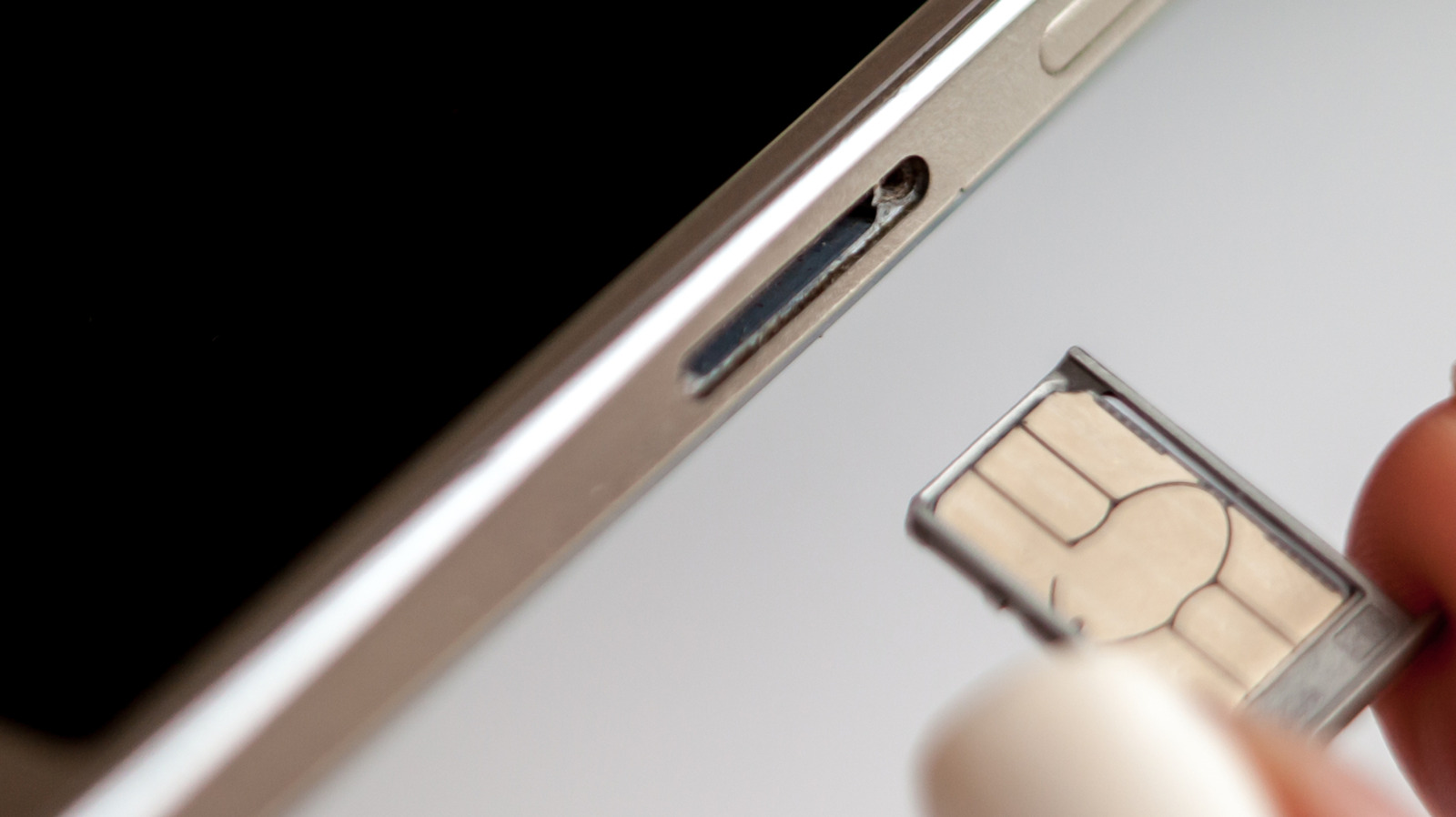
- Pop the tray out, usually by pressing a paper clip or SIM ejector tool into the ejection pinhole on the phone.
- Change the card, making sure you are using the correct card size.
- Pop the tray back into place.
- Enter your PIN or reboot when the phone asks.
If you have a dual-SIM phone that supports two physical cards, check which SIM you want to swap before you start.
While many argue eSIM is a superior technology because it requires no moving parts, others still appreciate the convenience and relative privacy that real SIM cards provide. They make it easy to set up and use over-the-counter pay-as-you-go SIM-based accounts, for example.
The small potential risks of SIM replacement

The most potential dangers of SIM replacement are physical. You can accidentally put dirt, grime or moisture into the SIM tray, or force a larger card into a smaller slot by mistake. You can also break the SIM tray, causing it to no longer align properly, or otherwise damage the card. A damaged SIM card or one inserted incorrectly can cause the phone to keep trying (and failing) to create a network connection, draining its battery and overheating.
Most people never encounter these problems, because extension and caution are the trick. In most cases, your phone will take a moment to read the new SIM and find the network. Then it will be available for service, subject to account setup requirements.
The benefit of turning off your phone before swapping out the SIM is small. It forces your phone to look at the fresh information on the new map when it comes back up, helping your device register to its new network faster by reading the new carrier settings. This reduces the chance of encountering a software-based “network error” message when swapping.
More to think about when swapping SIMs
Prior to the 2010s, SIM slots were usually located under a phone’s removable battery, which of course required turning off the device to access. Over time, as removable batteries became less common, SIM trays were moved to the outside of phones. Earlier models using this setup would often show a network error when swapping SIMs while the phone was on, but they soon became hot-swappable and this was no longer a problem.
You don’t even have to turn off your device completely for the phone to refresh its carrier settings from the map. You get a similar result if you turn off airplane mode, wait 30 seconds before swapping out the SIM, and turn off airplane mode again when the new SIM is inserted. This should prevent any carrier hiccups during the process.
A warning on SD cards
Unlike the iPhone, some Android devices still include a microSD card slot. In some cases this is in the same tray as the SIM, although the placement varies. If this is the case for you, such as when leaving an external drive, it is important to unmount the microSD card before removing the SIM to avoid losing data. On Samsung devices: open the My files app, find those SD cardtap on three-point Menu next to it and select Unmount. Search the Settings app or check the online documentation if you’re not sure how this works for your device.
So while the benefits are slight, turning off your phone when you replace the SIM can prevent software-related glitches. If you don’t want to turn it off, use airplane mode instead. And if you encounter a network error after swapping, always try to reboot your device first.