- You can add a single video, an entire channel, a playlist or even a search result as a source in NotebookLM.
- Therefore, you can either add each short individually via the link or curate a playlist of the shorts you want to add with the extension and add them all at once.
- This can be a problem if you need to add several videos or an entire channel in a single notebook.
Whether you are a student or a working professional, NotebookLM can be a really beneficial tool. Based on the sources you provide, you can do a lot with it. Including creating presentations, generating audio and visual summaries, taking quizzes, arranging data graphically, and much more. Since Google owns both, YouTube videos work really well as a source for NotebookLM. However, to add a video, you need to copy the video link and paste it under sources in your notebook. This can be a problem if you need to add several videos or an entire channel in a single notebook. Let’s see how you can add multiple videos at once without copying and pasting each video link separately.
Add the entire YouTube channel to NotebookLM
To add several videos at once, you can easily use an extension.
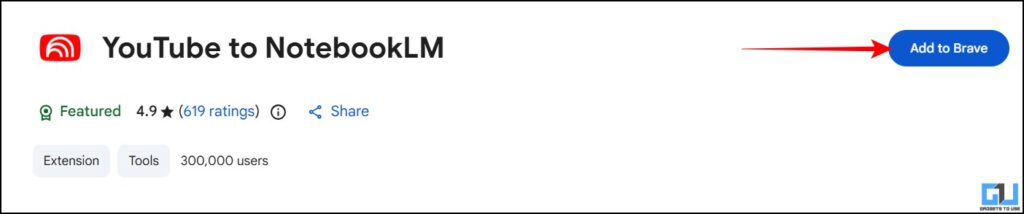
1. Open the YouTube to NotebookLM extension in the Chrome Web Store. Here click on “Add to Chrome” or whatever Chromium-based browser you add.
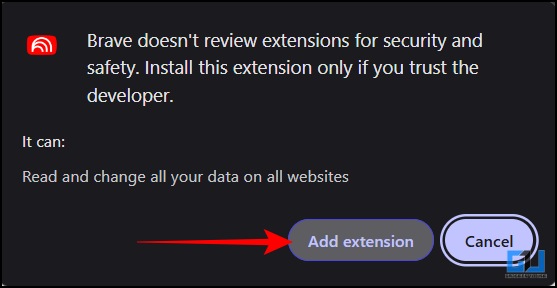
2. You will get a confirmation pop-up, click here Add extension. If it is added, you will receive a confirmation.
3. Now, to use the extension, make sure you are logged in NotebookLM with your Google account. Open YouTube. Here you can use it in many ways.
You’ll find that you now get a special NotebookLM button when you open a video.
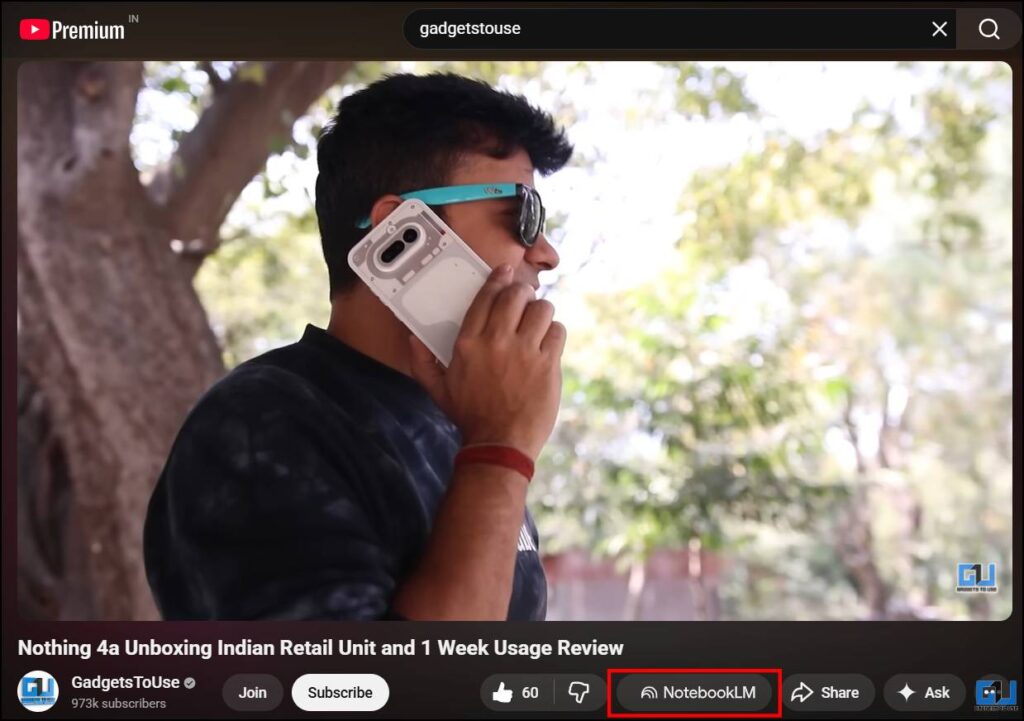
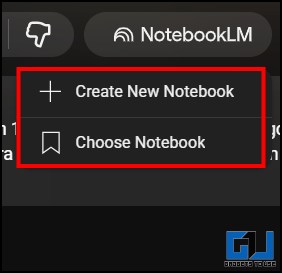
4. If you click on it, you can choose either ‘Create a new notebook’ use the video as a source. Or just click on ‘Select Notebook’ to add that video to an already existing notebook.
5. The videos are added to a new or existing notebook, under sources.
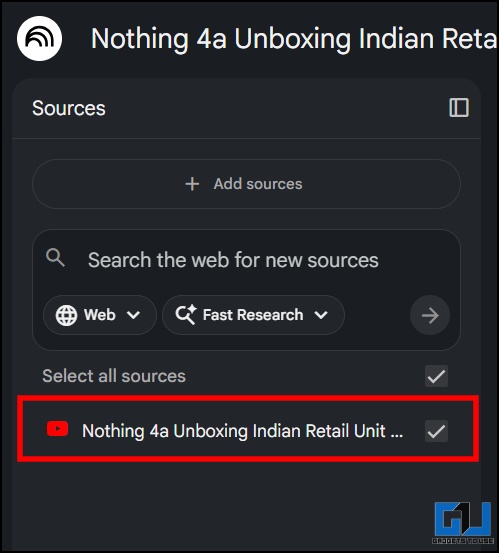
As mentioned above, this extension specifically helps you add some videos as sources in a notebook with just a few clicks. In addition to a single video, you can add:
An entire YouTube channel
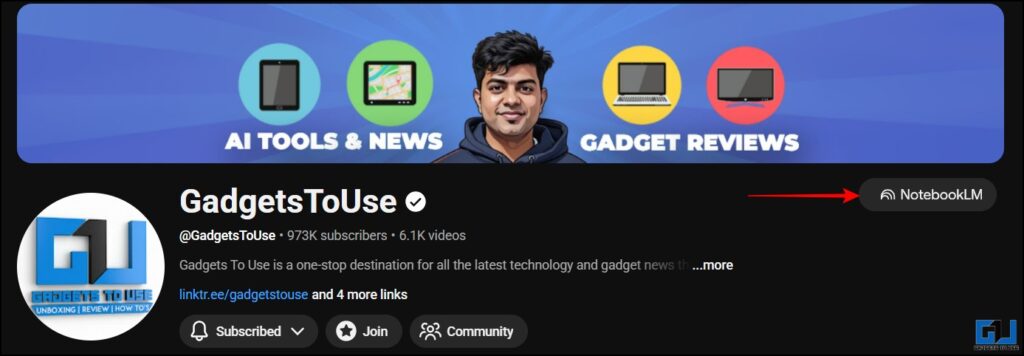
A curated playlist on every channel and your private playlists too.
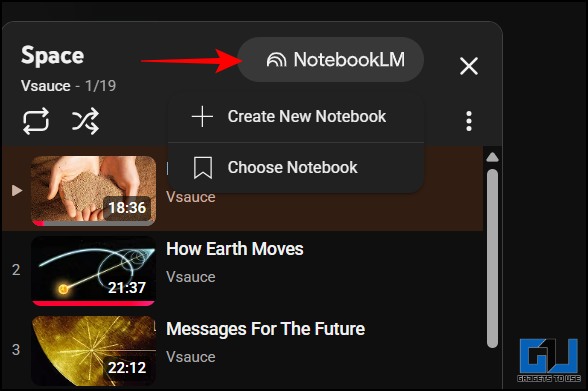
You can even add a number of videos that appear in the search results as sources.

Extension for non-chromium-based browsers
If you use a non-chromium-based browser like Mozilla Firefox, you can also add the same extension there.
1. Open the YouTube to NotebookLM extension to the Firefox browser add-ons. Here click on “Add to Firefox“.

2. You will get a pop-up. Here, hit ‘Add’. If it is added, you will receive a confirmation.
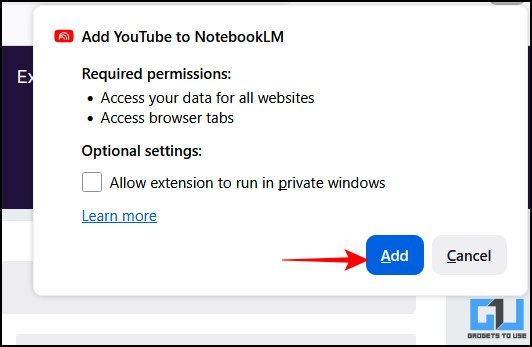
3. It works the same as it does in Chromium-based browsers. You can add a single video, an entire channel, a playlist or even a search result as a source in NotebookLM.
FAQs
Q. How many videos can I add to a single notebook?
On the free version, you can add up to 50 sources per notebook. Whether it’s video links, PDFs, website links or more. However, if you have a Google AI Pro subscription, this limit reaches 300 per notebook.
Q. Can I add more YouTube shorts in the extension?
No, the extension is not compatible with YouTube Shorts yet. Therefore, you can either add each short individually via the link or curate a playlist of the shorts you want to add with the extension and add them all at once.
Graduation
Using the YouTube to NotebookLM extension can make your tasks easier. Especially if you are someone who gets most of your information from YouTube videos. The extension is very practical, allowing users to add multiple videos to NotebookLM in just a few clicks. The developers kept in mind both users of Chromium-based browsers and users of a browser such as Mozilla Firefox, which is not Chromium-based.
You may also like to read:
Do you have questions related to our how-to guides, or anything in the world of technology? Check us out GadgetsToUse AI Chatbot free, powered by ChatGPT.
You can also follow us for instant tech news Google news or for tips and tricks, smartphones & gadgets reviews, join the GadgetsToUse Telegram Groupor subscribe to the GadgetsToUse Youtube Channel for the latest review videos.
⬇️ GadgetsToUse Site Search ⬇️
You can find everything on our website including tech how to, solution or reviews using the google site search box below.
Was this article helpful?
YesNo