Dig out that MacBook and put it to good use.
To get more out of your old MacBook, you may have thought about using it as a home Network Attached Storage (NAS) server. There are several ways to take, from very simple use of built-in MacOS sharing tools to advanced, Linux-based solutions.
What can you do with a NAS?
Most NAS servers exist for one of three things: as a home media library, for collaboration and sharing, or for storage and backup. Given the value of the data, storage limitations and inherent risk of disk failure with older Macs, you should use external storage drives within your setup.
Once you’ve wiped your Mac, reset it to factory settings, and updated it to run the most stable MacOS it can, what do you need? You need a network and an Ethernet cable for fast and stable connection to your router. If your Intel Mac has an HDMI output, you’ll want a headless HDMI connector to trick it into having a display attached and enable the GPU for best video performance. You also use the free Amphetamine app to prevent your Mac from sleeping.
macOS has file sharing built in
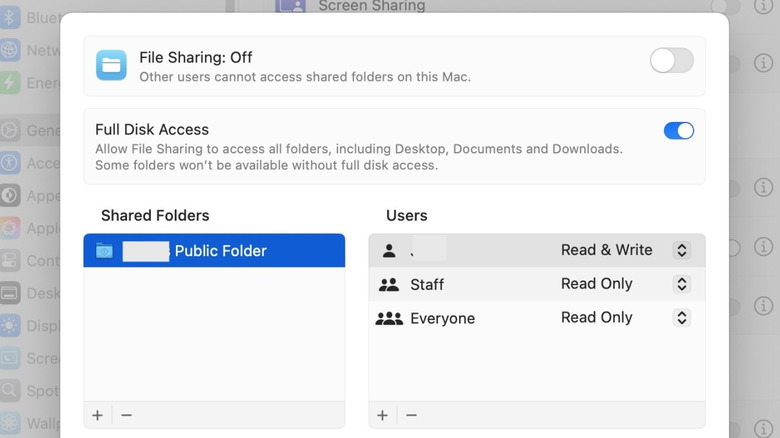
The simplest option is already available in macOS built into Apple’s Share Settings. Open this to activate File sharing and select folders to share. You can assign user access privileges, make your data available on Windows and Android devices, even share your external drive. You connect to an IP address that your Mac provides and navigate shared files through the Finder.
Your old Mac? Your new media server
Old Macs can run excellent media server applications, including Plex, Kodi and Infuse. Plex is widely used. It offers an attractive, user-friendly interface, ease of use and the ability to stream content remotely for a fee. Home streaming is free.
As explained here, to install Plex you need an account and a Plex Media Server, and you need to follow the intuitive setup wizard. You’ll show Plex where all your media is located over your network, and Plex will download appropriate movie artwork and information to populate its Netflix-like media browser with your content.
One more thing: Older Macs with low RAM may stutter when transcoding footage at 4K, so set Plex to stream in original quality to minimize this.
One step beyond with Linux
You can transform an old Mac into a highly sophisticated NAS system using Linux and open-source applications. Doing so supercharges your NAS setup with useful tools like web-based dashboards, even though old Macs struggle with low memory.
Linux is a large ecosystem with a multitude of approaches. A relatively user-friendly solution for both Intel and Apple Silicon Macs is to replace the OS with Debian and then overlay that with CasaOS or Umbrella, both of which offer excellent, helpful resources to guide you through the process. M-series Macs can also install Debian as a virtual machine. If you’re comfortable with command-line access, you can run Docker directly on Debian to deploy and manage apps even more effectively.
It is important to note that adopting Linux means that your Mac no longer runs macOS, but becomes a headless NAS system that is managed remotely through a browser. You can tweak your setup with additional tools, including Nextcloud, which turns your Mac into an online file storage system, or Jellyfin, a free open-source Plex alternative. You’ll have fun and get more out of your old Mac.