A small business should require multi-factor authentication (MFA) first for email, administrator accounts, finance systems, remote access, cloud productivity apps, and its domain registrar. Prefer FIDO2/WebAuthn passkeys or security keys where supported; these methods can provide phishing resistance when correctly implemented. Provide a separate backup method and deploy MFA in tested phases rather than switching every account at once.
Key Takeaways
- MFA for small businesses should prioritize email, administrator accounts, financial systems, remote access, and cloud applications.
- Phishing-resistant MFA, such as FIDO2/WebAuthn passkeys and security keys, is preferred where supported.
- Successful MFA implementation requires phased deployment, secure backup and recovery methods, policy enforcement, and regular verification.
Why does a small business need MFA?
MFA uses two or more distinct authentication factors, such as something a user knows and something they possess or are. If an attacker obtains an employee’s password through phishing, password reuse, or another compromise, a separately controlled factor can keep that password from being sufficient to sign in.
The potential impact is especially high for email and administrator accounts. A compromised email account may be used to reset passwords for other services, while an administrator account can create users, change security settings, or expose business data. CISA recommends MFA for small and medium-sized businesses, particularly for email, file storage, remote access, administrator access, and accounts handling sensitive information.
MFA is not a complete security program. Businesses still need software updates, secure devices, phishing awareness, access reviews, reliable backups, and procedures for removing former employees.
Which business accounts should get MFA first?
Prioritize accounts by what an attacker could do with them, not simply by how often employees use them.
Start with email, administrators, and financial accounts
Protect these account categories first:
- Business email: Email often controls password resets and contains sensitive conversations, invoices, and customer information.
- Administrator accounts: This includes administrators for email, cloud services, endpoints, networks, backups, ecommerce platforms, and business applications.
- Financial systems: Protect online banking, payment services, accounting software, payroll, expense management, and accounts that can approve or change payments.
- Password managers: A password manager may provide access to many other business credentials.
- Accounts belonging to owners and executives: These users may have broad authority, sensitive communications, or approval privileges.
Where a service supports separate administrator and everyday accounts, use them. An employee should not perform routine work through an account that can also change organization-wide security settings.
Include remote access, cloud apps, and your domain registrar
The next priority is any service that provides remote entry, stores important data, or controls another system. Common examples include:
- Virtual private networks, remote desktop gateways, and other remote-access services
- Cloud storage, collaboration, customer relationship management, and productivity platforms
- Ecommerce and website administration
- Backup consoles
- Human resources and payroll systems
- The domain registrar and Domain Name System settings
- Applications holding customer, employee, health, legal, or commercial data
Create an account inventory rather than relying on memory. At minimum, record:
| Field | What to document |
|---|---|
| Service | The application, platform, or infrastructure account |
| Account owner | The person responsible for access and recovery |
| Business impact | What could happen if the account were compromised |
| MFA status | Required, optional, unsupported, or not yet configured |
| Primary method | Passkey, security key, authenticator app, push, or another method |
| Backup method | The approved alternative if the primary factor is unavailable |
| Recovery contact | The administrator or provider that can restore access |
An important service that does not support MFA should be treated as a higher-risk exception. Consider placing it behind an identity provider that can enforce MFA, restricting access another way, or replacing the service when practical.
Which MFA method should employees use?
Use the strongest method each important service supports. CISA identifies FIDO/WebAuthn as a widely available phishing-resistant approach. It can work through physical security keys or platform authenticators built into supported computers and mobile devices.
Compare passkeys, security keys, authenticator apps, push, and SMS
| Method | Phishing resistance | Phone or network dependency | Cost and usability | Suitable use |
|---|---|---|---|---|
| Supported FIDO2/WebAuthn passkey | Strong when correctly implemented | May reside on a work computer, mobile device, or supported security key; cellular service is not inherently required | Often uses existing devices, but availability and recovery controls vary by service | High-risk and everyday accounts where the service supports an appropriate passkey deployment |
| FIDO2 security key | Strong | Does not require a personal phone or cellular service | Requires compatible hardware and spare-key planning | Administrators, finance users, owners, and employees without suitable phones |
| Authenticator-app code | Not phishing-resistant because the user manually enters the code | Usually requires a phone or supported work device; cellular service is generally not needed after setup | Inexpensive and widely supported | A practical option where FIDO2/WebAuthn is unavailable |
| Conventional push approval | Not equivalent to FIDO2/WebAuthn phishing resistance | Usually requires a registered device and internet access | Convenient, but users may approve an unexpected prompt | General workforce use when stronger options are unavailable; number matching is preferable where offered |
| SMS code | Not phishing-resistant | Requires access to the registered phone number and cellular delivery | Easy to understand but dependent on phone service | A fallback when the service offers no stronger practical option |
NIST explains that manually entered one-time passwords and out-of-band codes are not phishing-resistant because the authentication output is not cryptographically bound to the intended session. An attacker can potentially capture a code through a convincing fake sign-in page. Conventional approval prompts can also be misused if an employee accepts a request they did not initiate.
Do not block an MFA project simply because the preferred method is unavailable on one service. Use the strongest supported option, document the exception, and revisit it when the provider adds stronger authentication.
Choose a backup method that does not depend on a personal phone
Every high-priority account should have a separately managed backup path. Depending on the service, that could be:
- A second registered security key stored securely
- A supported passkey on a managed work device
- An approved authenticator on a company-managed device
- Recovery codes kept in a controlled, secure location
- Administrator-assisted recovery with documented identity verification
For higher-risk users, issuing two security keys can provide a primary and spare without requiring a personal smartphone. Avoid using an employee’s personal email address as the default recovery route for a business-critical account.
NIST recommends maintaining at least two separate means of authentication to reduce dependence on account recovery. The backup should be tested during enrollment rather than discovered to be unusable during an outage or lost-device incident.
How do you choose an MFA tool without overspending?
Start with controls already included in the services the business pays for. Buying another tool will not help if the existing email suite or identity provider can already enforce an appropriate method across the applications employees use.
Check the MFA features included with business accounts
For each priority service, check:
- Which MFA methods it supports
- Whether an administrator can require MFA for all users
- Whether different policies can be applied to administrators or high-risk groups
- Whether enrollment and authentication events are visible in logs
- Whether older sign-in methods can bypass MFA
- How account recovery and factor removal work
- Whether the service integrates with the organization’s identity provider
There is an important difference between supporting MFA and enforcing MFA. A service may let employees activate MFA voluntarily without allowing an administrator to require it. Voluntary enrollment leaves coverage dependent on each employee completing the setup.
Know when an authenticator app is not enough
An authenticator app generates a code or approves a request. It does not, by itself, require MFA across the company’s email, finance, storage, and remote-access services.
Enforcement must be configured within each service or through an identity provider that governs access to integrated applications. Before standardizing on an app, confirm which services the central identity system actually covers. Standalone accounts, local administrator accounts, and services outside single sign-on may still need separate policies.
Estimate licensing, hardware, and support costs
Account for more than the advertised subscription price. A practical estimate should include:
- Identity or security licenses needed for central enforcement
- Security keys for higher-risk users, plus spare keys
- Enrollment and employee training time
- Help-desk effort for lost devices and replacement factors
- Secure storage for spare keys or recovery codes
- Documentation and periodic enforcement testing
- Replacement hardware and employee turnover
Vendor pricing and support requirements vary too much for a universal small-business cost estimate. Compare the total operational cost of the methods that work with your actual account inventory.
How do you roll out MFA without disrupting employees?
Deploy MFA in phases, but set a clear end state. The objective is broad coverage of business accounts where MFA is supported—not a pilot that remains unfinished.
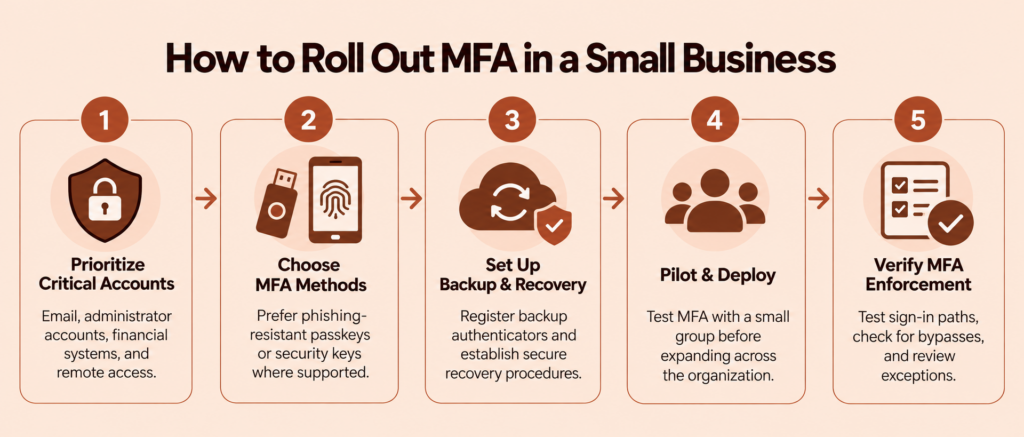
Assign an owner and method to each priority account
Use a rollout register containing:
- Service and accountable administrator
- Affected users and account types
- Primary and backup methods
- Enrollment instructions
- Recovery procedure
- Enforcement date
- Approved exceptions and their expiry dates
- Test results
Resolve recovery access before enforcing the policy. Confirm that the business has more than one authorized administrator where the service permits it, and make sure a single lost device cannot lock everyone out.
Pilot enrollment, train employees, and expand in phases
Begin with IT or the person responsible for administration, followed by a small group representing different roles and devices. During the pilot, test:
- Initial enrollment
- Browser, mobile, and desktop sign-ins used in normal work
- Access from the office and remote locations
- Backup-factor use
- New-device enrollment
- Lost-device recovery
- Administrator recovery
- Removal of an old factor
Give employees short, task-specific instructions. They need to know how to enroll, where to get help, and what to do when a prompt appears unexpectedly. Employees should never disclose a one-time code or approve a sign-in they did not initiate.
After correcting pilot issues, expand by department or service. Set deadlines for temporary exceptions and track them to closure.
How do you check that MFA is actually enforced?
A policy shown as enabled in an administrator console is not enough. Test the sign-in paths employees and attackers could actually use.
Test an unenrolled employee and every priority sign-in
Use a controlled test account or supervised test to confirm that an unenrolled user cannot reach the protected resource without completing the required MFA setup and challenge.
Test each relevant path separately, including:
- Browser sign-in
- Mobile and desktop applications
- Administrator portals
- Remote-access connections
- New or unmanaged devices
- Private browsing sessions
- Password-reset and account-recovery flows
Record the expected and actual result. Repeat the test after major policy changes, identity-provider migrations, or application updates.
Check legacy sign-ins, shared accounts, and service accounts
Older email, remote-access, or application protocols may not follow the same modern authentication flow. Identify whether they remain enabled and test whether they can bypass the MFA requirement.
Replace shared employee accounts with named accounts where possible. Named access makes enrollment, removal, and activity review easier to manage. If a shared account cannot be eliminated, document who can use it, how its factors are controlled, and how access will be changed when someone leaves.
Nonhuman service accounts require separate handling. Interactive MFA may not work for an automated process. Use the vendor-supported alternative, such as a restricted workload identity, scoped credential, certificate, or managed service connection. Limit its permissions and avoid exempting a normal employee account simply because a process depends on it.
What should you do when an employee loses a device or leaves?
Treat a lost authenticator as potentially compromised. Recovery should restore access without giving an attacker an easy way to replace the legitimate employee’s factor.
Verify identity before restoring access
Use a documented verification process before adding a new factor. The administrator should record who requested the change, how identity was verified, who approved it, and which account was modified.
Do not rely only on information that an attacker could obtain from email, social media, or company websites. Where the platform allows it, notify the employee through a separate channel when a new authenticator is added. NIST’s authenticator lifecycle guidance calls for appropriately strong authentication before binding a new authenticator and independent notification of the change.
Remove old factors and sessions, then test the replacement
For a lost or replaced device:
- Invalidate the old authenticator.
- Revoke active sessions where the service supports it.
- Enroll the replacement through the approved recovery process.
- Test the new primary and backup methods.
- Confirm that the old device or factor can no longer sign in.
When an employee leaves, disable their account according to the offboarding plan, revoke sessions, remove registered factors, transfer ownership of required business resources, and remove access from connected applications. Do not consider offboarding complete until access has been tested from the former employee’s normal sign-in paths.
Strengthen small-business account security with Scalefusion OneIdP
Implementing MFA in a small business starts with protecting critical accounts and selecting authentication methods that balance security with usability. A phased rollout, tested recovery options, and regular enforcement checks help businesses extend MFA coverage without unnecessary disruption.
As businesses adopt more cloud applications and manage access across different devices, centralized authentication policies become increasingly important.
Scalefusion OneIdP supports MFA through third-party authenticator apps and email-based OTPs for supported authentication workflows. Before deployment, review the documented MFA methods, application integrations, and applicable Directory and SSO policies to determine how they meet your organization’s requirements.
Evaluate OneIdP’s MFA capabilities against your applications, device environment, and authentication requirements.
Explore Scalefusion OneIdP
FAQs
1. Is MFA the same as two-factor authentication?
Two-factor authentication, or 2FA, is a form of MFA that uses exactly two independent factor types. MFA is the broader term and may use two or more factors. A password plus a security key combines different factor types; two passwords are still two checks of the same type and do not constitute 2FA.
2. Does every employee need a smartphone for MFA?
No. Depending on what the service supports, an employee can use a FIDO2 security key or a passkey on a supported work device. Authenticator-app codes can also work without cellular service after setup, although they require a compatible device. Provide a separate backup method for device loss or replacement.
3. Can MFA stop every phishing attack?
No. MFA can block many attacks that rely on a stolen password alone, but codes can be captured, employees can be pressured into approving prompts, sessions can be hijacked, and weak recovery processes can be exploited. FIDO2/WebAuthn methods provide stronger resistance to credential phishing, but MFA does not replace secure devices, employee training, updates, access controls, or monitoring.
4. Should a small business enable MFA on every account at once?
Usually not. Start with high-impact accounts, pilot enrollment, verify backup access and recovery, and then expand in phases. The eventual goal should be MFA coverage for all supported business accounts, with documented controls or replacement plans for services that cannot enforce it.