I always find it interesting when politicians take China to task for alleged surveillance of American citizens through consumer technology and social media apps. Interesting, because how many times have American companies been caught “leaking” users’ private data or spying on you through your mobile browser under the guise of “opt-out” tracking? Then there’s Facebook, which has had many run-ins over the years for allegedly violating your privacy.
In this climate, I can see why people are skeptical about companies and their ability to not only protect your data, but also use what they collect responsibly. At this point, many of our readers have heard of ACR, or ” Automatic content reviewn,” and often wants to know how to turn it off. Today we’re talking about TCL’s latest 2026 TVs and how to turn off ACR on them. Let’s talk about privacy and smart TVs.
Google TV’s “spy network”
Multiple privacy concerns
The TCL TVs are not inherently more private than any other TV. Especially with recent news covering just how deep the rabbit hole goes LG TVs! What happens here with TCL’s Google TV, and others that use the operating system, is that you have opt-ins for data sharing that TCL has in their user agreement, then you turn around and have the same from Google to use their products and services on TCL’s hardware.
So, if we look to turn off automatic content detection, we have to deal with TCL’s menu settings, then go to the Google software side of things.
TCL settings
It’s their TV, after all

I will address these settings in the order in which they appear on the menus, so first is “automated adjustments.” The TV uses algorithms to automatically adjust picture and sound by analyzing what is currently playing on the screen. We disable this feature by:
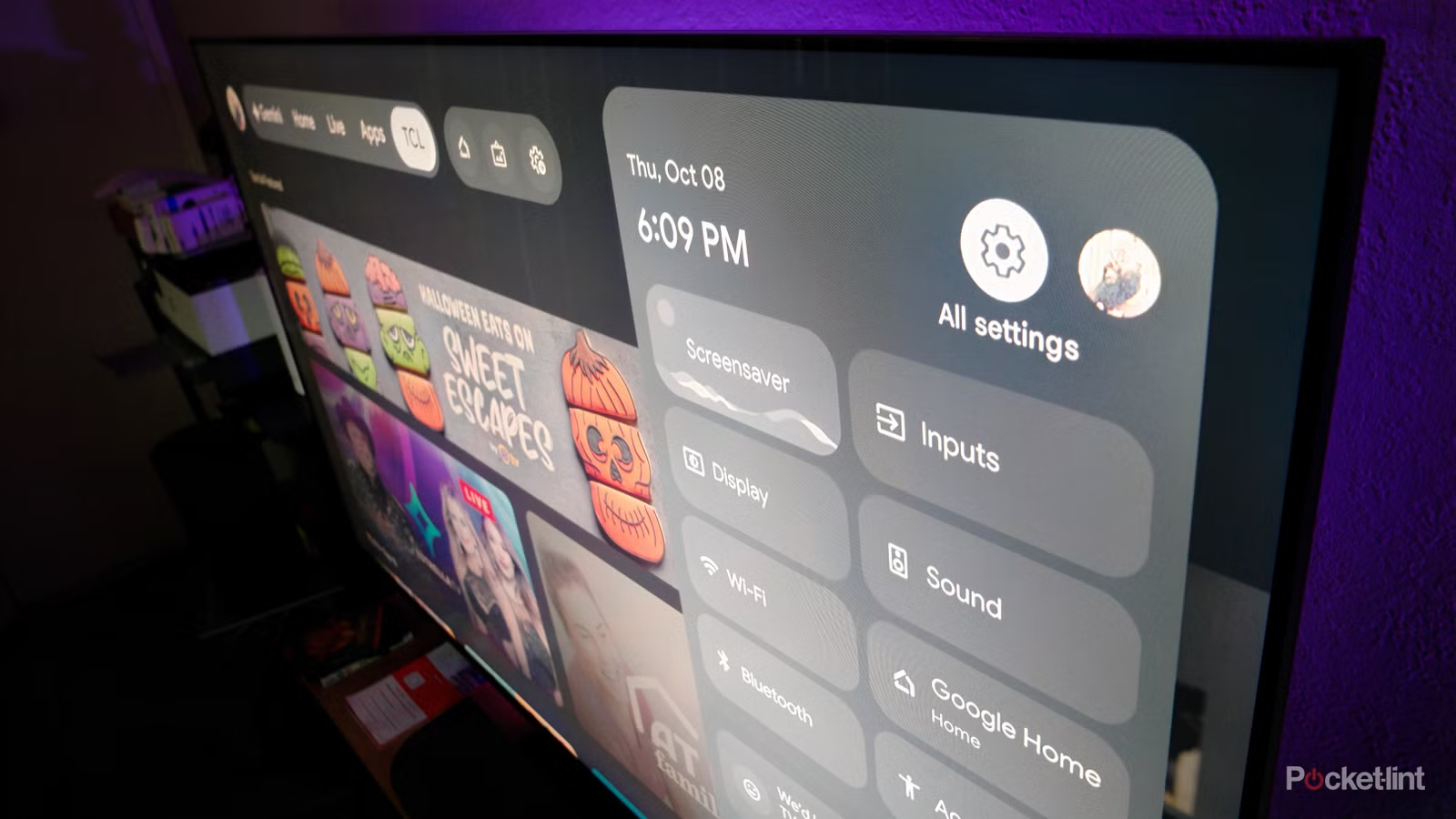
Tap the gear on your remote, then select “All Settings.”
Scroll to Display and Sound and select it.
Select image next.
Scroll to the bottom of the list of options and select the automatic content detection option.


Next, we go to the heart of the ACR shutdown! While still in the Settings menu, scroll to Privacy. This is where we find the Terms & Privacy, or User Agreement. Select the options here first. Confirming your choices is confusing on the TCL 75QM7L as there is no “Save” radio button, just one that says “Agree”. So, you will select the options in this menu, then select “Agree” to confirm that you agree to disagree with TCL’s user agreement. Yeah, like I said, it’s confusing.
On this TV there are only two options to deselect in this menu, with a third “Select All” which you obviously don’t want to select.
Disable another layer of tracking
Now we go to the privacy settings of Google

None of this is 100% clear, to be honest, so when we go there and disable features that give us a bit of the ick when it comes to privacy, it’s a good idea to be thorough. We will disable Google’s diagnostics and ad tracking options. Now, you can ask about Gemini for TV. After all, that’s probably a more well-known privacy concern with all the media attention AI is getting these days. We’ll cover that in a separate article, as there are several considerations when it comes to turning off Gemini for TV.
If you’re still in the Privacy menu, go to Usage & Diagnostics and set it to Off.
Now go to Ads and choose which of these options will appear on your TCL TV: Reset Advertising ID, or Limited Ad Tracking.

To be thorough, while in the main Privacy menu, scroll down to the Special App Access menu, then Use Access, and turn everything off there. It says apps track what you see and do in other apps, so we’re going to turn that off. Now, back to the main privacy menu, scroll down to the App Permissions menu where you can turn off any app’s ability to access the microphone, but I want this feature for when I use the remote’s microphone button to interact with the 75QM7L via voice. There is a privacy trade-off here though. Just look at the bottom of the TV, under the TCL branding, and use the physical toggle to manually turn off the microphone so the TV doesn’t “listen” to everything you do or say in your living room.
We can go much deeper in the rabbit hole and jump in dealing with Gemini for TVwhich is new to the Google TV operating system, but there are several steps to thoroughly accomplish this on the 75QM7L, so we’ll cover all of that in a separate article. So, go ahead and do the steps we’ve outlined here, because these are easier, then we’ll get into Gemini, which will take a little more work. It’s not difficult, but it will take a little more time than disabling ACR.

- Mark
-
TCL
- Display size
-
75 inches
- Dimensions
-
65.60″ x 39.20″ x 14.50″ with stand
- operating system
-
Google TV
- Display type
-
SQD Mini LED
- Display resolution
-
4K UHD (3840 x 2160)