ZDNET’s key takeaways
- Last month’s Patch Tuesday update may break file history in Windows.
- A fix is available through a new optional preview update.
- But the fix does not apply to Windows 11 23H2 or Windows 10.
Windows users who rely on File History to back up and recover important files may run into problems after the September security update is installed.
On its Knowledge Base support pages for the September 8 Patch Tuesday rollout, Microsoft revealed that some Windows users who installed the update were unable to create or run backups through File History.
Also: The latest Windows 11 update restores your taskbar control
Those affected may see a message telling them to reconnect their drive, even if a backup drive is connected and working properly. Furthermore, the timestamp for the last backup cannot be refreshed, while files that were previously backed up successfully show an error that no previous version is available.
All current versions of Windows 11 are affected, including Windows 11 26H1, 25H2 and 24H2, and 23H2. Windows 10 is also affected, as people who have registered for Extended Security Updates (ESU) will continue to receive monthly security updates.
How to check if you are affected
If you think you’ve been hit by this error, you can check the Windows Event Viewer for application crash events that reference FileHistory.exe or KERNELBASE.dll.
To do this, click on the Start button and select Event Viewer. In the left sidebar, expand the section for Windows logs and click Application. In the right pane, select Filter Current Log. Set the event level to error. Under Event Sources, select Application Errors. Click OK. In the results, look for any mention of FileHistory.exe or KERNELBASE.dll.
File History has long been a staple of Windows, serving as a useful way to back up and restore important folders and files, including those from your user account in places like Documents, Music, Pictures, Videos, and Desktop. Although Microsoft still technically supports it, the company treats it as a legacy feature, and thus it is no longer in development. Instead, Microsoft pushes users to use OneDrive or the Windows Backup program to back up, sync and recover files.
Also: How to back up your files in Windows with File History
Still, enough people will likely continue to use File History that any glitches that prevent it from working need to be fixed. And that’s just what Microsoft has done, at least for the latest iterations of Windows.
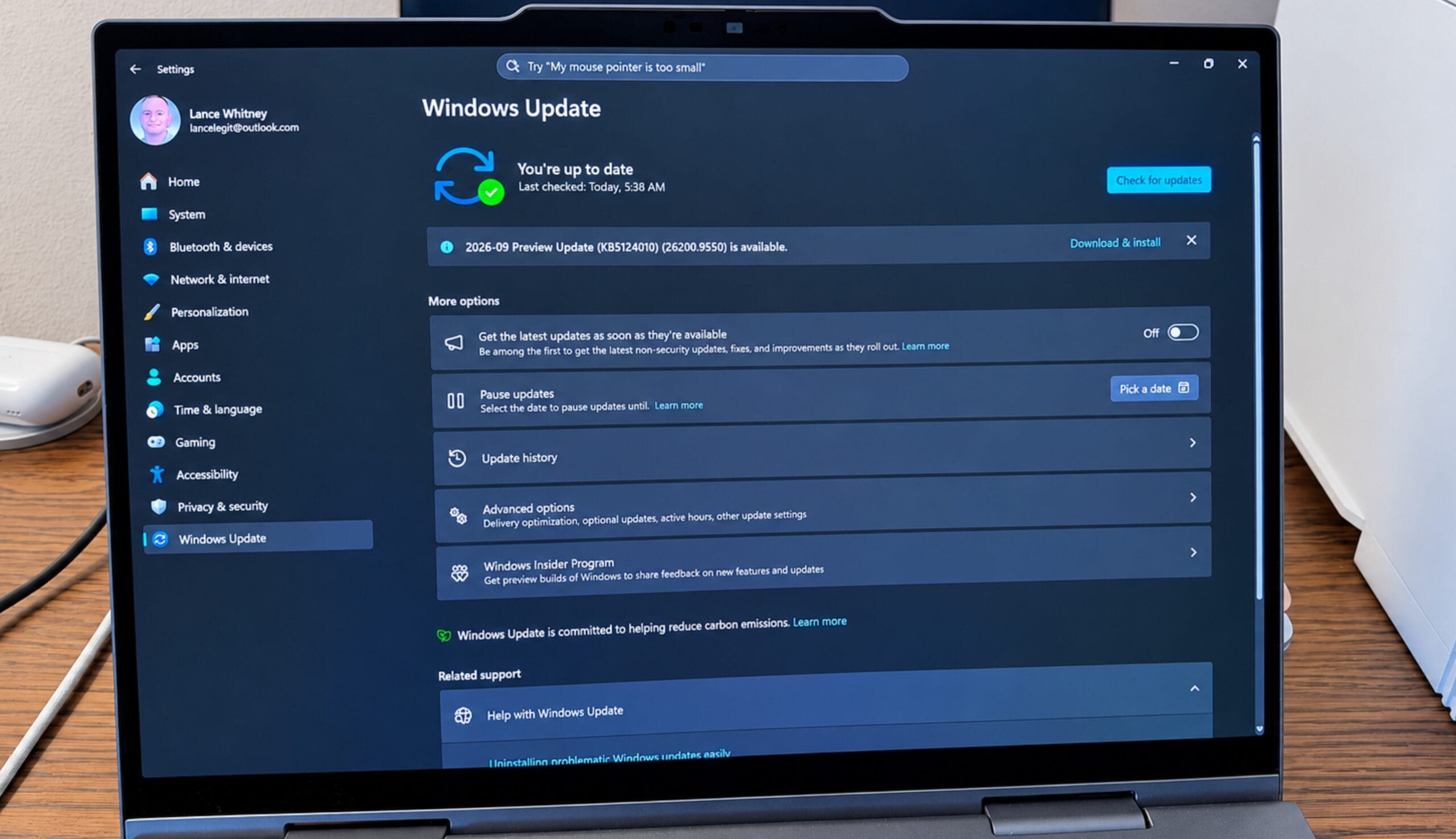
A new Windows 11 preview update released on Tuesday patches the bug so that file history works properly again. This is an optional update, so you’ll have to grab it yourself. Head to Settings, select Windows Update. Look for an update named 2026-09 Preview Update followed by a KB number.
The KB number varies depending on your Windows 11 edition. Users of Windows 11 26H1 will find KB5124006 waiting for them. Those running Windows 11 25H2 or 25H2 will detect KB5124010. Just click on the Download & Install link to run it. Although this is a preview update that may be buggy, this is your only option for now if you depend on file history. If not, you can wait until the October Patch Tuesday rollout, which will carry the same fix.
Also: Back up your files, or else: Here’s my simple 3-2-1 routine
OK, but what about Windows 11 23H2 and Windows 10? Well, that’s another story. Microsoft no longer supports version 23H2, while Windows 10 is only supported through the ESU updates. If you need file history on either of these two systems, the company says it is working on a fix for the problem that will be released in a future Windows update.