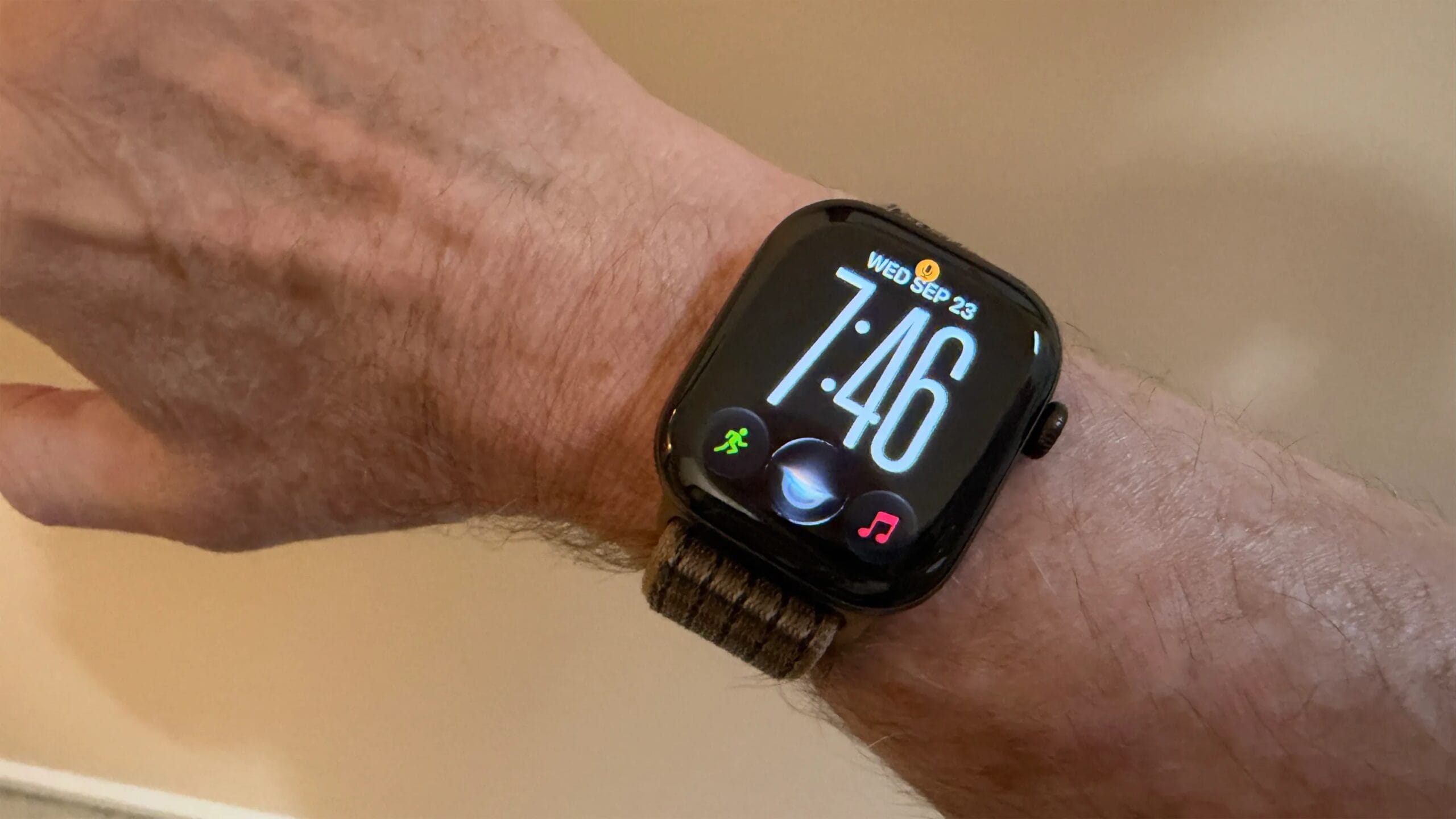
As an Apple Watch owner, I always look forward to each new version of WatchOS to see what surprises Apple has in store. With WatchOS 27, the company added and improved several features that I have been enjoying since installing the new version.
On the list is Siri AI. I can chat directly with the new AI flavor of Apple’s voice assistant to ask questions and request information. But there’s more to WatchOS 27 than the new edition of Siri.
Also: I wasn’t planning to upgrade to Apple Watch Series 12 – these new features changed my mind
To take the newest features for a spin, make sure you are on WatchOS 27. For that, you must first install iOS 27 on your iPhone. You can then grab the new WatchOS either on your phone or directly on the watch.
On your phone, open the Watch app, select General, and then tap Software Update. Select the option to upgrade to WatchOS 27. On your watch, go to Settings, select General, and tap Software Update. Select the option to upgrade the OS again.
Now, here are my five favorite WatchOS 27 features so far.
1. Chat with Siri AI
Siri AI is worth the upgrade. After several false starts, Apple has finally gifted its voice assistant with the necessary AI smarts, accuracy and reliability to satisfy even a previously dissatisfied Siri user like me. And you can experience a lot of what it has to offer via your Apple Watch.
Also: Apple Watch 12 can listen and recap your conversations now – genius or privacy nightmare?
Before you dive in, you’ll want to review and adjust the settings for Siri on the Apple Watch. On your phone, open the Watch app and tap Siri. Check the options to activate Siri, send messages and determine how it responds. Change all you want. Your watch’s Siri settings add a few more options. To see and manage them all on your Apple Watch, go to Settings and select Siri.
To activate Siri on your watch, just say “Siri” or “Hey, Siri” or press and hold the Digital Crown and start speaking. You can ask Siri general questions that require real-world knowledge, such as “What were the causes of World War I?” But you should find the AI version more thorough and capable than its predecessors.
As in the past, you can tell Siri to perform specific actions and tasks on your watch, such as setting a timer, calling a contact or starting a workout. However, now you can ask Siri to perform more complex, multi-step tasks. Here I’m told to check tomorrow’s weather and my calendar, then suggest the best time for an outdoor workout and add it to my schedule. Siri performed this task without any problem.
 Screenshot by Lance Whitney/ZDNET
2. Open recent apps from the new dynamic app grid
Finding the app you need on the Apple Watch home screen has always been a challenge, especially in the grid view, where there are so many nameless icons on the screen. I usually change to list view instead, but I still have to swipe through a long alphabetical list.
 Screenshot by Lance Whitney/ZDNET
New with WatchOS 27 is a dynamic app grid. Here, the screen shows only your five most used or most recently used apps, with an icon for the new Siri app in the center.
In the past, pressing the Digital Crown brought you to the full home screen. Now the crown will push you into the dynamic app grid. If you still want to see the entire home screen, just tap the icon, swipe up or turn the digital crown. To return to the app grid, swipe down on the home screen, or turn the digital crown in the other direction.
Also: I tested the Apple Watch Series 12 heart rate claims against my gold-standard Polar band
I will admit that this change took some getting used to. But it’s definitely grown on me as a quick and easy way to access a simpler screen with just my favorite apps. In the future, however, I’d like to see Apple create a customizable app grid that you can edit, similar to Smart Stack but with only the icons on the screen.
3. Access Siri from the Siri Modular watch face
Another quick way to access Siri is through the new Siri Modular watch face. The Siri icon appears front and center, with other complications on the side.
Also: Is Apple Watch 12 worth the upgrade? My advice as a series 10 and 11 owner
To see this feature, open the Watch app on your iPhone and tap the Face Gallery icon at the bottom. Select the section above for New Watch Faces. You should see Siri Modular at the top with different faces available. Tap on the face you like best.
 Screenshot by Lance Whitney/ZDNET
On the next screen, you can change the color, style and font, as well as one or more complications. When you’re done, tap the Add to Watch button to switch your current watch face to this one. To call Siri, simply tap on its icon on your new watch face.
4. Tap your fingers to select an item in the Smart Stack
The Smart Stack is a convenient way to access widgets for various functions, recent activities, live updates and other content. With last year’s WatchOS 26, Apple added the ability to open the Smart Stack and check any widget by double-tapping with thumb and index finger. Now WatchOS 27 takes that a step further by choosing the widget you want with just one touch.
 Screenshot by Lance Whitney/ZDNET
To check this from any screen on your watch, double-tap your thumb and index finger. That should open the Smart Stack. Double-tap your fingers to move to the next widget in the stack, and keep doing this until you find the widget you want. Then simply tap your fingers once, and the content associated with that widget will appear.
5. Access custom passes on your watch
With iOS 27 for iPhone, you can create personalized passes in the Apple Wallet app either by scanning the barcode or by entering the information manually. With WatchOS 27, you can now access those personalized passes on your Apple Watch. After creating a few custom passes on your iPhone, open the Wallet app on your watch. Swipe through the passes and cards. When you find the one you want, tap it to display the card and its barcode.
 Screenshot by Lance Whitney/ZDNET
See full bio