- Similar to the Android split-screen feature, the Windows File Explorer app allows you to arrange and use several apps (in a group) on a single screen in Windows 11.
- In addition to quick access, the File Explorer app Windows 11 allows you to show/hide extensions next to file names to facilitate easy identification.
- Open the File Explorer app and click the three-dot icon next to the View tab to access options.
Among tons of visual changes and new features, Windows 11 has completely overhauled the File Explorer app to make it more productive than ever. To help you master it, we have selected the best Windows 11 File Explorer tips, tricks and hidden hacks to make use of its useful features. Stay with this guide until the end to make the most of it. Additionally, you can learn how to fix the File Explorer app on Windows 11 if it’s not responding.
Top Windows 11 File Explorer Tips, Tricks and Hidden Hacks
Below, we’ve curated the list of the best Windows 11 File Explorer tips, tricks and hacks to master in no time. So without further adieu let’s begin.
Maximize productivity by arranging apps into groups
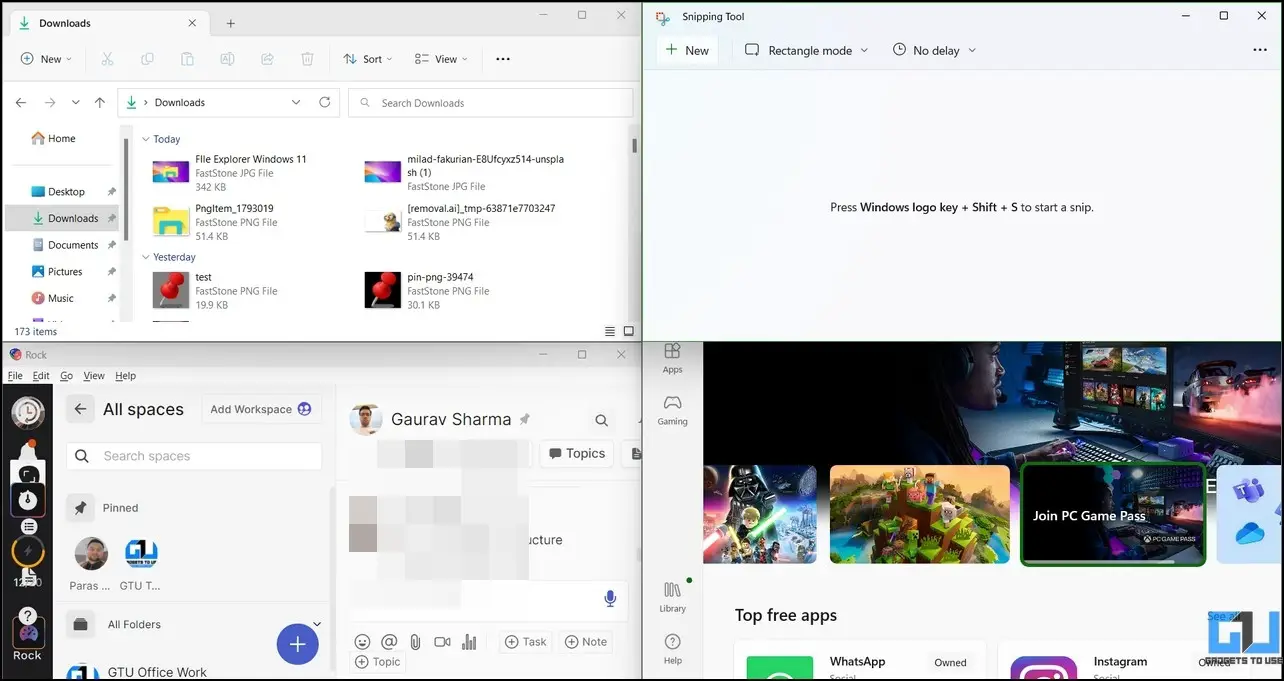
Similar to the Android split-screen feature, the Windows File Explorer app allows you to arrange and use multiple apps (in a group) on a single screen in Windows 11. Therefore, you can group up to four different apps on a single screen. Here’s how:
1. Open the File Explorer app and move your mouse pointer over the Maximize/minimize window icon to view predefined group layouts.
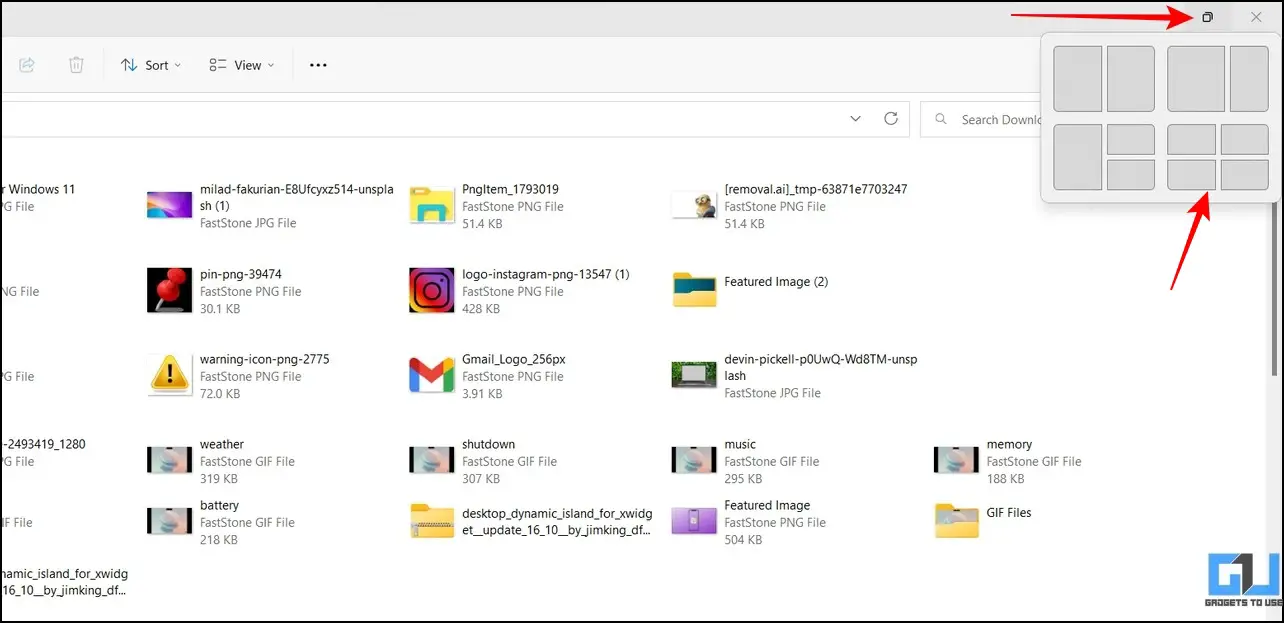
2. Next, select your desired grouping layout and open your desired app in each split window to use them simultaneously.
Open multiple tabs in Windows File Explorer
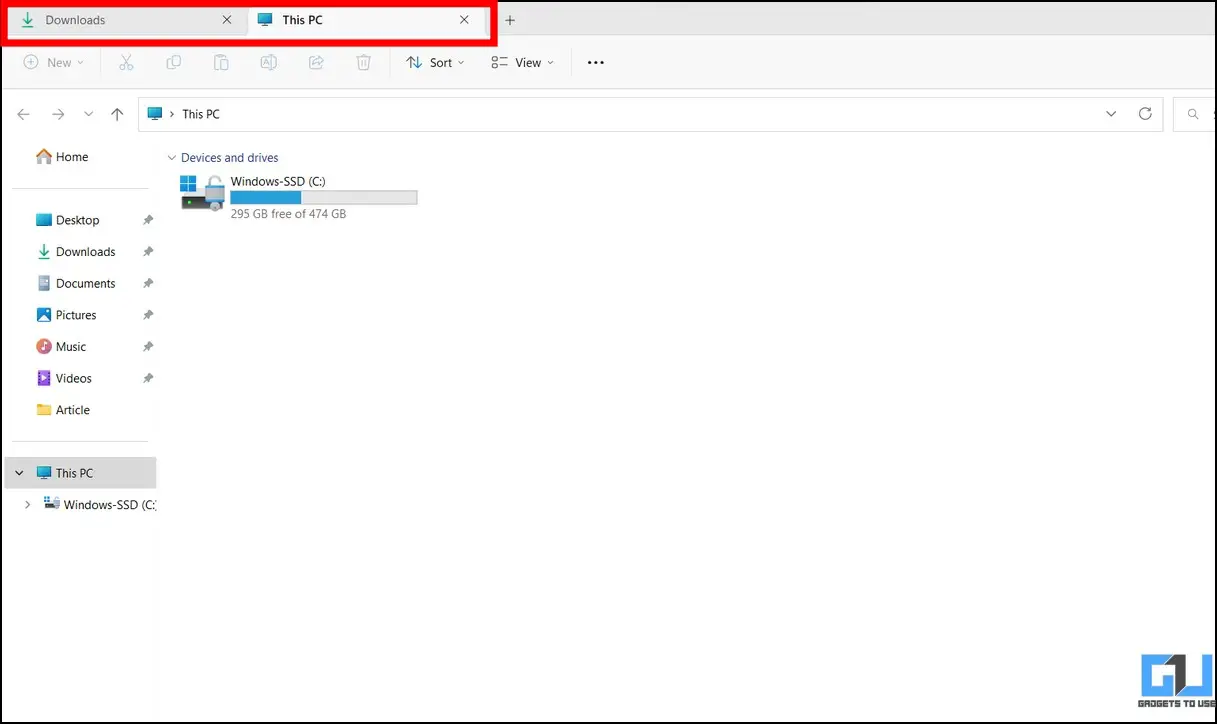
Gone are the days when you had to open a separate window to access each file. Now you can open multiple tabs in a single File Explorer window to conveniently navigate and access your files like a web browser. Here’s how to use it:
1. Open the File Explorer window and click on + Icon to open a new tab.
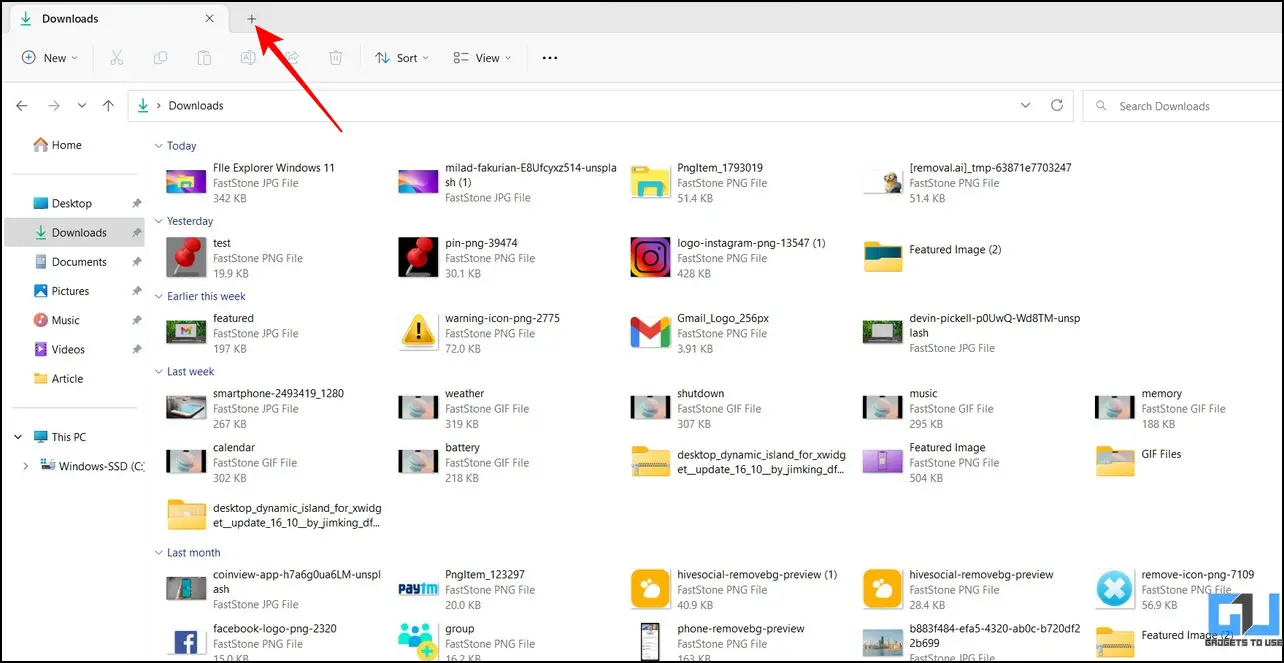
2. Next, browse and access your desired file on the newly opened tab. You can switch back to the previous directory by pressing the previous tab.
Change Default File Explorer Location
When you open the File Explorer app, it opens the Home tab by default, which makes it irritating to manually access disk drives on the “This PC” tab every time. Fortunately, you can change it by configuring the File Explorer settings. Here’s how:
1. Open the File Explorer app and click on three-point icon next to the View tab to access Options.
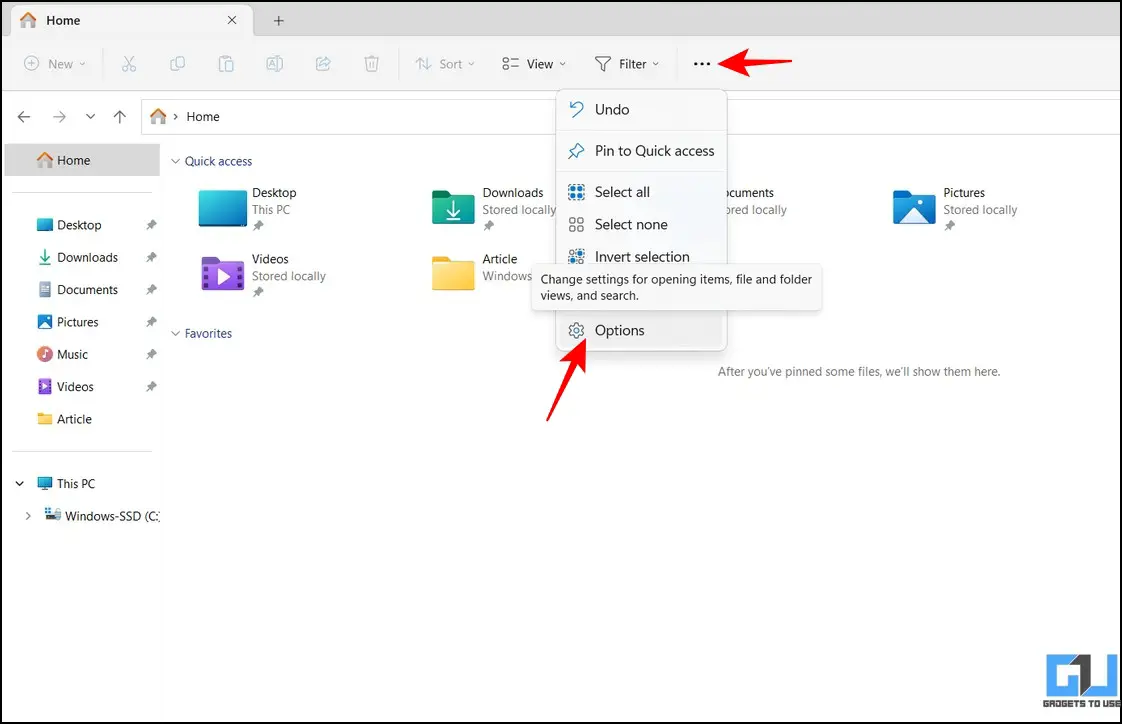
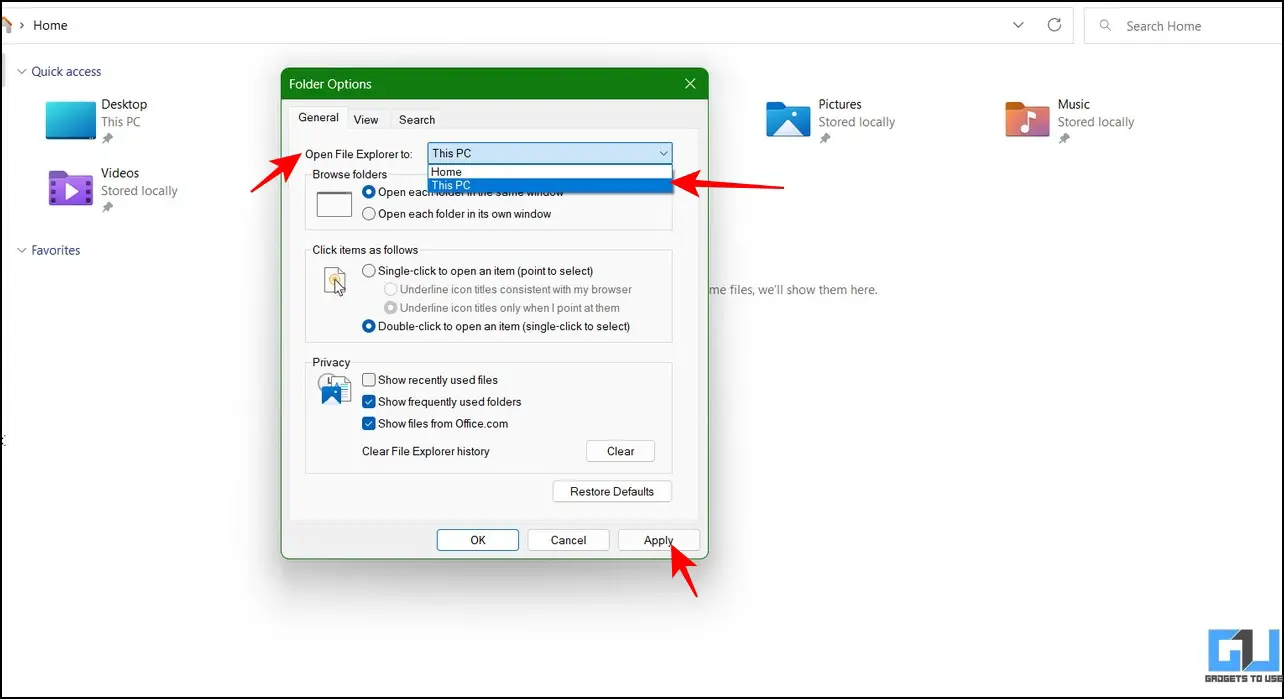
2. Now click on ‘Open File Explorer for‘ option and set it to ‘This PC‘.
3. Finally, press on Application Button to save changes.
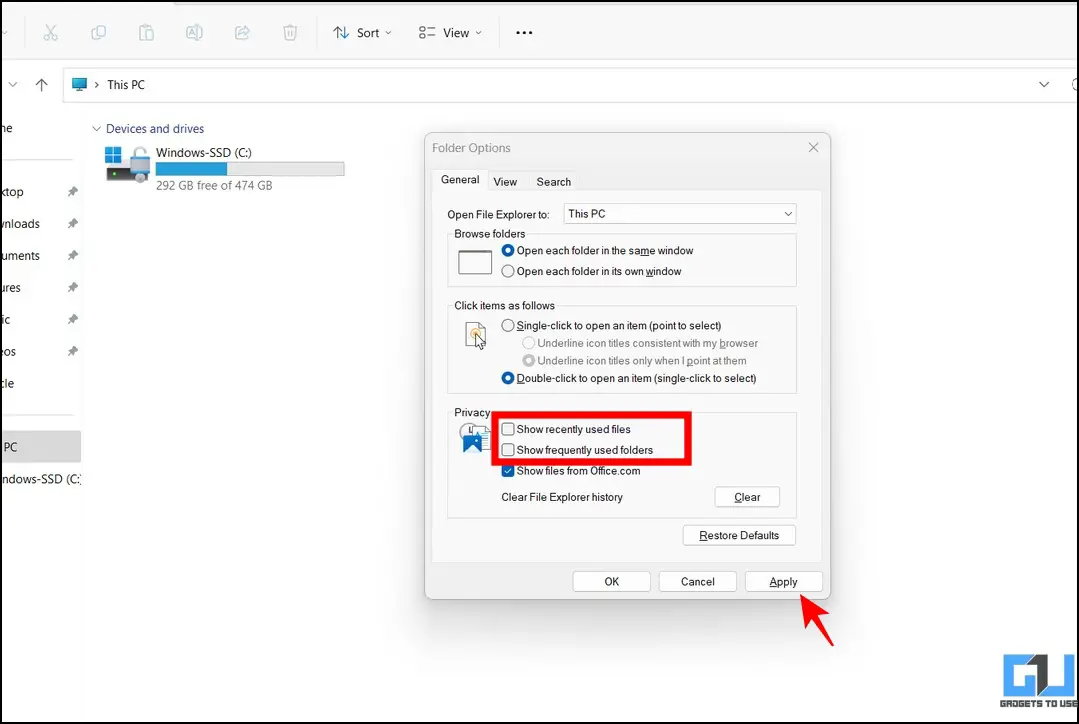
Control Privacy for the Quick Access Menu
The Quick Access Menu in the Windows File Explorer app has the ability to display frequently or recently used items on your system. If you share your system with your friends/family, you may sometimes feel uncomfortable disclosing this recent information. Fortunately, the updated File Explorer app allows you to turn it off. Follow these steps for an easy fix:
1. Open the File Explorer app and click on three-point icon next to the View tab to access Options.
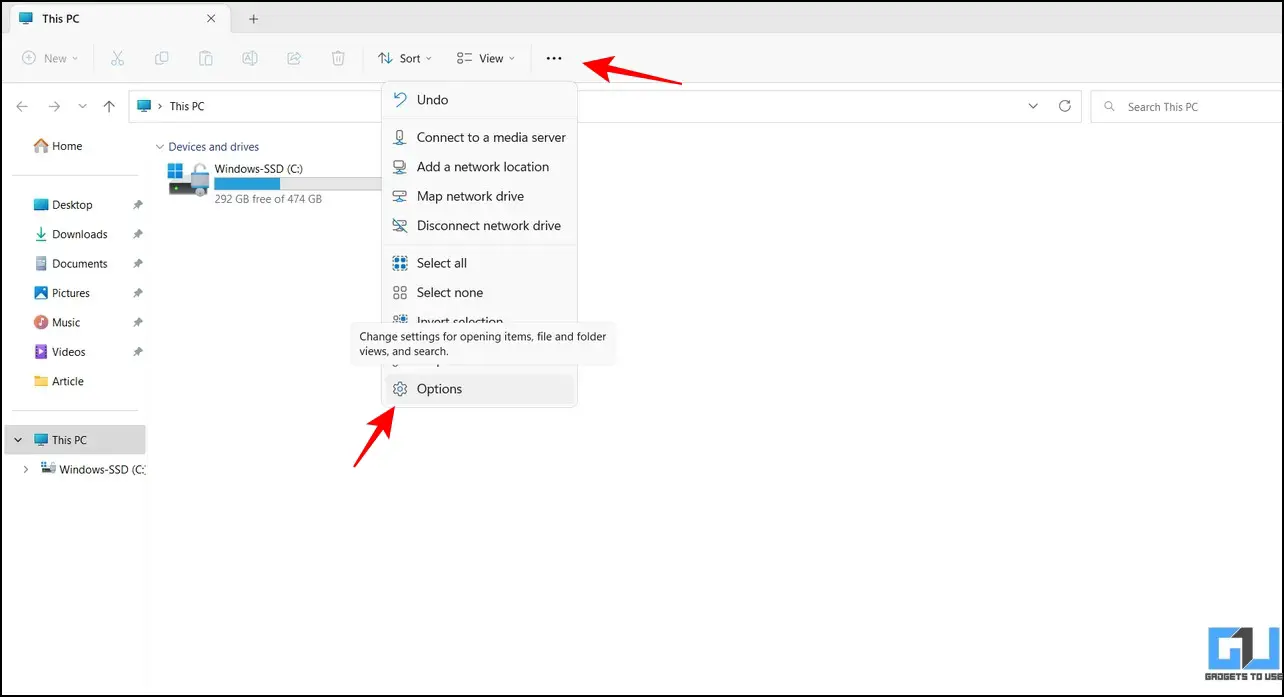
2. Hey, switch off the boxes forShow recently used files‘in the’Show recently used folders‘.
3. Finally, press on Application Button to save changes.
Show/Hide file name extensions
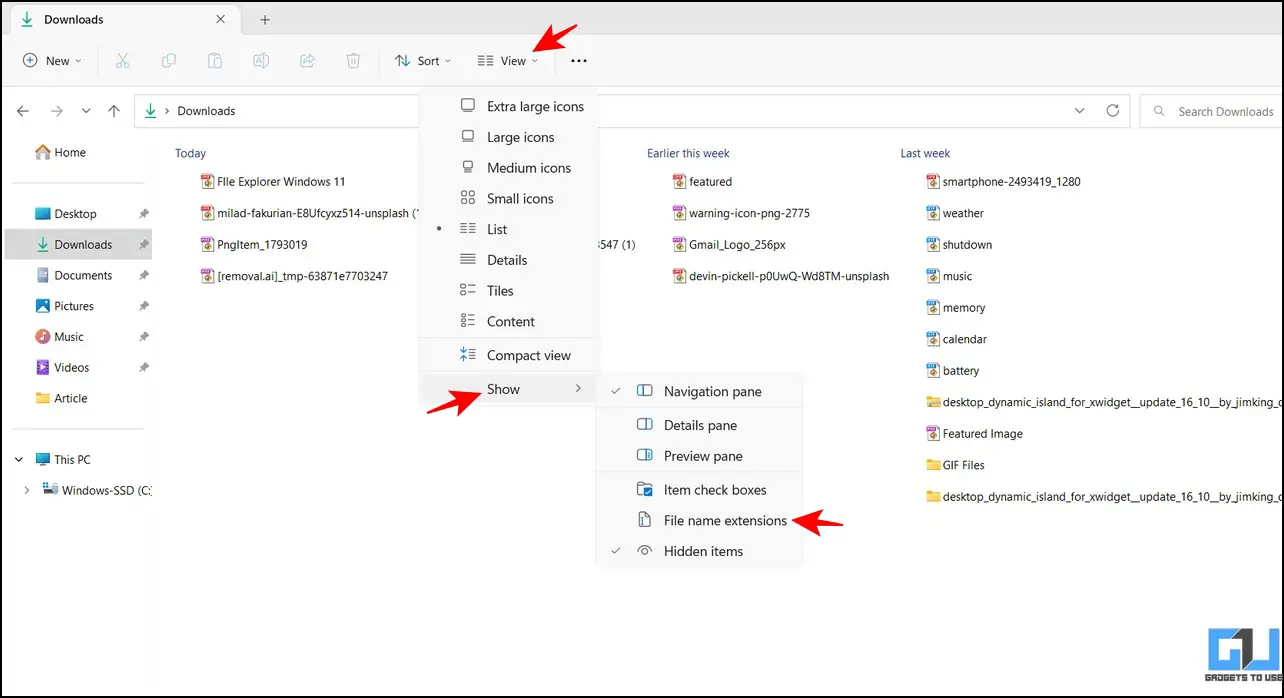
In addition to quick access, the File Explorer app Windows 11 allows you to show/hide extensions next to file names to facilitate easy identification. Here’s how you can enable or disable the same:
1. Go to your desired file directory with the Explorer app and click on it View tab at the top.
2. Hover your mouse cursor over the Show option and click on File name extensions to enable it.
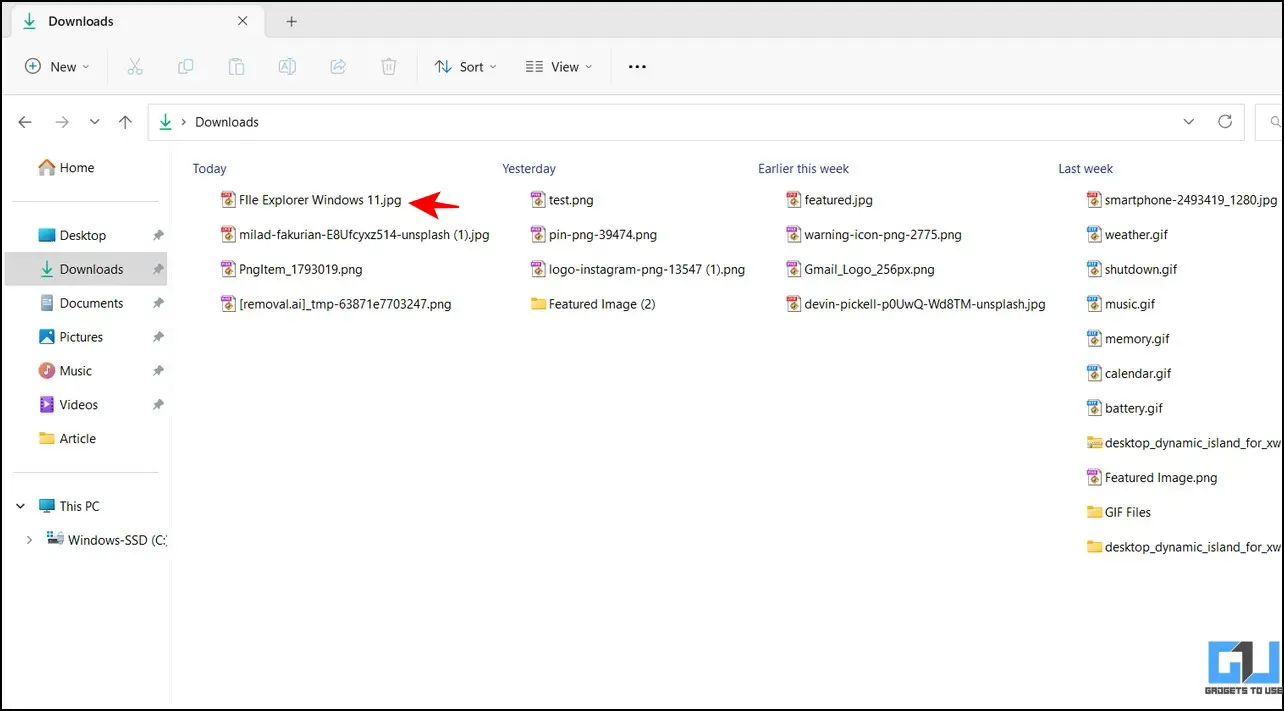
3. You can see now Extensions next to each file name in the directory. To disable the extension, repeat the same steps.
Customize the folder and file appearance
Similar to Windows 10, you can change the appearance of files and folders in Windows 11 to make them more readable. Follow these simple steps to customize the same:
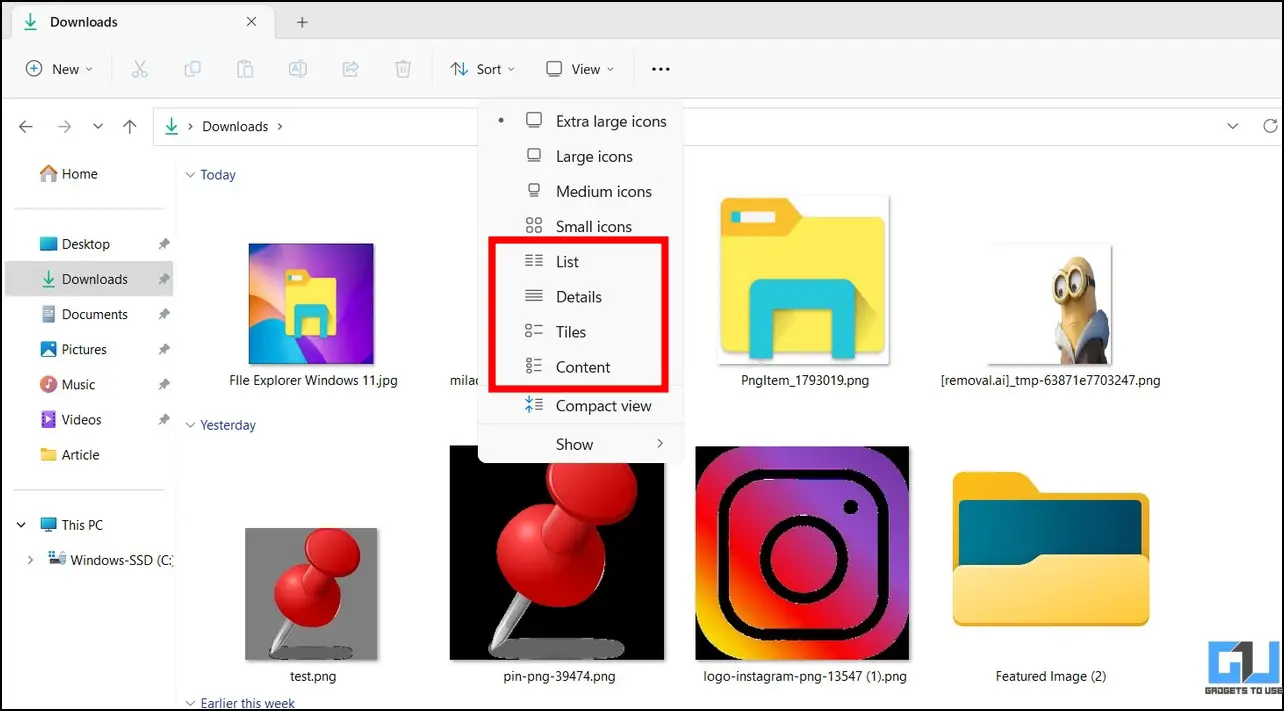
1. Open the File Explorer app and click on View Tab in the toolbar above.
2. Next, choose your wish icon size of the list to increase readability. An extra large icon size shows the entire image/folder as a preview thumbnail, while a small icon size saves space to view more items.
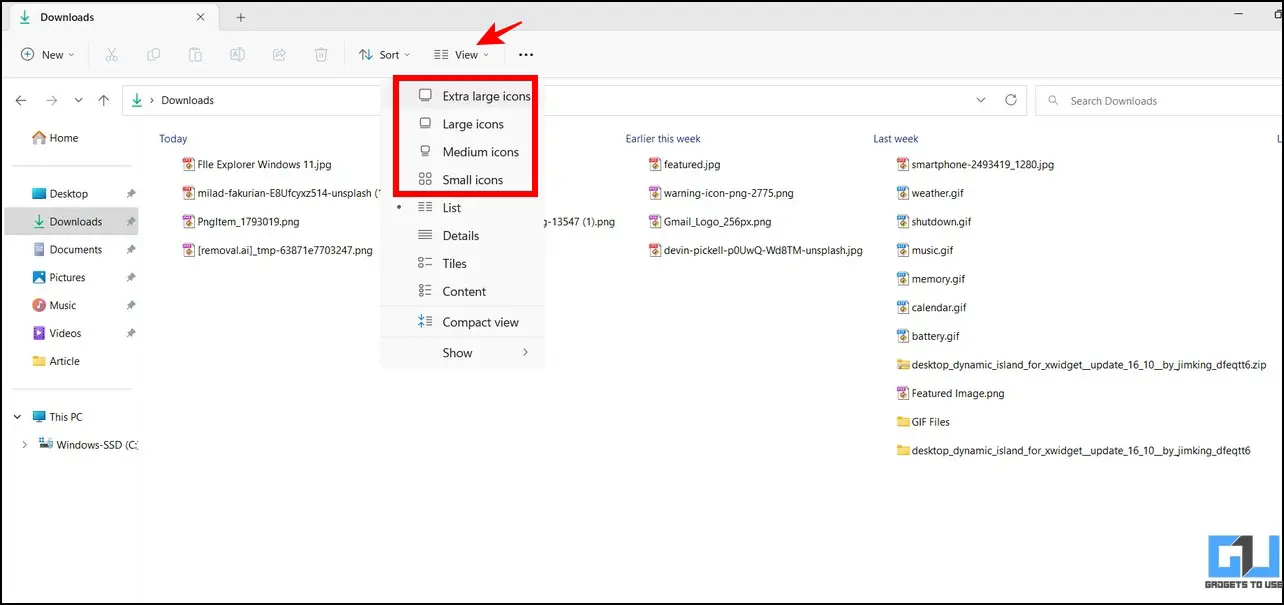
3. Similarly, you can choose from four predefined layouts, namely, List, details, plates, and contentsto organize files and folders in a directory.
You can also follow our guide to installing the macOS “Quick Look” feature on Windows to help you easily see the contents of a file without actually opening it.
Rotate images without opening them
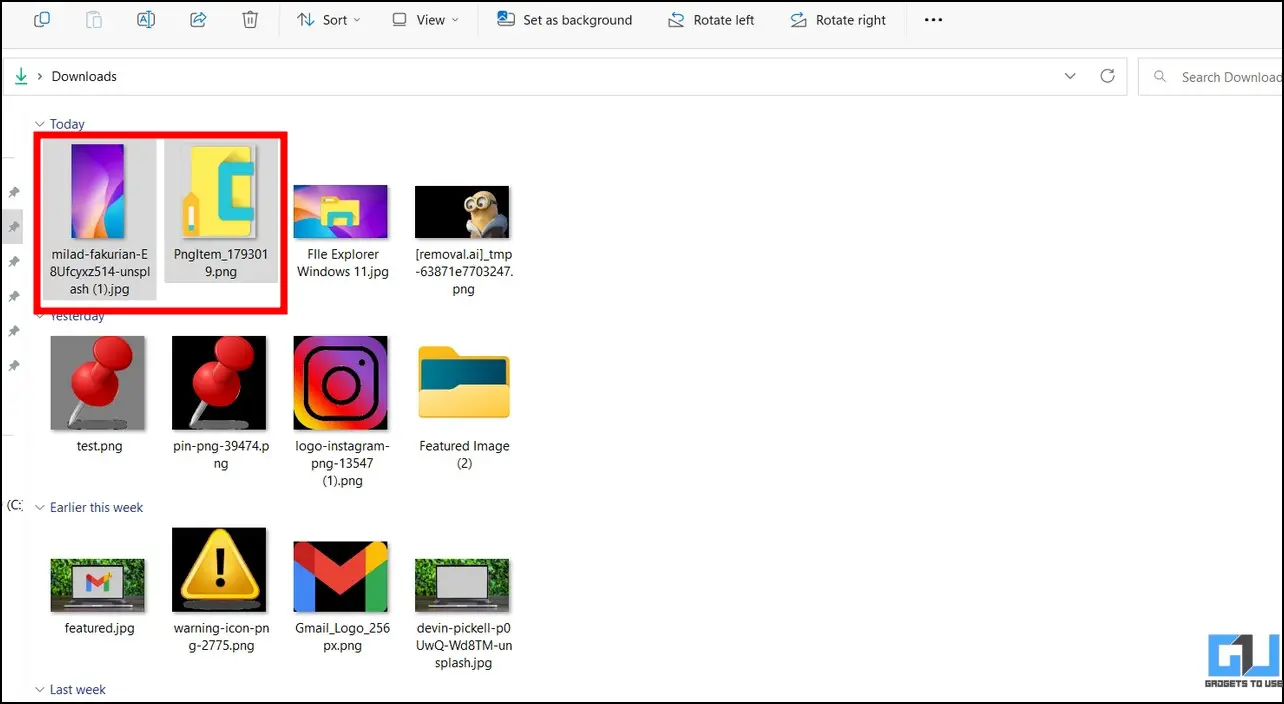
With the new File Explorer update in Windows 11, you can rotate images without opening them. In addition, you can select multiple files in bulk to rotate them directly with a single click. Here’s how:
1. Select your desired image(s) using the File Explorer app and click on Rotate button in the toolbar above. You can either rotate the image left or right by clicking on their respective buttons.
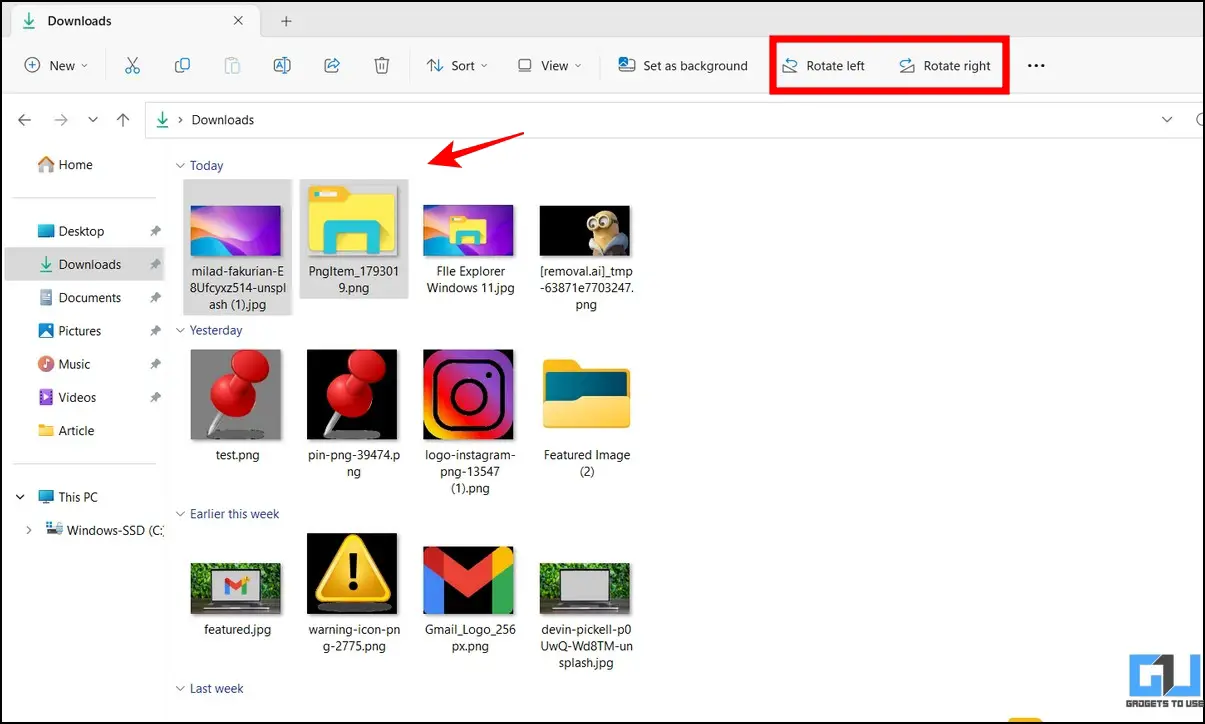
2. Once rotated, you can preview the image with the file thumbnail without opening it.
Change system background with one click
Switching to a new system background is as easy as pie with the new Windows File Explorer app. Just select the image you want to set as your background and then click on it Set as background button above to apply it.

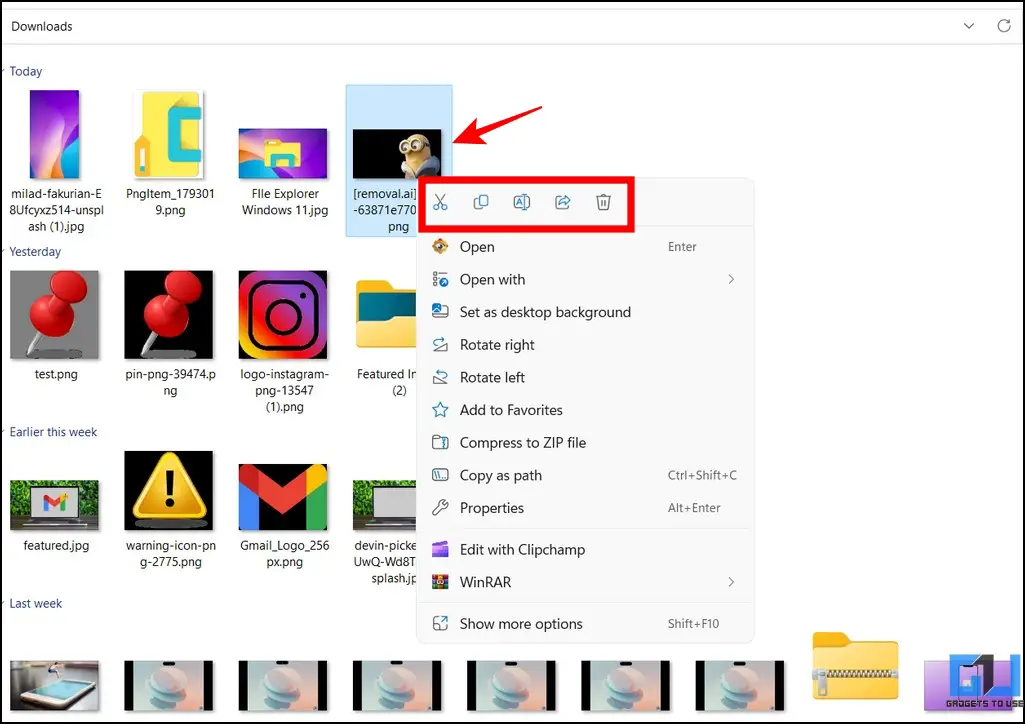
A versatile right-click context menu
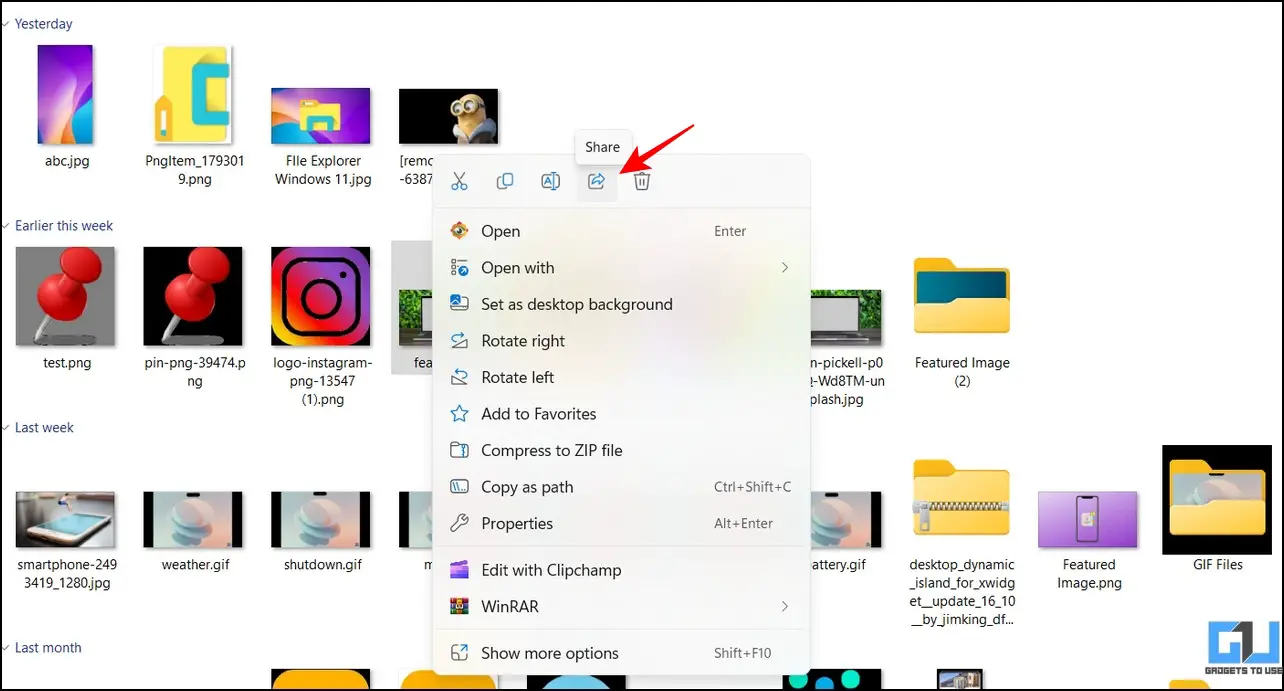
The new File Explorer app in Windows 11 intelligently recognizes the file type and offers useful suggestions for handling it. Therefore, the context menu differs based on file type to manage each file and folder in the directory. In addition, the menu offers quick buttons to cut, paste, rename, share and delete in its header or footer section to save you valuable time. However, if you prefer the old right-click context menu (like Windows 10) instead of the new UI, you can check out our guide to return the old right-click context menu to Windows 11.
More powerful search bar than ever before
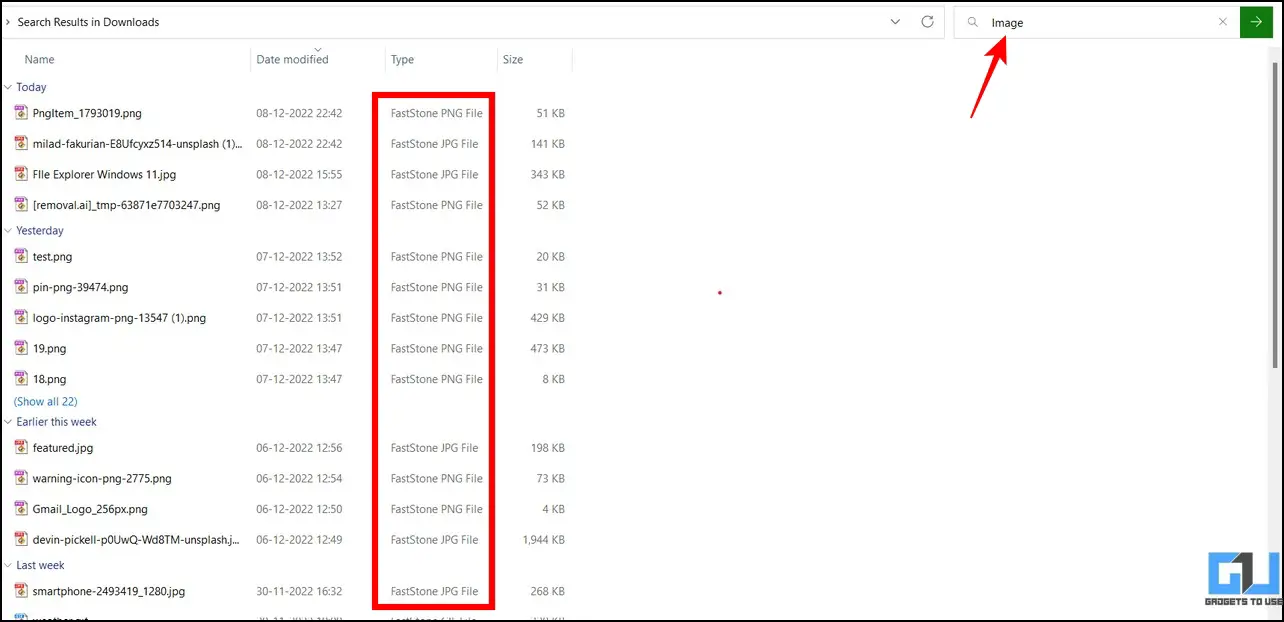
In addition to searching for individual files, the new search bar in the Windows 11 File Explorer app can find similar file types with a keyword. For example, if you type ‘folder’ in the search bar of a file directory, you will see all the folders in it. Similarly, if you type ‘image’ in the search bar and press the enter key, File Explorer will show you all the image files present in your searched directory. This can be useful if you are looking for a similar file type among the vast ocean of files and folders in your directory.
Select multiple files with checkboxes
Often while selecting multiple files, we accidentally drag the mouse pointer or release the control key, losing the focus of the selected elements. No longer; as the new File Explorer app on Windows 11 now offers the checkboxes function allows you to select multiple files by clicking the check box above each item. Here’s how to activate it:
1. Navigate to your desired file directory and click on it View tab and activate the Item CheckBoxes under the show feature.
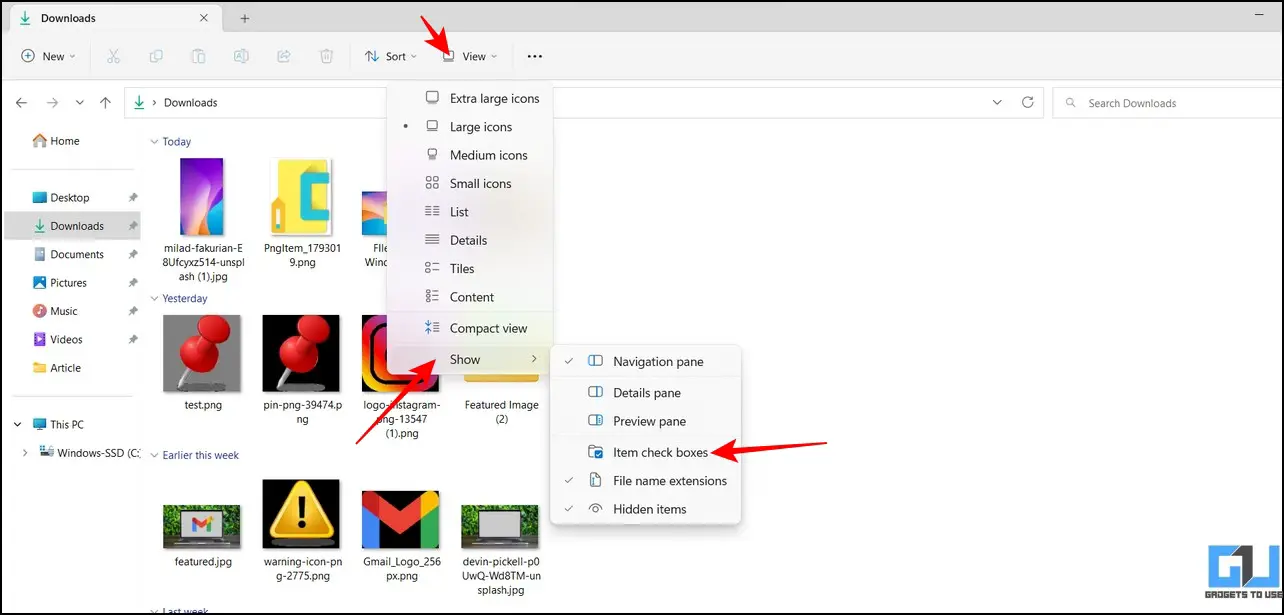
2. To select multiple items with the check box, hover your mouse over the upper left corner of each file icon and click the checkbox button to select it.

3. Repeat the above steps to select multiple files in your current directory.
Rename files in bulk in Windows File Explorer
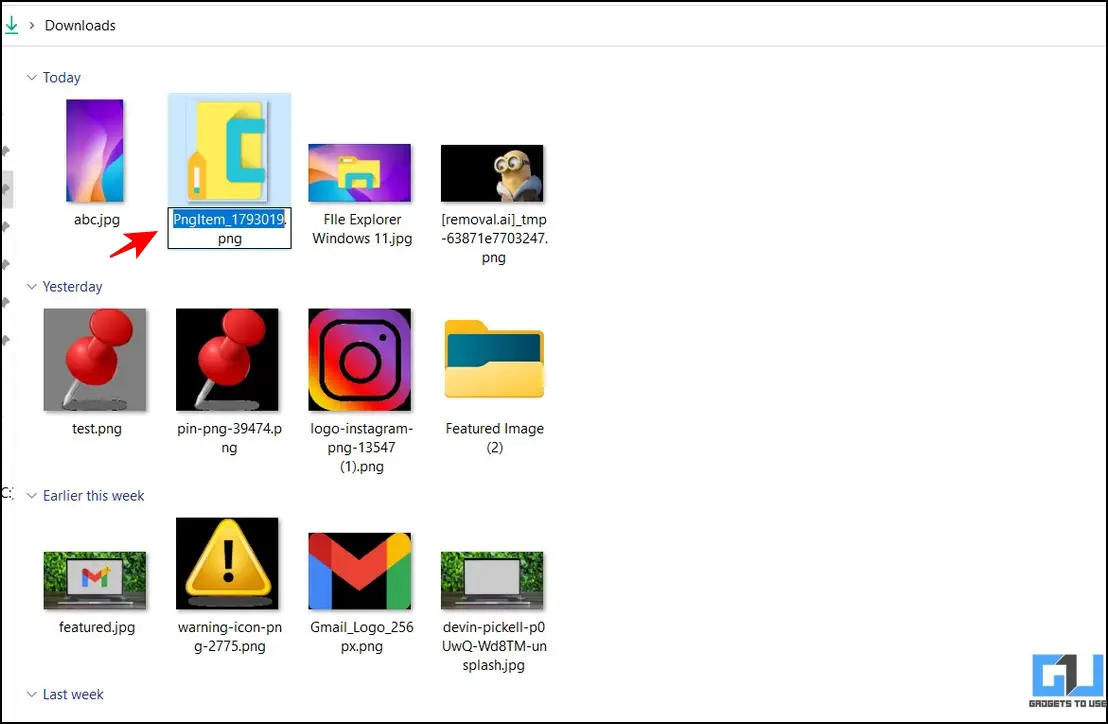
While organizing screenshots or photos, we feel the need to rename them. Usually, you have to go through the time-consuming process of clicking on each photo to rename it, but what if there was a quick way to do it? With Windows 11, the File Explorer app allows you to rename a file and press on tab button rename the immediate neighbor. You can quickly repeat this process to rename multiple files sequentially.
Preserve screen space with the Compact View
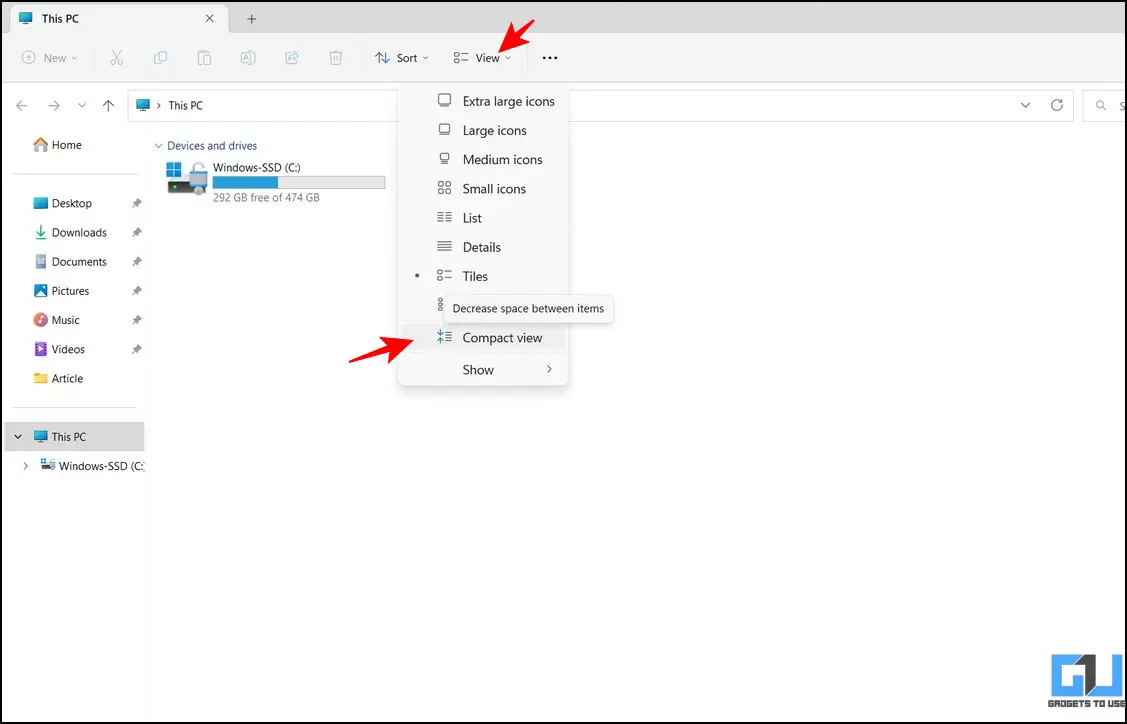
If you feel that the new File Explorer UI has too much padding between elements, you can go to the Compact layout to save space and see more items on a single screen. This can be useful for your vertical screen settings. Here’s how it can be done:
1. Press on View tab in the toolbar at the top and click on Compact view option to enable it.
2. Note that the padding between items in the left sidebar and filename has decreased.
Share files directly from Explorer
Sharing files with Windows 11 File Explorer is super convenient and fast. Right-click to your desired file and press on Share icon to send it to nearby devices or connected apps. You can also share it with Feedback Hub or Microsoft Teams for quick communication.
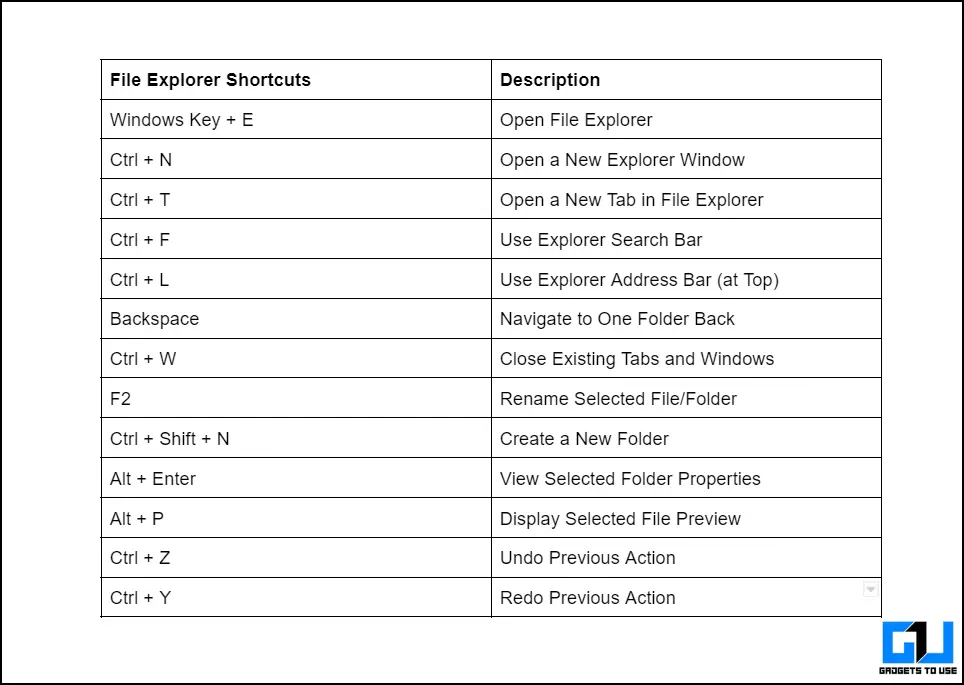
Increase productivity with File Explorer hotkeys
Last but not least, you can master navigation through the Windows File Explorer app using these hotkeys/shortcuts:
FAQs
Q: How to change Windows 11 File Explorer layout?
A: You can go to the View tab at the top to change the layout of the files in the Explorer app.
Q: Where can you access the settings for the Windows 11 File Explorer app?
A: Simply press the three-dot icon next to the View tab and click Options to access the File Explorer app settings.
Q: How do I change the file icon size in the Windows 11 Explorer app?
A: Click on the View tab and select your desired icon size from the list to improve readability. See the above tips for detailed steps.
Q: How to print a document from File Explorer in Windows 11?
A: Right-click on the file and click on the Show More option in the right context menu. Here you will find the option to print your document.
Wrapping Up: Become a Pro with Windows 11 File Explorer Tips!
We hope you have chosen some useful file explorer features of Windows 11 through this guide, some of these features also work on Windows 10, or you can Windows 11 File Explorer on Windows 10. If you find it helpful, share this reading with your friends to boost their productivity to the next level. Stay subscribed to GadgetsToUse, and check the links below for more interesting Windows 11 walkthroughs.
You may be looking for the following:
You can also follow us for instant tech news Google News or for tips and tricks, smartphones & gadgets reviews, join us GadgetsToUse Telegram Groupor subscribe for the latest review videos GadgetsToUse Youtube Channel.
⬇️ GadgetsToUse Site Search ⬇️
You can find everything on our website including tech how to, solution or reviews using the google site search box below.
Was this article helpful?
YesNo