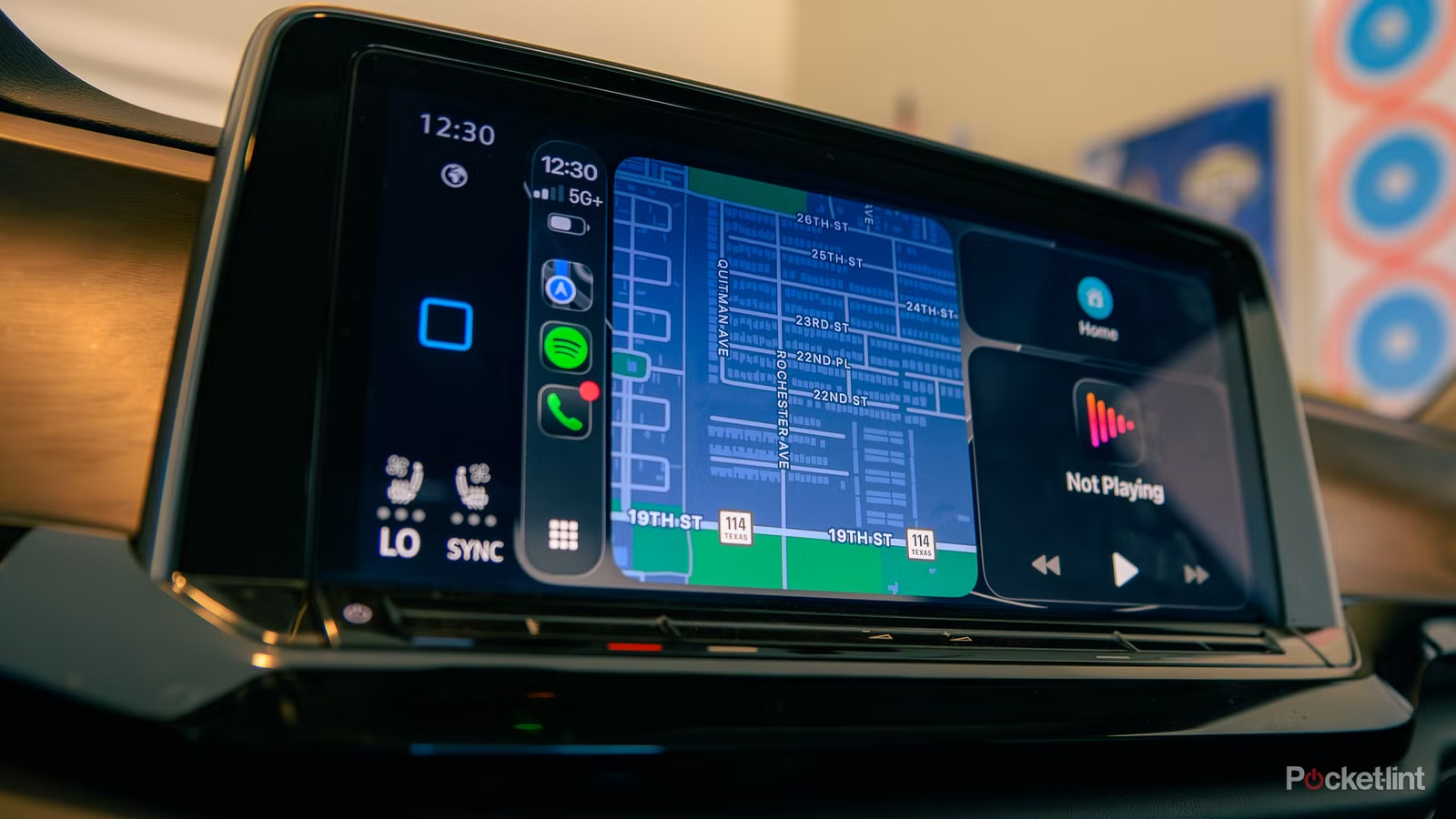
I’m in my car a lot. I put about 35k miles on my daily driver every year, jumping between racetracks, hunting trips and much more as an extreme sports videographer and photographer. On many of those miles, my phone signal goes in and out, and if you’ve ever been in an area without service and had to use Apple CarPlay, you know that when those bars drop, it’s about as useful as a dull knife or a paper hammer.
So what did I do? I had to get smart and find some Apple CarPlay workarounds that would still make the system work even though my phone didn’t. See, Apple CarPlay relies on your phone’s signal for things like navigation, music streaming, messaging and all the other great features it usually offers. Losing a phone signal doesn’t necessarily mean that CarPlay stops working completely, but some features may disappear if your phone doesn’t have a stable connection. Here are four simple fixes you can use to keep your navigation, entertainment, and communication options running smoothly if you ever drive through the same rural places I do on a regular basis.
Download your maps before the road disappears
The best time to prepare for a dead zone is before you hit one
A few times a year I hit the road down to the Texas coast to video and document some fishing trips for clients. On that drive, a sign says “no fuel for 120 miles.” If there is no fuel for that long, you can almost guarantee there will be no phone signal for that long either. So how do you fix a 120 mile navigation case? You download your directions before you ever leave the house.
The steps are quite simple. Just open maps → tap profile picture or initials → select offline maps, then add a new map → select the area you expect to travel through and download. Downloaded maps can still provide expected arrival times and turn-by-turn navigation without a Wi-Fi or cellular connection. However, they cannot monitor traffic conditions, but if you pass through an area that re-establishes your connection, you will receive a refresh. Also, make sure you’re downloading the very appropriate region, and if it looks like you’re drifting in and out of one, download both.
Download your music before the streaming goes silent
Static is not a good road trip playlist

Streaming music and podcasts also requires a cellular or Wi-Fi connection, and can also be fixed with a simple download. However, there are a few things to consider. You may ask, “Tanner, why don’t I just listen to the radio?” Because, believe it or not, there are still some areas of the good ol’ US of A. that don’t even get a radio signal. At times like these, why not download your favorite album or, better yet, one of your favorite audiobooks?
These downloads are usually managed in your streaming app of choice and vary by platform, so check there for the appropriate processes. That said, it’s a good idea to check the download status and make sure the file works before you hit the road. You don’t want to reach those desolate stretches and find out that your phone has automatically deleted those files because you haven’t opened them yet.
Don’t assume that Siri and messaging will work normally
Your digital co-pilot has some blind spots

I am perhaps one of the world’s biggest advocates of using voice commands on the road. However, at times like these, they don’t always work. Some voice command functions, such as messaging, navigation and other communication functions, rely on you having a phone signal. This means that even if you have downloaded maps, simply telling Siri to find a location within those maps may not work as intended.
So what is the solution? You must keep your important addresses on hand, written down, at all times. For example, I meet my client groups at the same piers in every city I work from. But instead of relying on Siri and voice commands to get me there through my downloaded maps, I always punch in the actual address of the place because it doesn’t require Siri to search through a weak or non-existent phone signal that I have.
Do a dead-zone drill before you leave
A little prep beats a lot of frustration down the road

Want to know the best way to prepare for the open road? Run what is known as a dead-zone drill before you leave the house. Download a map and some audio, then temporarily disable cellular data to see what images remain available. Then you can test offline navigation through CarPlay’s interface, instead of relying solely on whatever Maps program you use. Turning off cellular data is not very same as losing a signal, but it’s as close as you can get to a good practice run.
Obviously, this kind of preparation cannot replicate real-life emergency situations or guarantee coverage everywhere, but if you feel more comfortable in these situations, you can more easily get around it when the time comes, and be less frustrated when that signal inevitably drops and your CarPlay program becomes as useful to your driving experience as Microsoft Paint.